How to Set Up Shopify Free Gift With Purchase Based On Cart Value?
Summary
Shopify free gift with purchase promotions help increase average order value by rewarding customers when they reach a cart value threshold. Unlike standard discounts, this strategy encourages higher spending while protecting margins by offering controlled incentives. Using tools like progress bars and tiered rewards, merchants can create visible, real-time motivation for customers to add more items to their cart. Since Shopify’s native features have limitations, apps enable advanced setups like auto-adding gifts, multiple milestones, and targeted campaigns, making free gift promotions a high-impact ecommerce strategy. Solutions like Monk make it easy to implement these promotions with flexible rules and seamless customer experience.

Ravish (RV)
Senior Content Writer
Ravish is an ecommerce and SaaS marketing expert with 6+ years of experience in Shopify and ecommerce and 10+ years of experience in marketing, and growth strategy. He has worked closely with Shopify merchants to solve real ecommerce challenges and shares practical, research-backed insights, industry best practices, and emerging trends.
Key Takeaways
Shopify free gift with purchase promotions help increase average order value by rewarding customers when they reach a cart value threshold. Unlike standard discounts, this strategy encourages higher spending while protecting margins by offering controlled incentives. Using tools like progress bars and tiered rewards, merchants can create visible, real-time motivation for customers to add more items to their cart. Since Shopify’s native features have limitations, apps enable advanced setups like auto-adding gifts, multiple milestones, and targeted campaigns, making free gift promotions a high-impact ecommerce strategy. Solutions like Monk make it easy to implement these promotions with flexible rules and seamless customer experience.
Offering a free gift with purchase on Shopify can increase your store's average order value, but you have to set it up the right way. Monk's Cart Goals feature lets you display a real-time progress bar on your store. It also automatically rewards customers with a gift when their cart crosses a value threshold.
In this guide, you will learn how to set up a Shopify free gift with purchase promotion triggered by cart value, with an example.
What is a Free Gift with Purchase on Shopify?
A free gift with purchase on Shopify is a promotional mechanic where a customer automatically receives a free product when their cart meets a set condition, most commonly a minimum cart value. Unlike a percentage discount or a coupon code, the free gift is added to the cart automatically (or offered as a selection) once the threshold is hit.
Shopify has gift logic at the cart level, but it comes with limitations. Its built-in discount system cannot automatically add a free product to a cart based on cart value rules. You also cannot create highly targeted offers as layering eligibility criteria isn't supported by default. To run this type of promotion, you need a dedicated app, and Monk's Cart Goals feature is here to help.
Why Use Cart-Value-Based Free Gifts on Your Shopify Store?
Before jumping into the setup, it is worth understanding why this strategy works so well.
It Directly Increases Average Order Value
When a customer sees they are $15 away from a free gift, they are very likely to add another item to their cart. A visible progress bar makes this incentive real and immediate. Unlike a percentage discount that applies to whatever is already in the cart, a cart threshold reward actively encourages customers to spend more.
It Protects Your Margins Better Than Discounts
A 20% discount applied store-wide costs you on every single order. A free gift promotion costs you only when a customer crosses the threshold you set, and you control exactly what that gift is. If you choose a low-cost, high-perceived-value item (a travel-size product, a branded accessory, a sample), the margin impact is far smaller than a blanket discount.
A Progress Bar Makes the Incentive Visible
The reason Cart Goals works better than a hidden promotion is the progress bar. Customers can see in real time how close they are to unlocking the reward. That visibility creates a psychological nudge that passive discounts simply cannot replicate.
Tiered Milestones Create Multiple Conversion Triggers
With Monk's Cart Goals, you are not limited to one reward. You can set multiple milestones in a single campaign, for example:
$50 → Free shipping
$100 → Free gift (auto-added)
$150 → 10% order discount
Each tier gives the customer a fresh reason to keep adding to their cart. This is more powerful than a single offer because it rewards incremental spending at every level.
It Works for Multiple Use Cases
Cart-value-based free gifts are versatile. Use them for:
Seasonal campaigns (Black Friday, Independence Day, New Year sales)
New product launches (sample a new SKU as a gift)
Customer retention (reward returning customers with a bonus gift)
Slow-moving inventory (clear stock by gifting it to high-value cart customers)
How to Set Up Shopify Free Gift With Purchase Using Monk
Below is the complete step-by-step process for setting up a cart-value-based free gift promotion using Monk's Cart Goals feature.
Step 0: Install and Open Monk to Create an Offer
Log in to your Shopify Admin and navigate to Apps. Search for Monk and install the app. Once installed, open the Monk dashboard from your app panel.
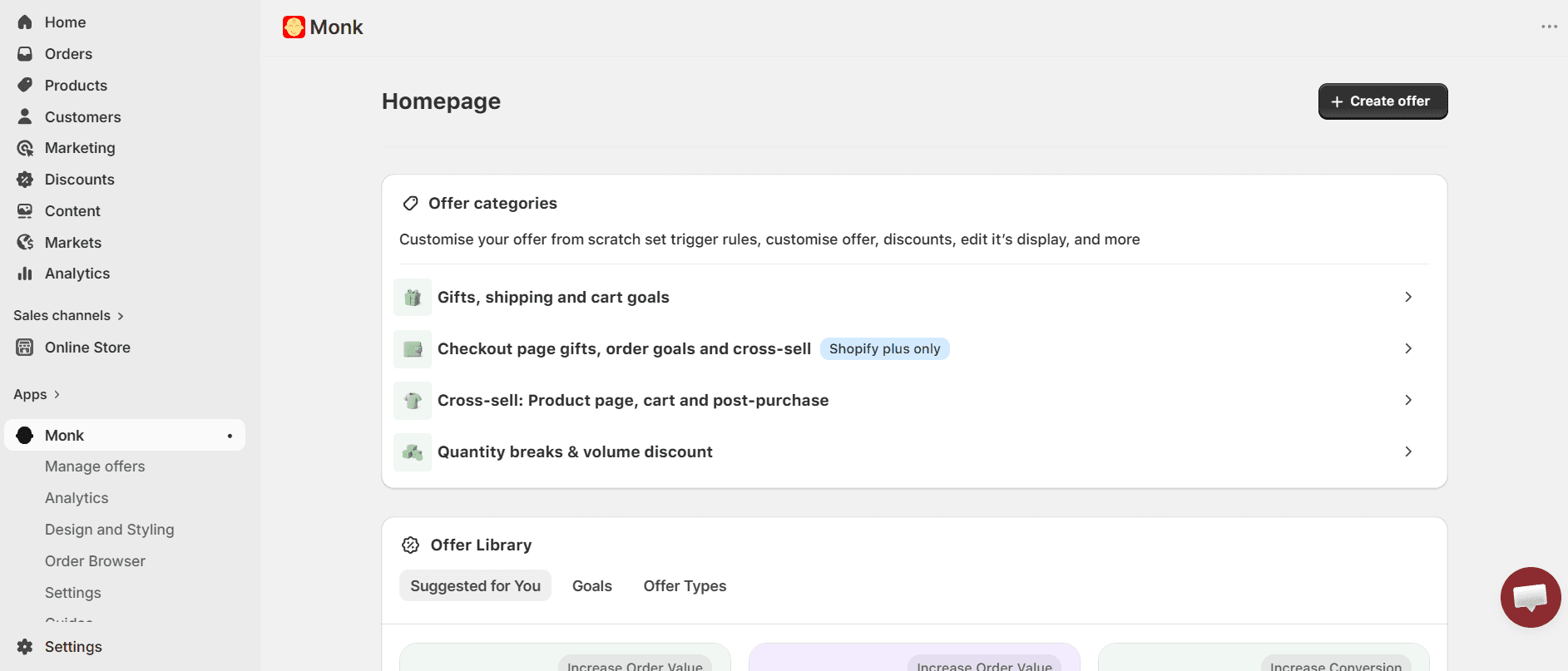
From the Monk dashboard, click Create New Offer.
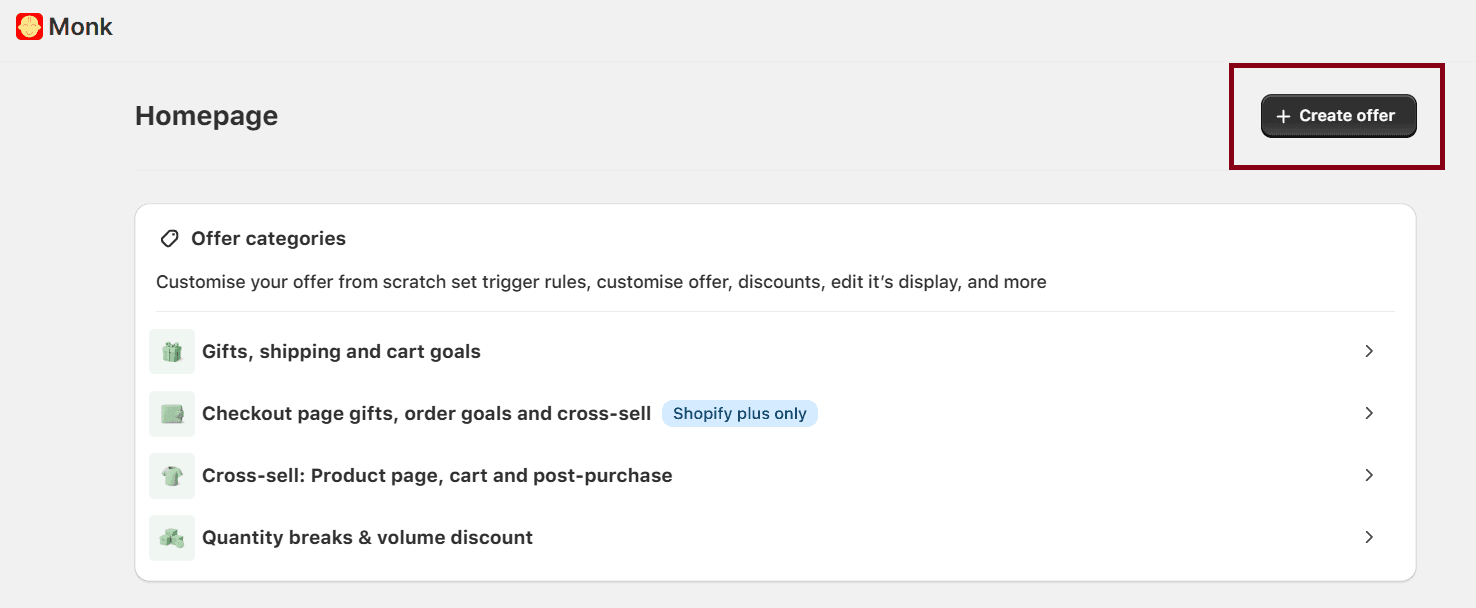
Find the Cart Goals tab, choose the Tiered cart rewards template, and click Create offer.
Step 1: Choose Your Reward Type
After clicking Create offer, a modal appears: Choose reward type.
You will see five options:
Free shipping: The milestone unlocks free shipping on the order
Gift auto add: A specific product you choose is automatically added to the customer's cart when the milestone is reached
Gift selection: The customer is prompted to choose one free product from a curated list you configure
Order level discounts: A discount is applied to the entire order at the milestone
Custom rewards: A custom reward message of your choice
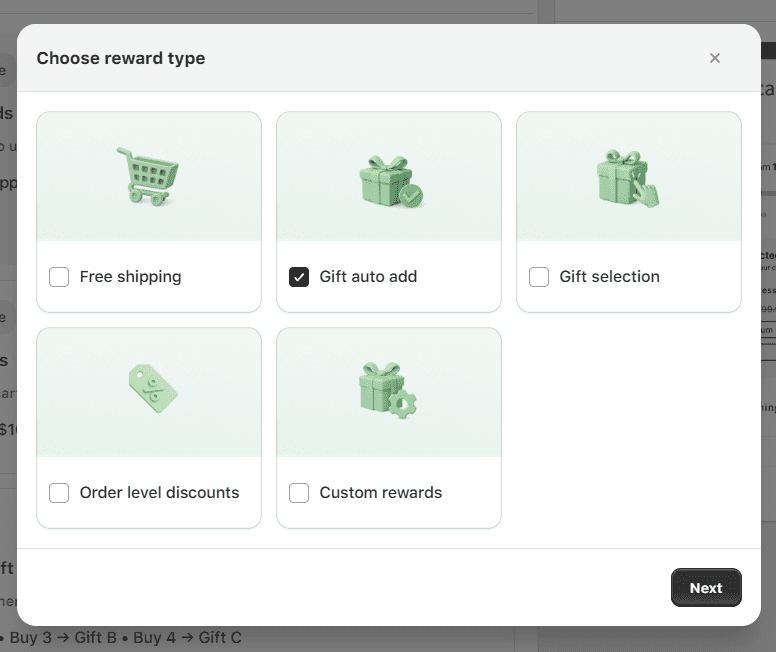
For a gift-with-purchase setup, select Gift auto add if you want the gift added automatically without any customer action required.
Note: Choose Gift selection if you want the customer to pick their reward. You can also select both to stack rewards at the same milestone. However, it’s recommended to choose ‘gift auto add’ for straightforward configuration.
Want to let your customer choose free gift on your Shopify store?
Click Next to proceed.
Step 2: Choose Where to Display the Offer
The next screen is labeled "Display your offer on.
You have four placement options for the cart progress bar:
Home Page
Product Page
Cart
Checkout (Shopify Plus merchants only)
The recommended selection is Product Page + Cart. Showing the progress bar on the product page catches customers before they reach the cart. It gives them a reason to keep browsing and adding items. Showing it in the cart gives them a final nudge before checkout.
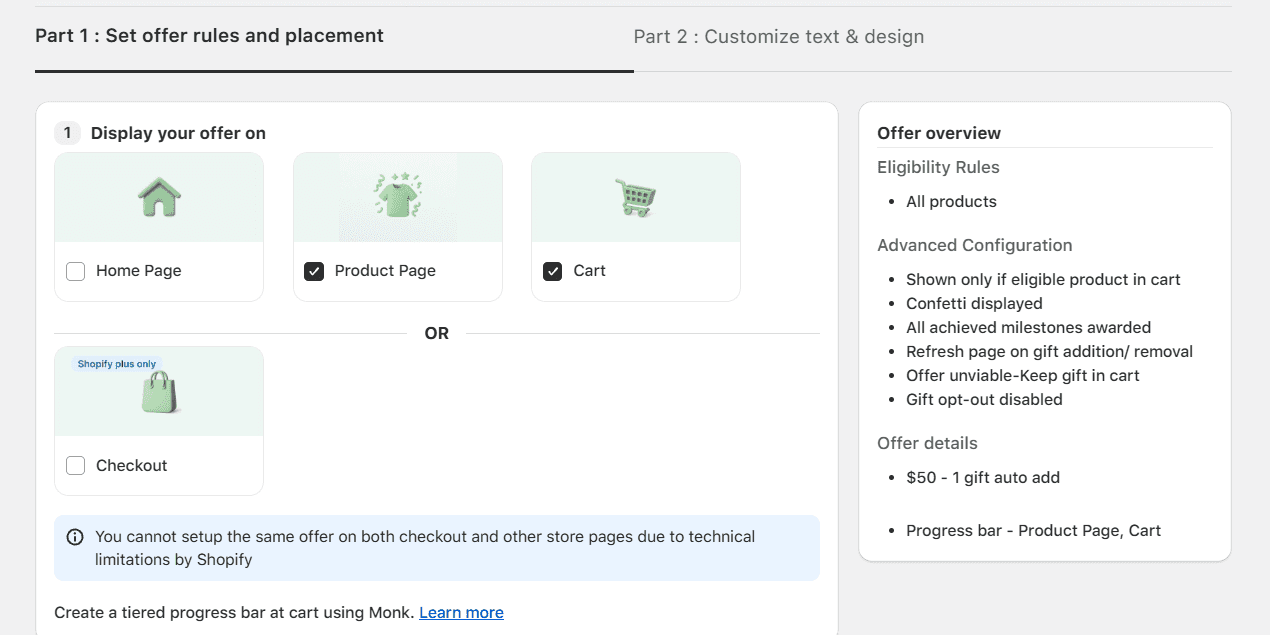
One important note displayed in the app: "You cannot set up the same offer on both checkout and other store pages due to technical limitations by Shopify." If you are on Shopify Plus and want a checkout placement, you will need to create a separate offer for that within Monk.
Step 3: Define Display Rules
The next step is labelled Define display rules with the instruction: "Set rules for your offer visibility."
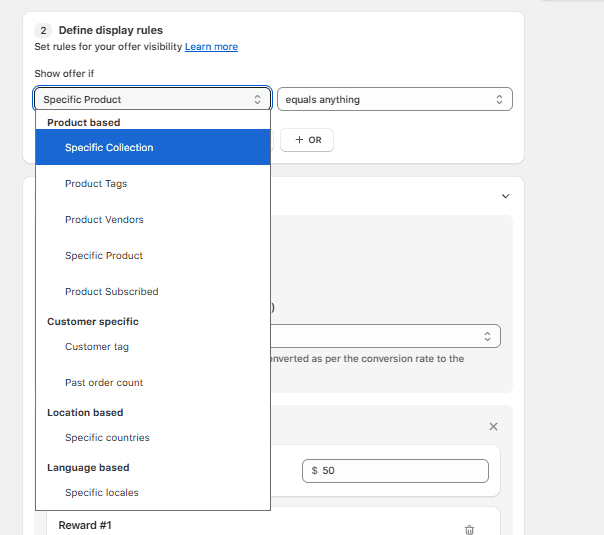
The Show offer if dropdown lets you control which customers see the progress bar and under what conditions. The default setting is: Specific Product / equals anything, which means the offer will show for all customers across all products.
You can use the + AND and + OR buttons to add conditions and scope the offer to:
Specific products
Specific collections
Customer tags (e.g., returning customers, VIP members)
A combination of the above
For a basic setup targeting all customers with no product restrictions, leave this section as the default and continue to the next step.
Step 4: Set Milestones and Rewards
This is the core of the setup. Here, you define the cart value thresholds and attach rewards to each one.
At the top of this section, you will choose your milestone type:
Cart value
Item count (for quantity-based promotions)
You can also select a specific currency for the milestone or leave it as "All currencies," in which case the offer will be converted to the customer's local currency automatically.
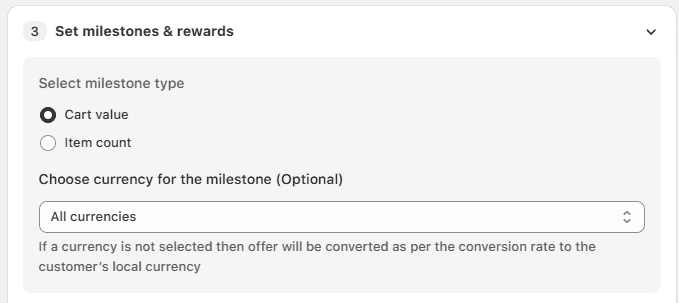
For example, a customer gets a free gift when the cart value is above $50. Here’s how to configure it:
Select milestone type: Cart value
Click + Add milestone to open Milestone 1
Set the minimum value: $50
Under Reward #1, select reward type: Free gift – Auto add
In the Select free gift field, search for and select the product you want to gift
Set Quantity: 1
Optionally, click + Add reward to stack a second reward (e.g., free shipping) at this same $50 milestone
Save the milestone
To create tiered rewards, you can add multiple milestones based on the cart value:
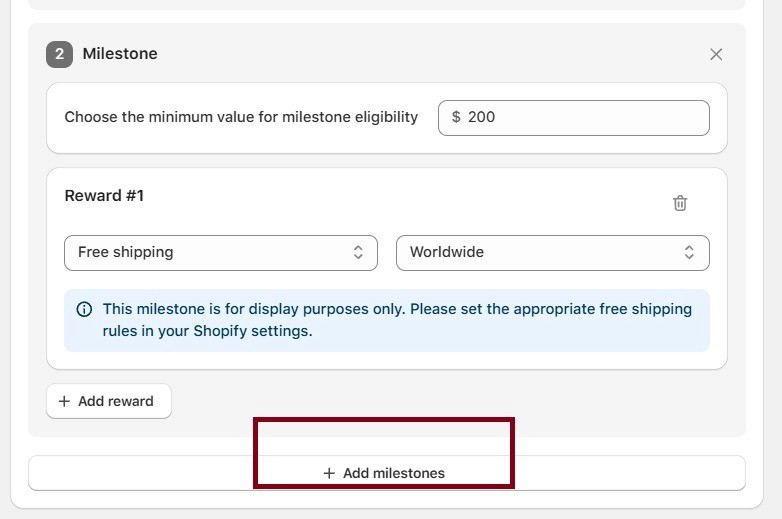
The progress bar will now appear on the product page and in the cart for all customers, tracking their cart value toward the $50 threshold. When they cross it, the gift is automatically added to their cart.
Step 5: Configure Offer Settings
Once your milestones are saved, the final step is Offer Settings: a section with four expandable sub-settings.
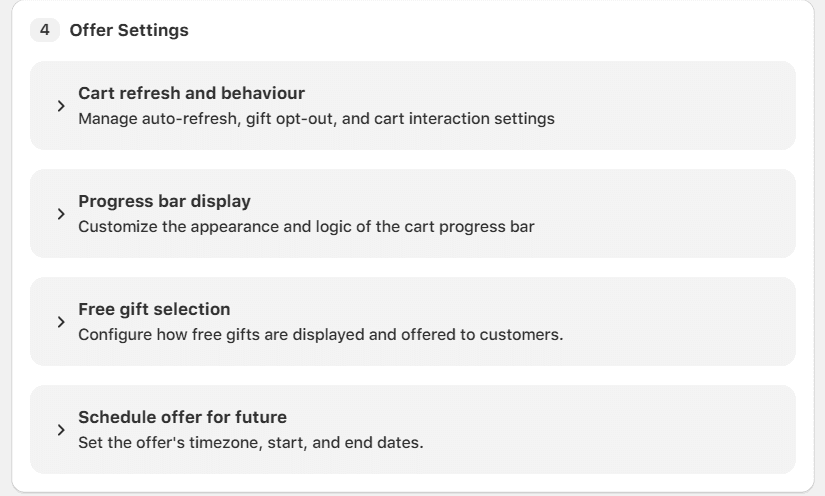
Cart refresh and behaviour
This controls what happens when a gift is added to or removed from the cart. You can enable auto-refresh so the cart updates seamlessly when a milestone is hit, toggle whether customers can opt out of the gift, and manage other cart interaction behaviours.
If you want the gift to be non-removable (for example, if it is a mandatory sample), you can disable the opt-out option here.
Progress bar display
This is where you customise how the progress bar looks and behaves on your storefront. You can adjust colours, bar style, milestone text, and the logic of how rewards are communicated to the customer (e.g., ‘You are $15 away from a free gift!’). Spend time here to make sure the bar matches your store's branding.
If you are using the Gift selection reward type, this setting controls how the gift picker is displayed to customers. Whether it should be a pop-up, an inline widget, or another format. Configure this to match the shopping experience you want to create.
Schedule an offer for the future
Set the timezone, campaign start date, and end date. This is essential for time-limited promotions. Set it once, and the offer will activate and expire automatically without manual toggling.
Step 6: Preview, Activate, and Test
Before going live, click Preview in the top right corner of the offer funnel. This shows you exactly how the progress bar and gift offer will appear on your storefront.
When you are satisfied, click Activate offer to publish.
Then test it properly:
Open your store in a browser (ideally an incognito window or a separate test account)
Add products to your cart and watch the progress bar track toward the milestone
Confirm the gift is added automatically (for Gift auto add) or that the selection prompt appears (for Gift selection) when the threshold is crossed
Test on both mobile and desktop
Best Practices for Shopify Free Gift With Purchase Promotions
Setting up the offer is only half the job. Here is how to make it perform as well as possible.
Set your lowest milestone just above your current AOV
If your average order value is $65, set your first milestone at $75 or $80. This puts the threshold within easy reach for most customers, a small nudge rather than a big ask.
Use Gift auto add for low-friction campaigns
When the gift is added automatically, there is no extra step for the customer. This removes any drop-off between ‘milestone reached’ and ‘gift claimed.’ Use Gift selection when the act of choosing adds perceived value, for example, when you want customers to feel like they are getting a personalised reward.
Layer your milestones
A single-tier offer is good. A three-tier ladder is better. Free shipping at $50 removes a purchase barrier. A free gift at $100 rewards higher spenders. A discount at $150 targets your biggest basket customers. Each tier converts a different segment.
Choose a gift that is relevant to the cart
A random gift feels like an afterthought. A complementary product, like an accessory or a sample of something related to what the customer is buying, feels intentional and increases the perceived value of the offer.
Enable the progress bar on both the Product Page and the Cart
The earlier you show the incentive, the more time the customer has to act on it. A customer who sees the progress bar on a product page may add an extra item before they even reach the cart.
Schedule seasonal campaigns in advance
Use the Schedule offer feature to set your Black Friday or festive campaign start and end dates ahead of time. This avoids the risk of forgetting to turn an offer on or off.
A/B test your gift products
Run the same cart threshold with two different gift products in separate periods and compare the conversion rate and AOV. Small differences in gift choice can produce surprisingly large differences in performance.
Read all about Free Gift Campaign strategies using Monk Free Gift for your Shopify store
Start Rewarding Customers at the Right Cart Value
Cart-value-based free gifts are one of the highest-impact, lowest-complexity promotions available to Shopify merchants. They increase average order value, protect margins better than blanket discounts, and create a visible, real-time incentive that customers actually respond to.
Monk's Cart Goals feature gives you everything you need to run this type of promotion properly. For example, you get a customisable progress bar, flexible milestone rules, multiple reward types, and advanced targeting for collections, customer segments, and scheduled campaigns.
You can set up a simple $50 gift for all customers, scope a promotion to a specific collection, or reward your returning buyers with an exclusive perk. The setup process is the same: define your milestones, choose your reward type, configure your display rules, and activate.
Ready to increase your store's average order value with a free gift progress bar?
Frequently Asked Questions (FAQs)
Can I offer a free gift on Shopify without a discount code?
Yes, you can offer a free gift on Shopify without a discount code using a free gifting app like Monk Free Gift. Monk can add the free gift to the cart automatically when the conditions for the gift are met. Customers do not need to enter any code.
Does Shopify natively support automatic free gifts with purchase?
Native Shopify discounts have gift logic at the cart level, but the system cannot automatically add a product to a cart based on cart value rules. You also cannot create highly targeted offers, as layering eligibility criteria isn't supported by default. To run a free gift with purchase promotion triggered by cart value, you need a third-party app like Monk.
What is the difference between Gift auto add and Gift selection in Monk?
Gift auto adds the gift product directly into the customer's cart the moment the milestone is reached. Gift selection shows the customer a prompt to choose one product from a list you have configured. Gift selection works well when you want customers to feel in control of their reward, which can increase the perceived value of the offer.
What is the difference between BOGO and free gift with purchase on Shopify?
BOGO and free gift with purchase are essentially same with a fundamental difference. A BOGO (Buy One Get One) promotion typically applies to the same or a related product: buy one, get one free or at a discount. A free gift with purchase is a separate promotional item added to the cart when a cart value condition is met. BOGO is a product-level incentive; free gift with purchase is a cart-level incentive.
Can I set multiple milestones with different rewards at each level?
Yes, you can set multiple milestones with different rewards at each level using Monk. Monk's Cart Goals supports tiered milestones within a single offer. You can set $50 for free shipping, $100 for a free gift, and $150 for an order discount, all configured in the same campaign. Each milestone can have its own reward type.
Can I limit the free gift offer to specific collections or customer types?
Yes, you can limit the free gift offer to specific collections, customer tags, etc. You can show the offer only when a customer has a product from a specific collection in their cart, only to customers with a specific tag (e.g., returning customers), or a combination of both.
Can I schedule the free gift promotion for specific dates?
Yes, you can schedule the free gift promotion for specific dates whether you are using Shopify’s native discounts or using a free gifting app like Monk Free Gift. Monk has a ‘Schedule offer for future’ option that lets you set the campaign timezone, start date, and end date. The offer will activate and expire automatically based on the schedule you set.
What happens if a customer removes items and drops below the milestone threshold?
Using Monk’s advanced ‘Cart refresh and behavior' setting in Offer Settings, you can configure what happens when a customer removes items and drops below the milestone threshold. When the customer becomes ineligible for the gift, you can either automatically remove the free gift from the cart or you can choose to add the full-priced product, giving your customers the option to buy it or remove it from their cart. This ensures the promotion is only applied when the conditions are genuinely met.
How do I make the free gift non-removable?
Using Monk’s advanced ‘Cart refresh and behavior' settings, you can disable the gift opt-out option, making the free gift non-removable. This keeps the gift in the cart regardless of whether the customer tries to remove it: useful for mandatory samples or when the gift is bundled with the order.
How to Set Up Shopify Free Gift With Purchase Based On Cart Value?
Summary
Shopify free gift with purchase promotions help increase average order value by rewarding customers when they reach a cart value threshold. Unlike standard discounts, this strategy encourages higher spending while protecting margins by offering controlled incentives. Using tools like progress bars and tiered rewards, merchants can create visible, real-time motivation for customers to add more items to their cart. Since Shopify’s native features have limitations, apps enable advanced setups like auto-adding gifts, multiple milestones, and targeted campaigns, making free gift promotions a high-impact ecommerce strategy. Solutions like Monk make it easy to implement these promotions with flexible rules and seamless customer experience.
Offering a free gift with purchase on Shopify can increase your store's average order value, but you have to set it up the right way. Monk's Cart Goals feature lets you display a real-time progress bar on your store. It also automatically rewards customers with a gift when their cart crosses a value threshold.
In this guide, you will learn how to set up a Shopify free gift with purchase promotion triggered by cart value, with an example.
What is a Free Gift with Purchase on Shopify?
A free gift with purchase on Shopify is a promotional mechanic where a customer automatically receives a free product when their cart meets a set condition, most commonly a minimum cart value. Unlike a percentage discount or a coupon code, the free gift is added to the cart automatically (or offered as a selection) once the threshold is hit.
Shopify has gift logic at the cart level, but it comes with limitations. Its built-in discount system cannot automatically add a free product to a cart based on cart value rules. You also cannot create highly targeted offers as layering eligibility criteria isn't supported by default. To run this type of promotion, you need a dedicated app, and Monk's Cart Goals feature is here to help.
Why Use Cart-Value-Based Free Gifts on Your Shopify Store?
Before jumping into the setup, it is worth understanding why this strategy works so well.
It Directly Increases Average Order Value
When a customer sees they are $15 away from a free gift, they are very likely to add another item to their cart. A visible progress bar makes this incentive real and immediate. Unlike a percentage discount that applies to whatever is already in the cart, a cart threshold reward actively encourages customers to spend more.
It Protects Your Margins Better Than Discounts
A 20% discount applied store-wide costs you on every single order. A free gift promotion costs you only when a customer crosses the threshold you set, and you control exactly what that gift is. If you choose a low-cost, high-perceived-value item (a travel-size product, a branded accessory, a sample), the margin impact is far smaller than a blanket discount.
A Progress Bar Makes the Incentive Visible
The reason Cart Goals works better than a hidden promotion is the progress bar. Customers can see in real time how close they are to unlocking the reward. That visibility creates a psychological nudge that passive discounts simply cannot replicate.
Tiered Milestones Create Multiple Conversion Triggers
With Monk's Cart Goals, you are not limited to one reward. You can set multiple milestones in a single campaign, for example:
$50 → Free shipping
$100 → Free gift (auto-added)
$150 → 10% order discount
Each tier gives the customer a fresh reason to keep adding to their cart. This is more powerful than a single offer because it rewards incremental spending at every level.
It Works for Multiple Use Cases
Cart-value-based free gifts are versatile. Use them for:
Seasonal campaigns (Black Friday, Independence Day, New Year sales)
New product launches (sample a new SKU as a gift)
Customer retention (reward returning customers with a bonus gift)
Slow-moving inventory (clear stock by gifting it to high-value cart customers)
How to Set Up Shopify Free Gift With Purchase Using Monk
Below is the complete step-by-step process for setting up a cart-value-based free gift promotion using Monk's Cart Goals feature.
Step 0: Install and Open Monk to Create an Offer
Log in to your Shopify Admin and navigate to Apps. Search for Monk and install the app. Once installed, open the Monk dashboard from your app panel.
From the Monk dashboard, click Create New Offer.
Find the Cart Goals tab, choose the Tiered cart rewards template, and click Create offer.
Step 1: Choose Your Reward Type
After clicking Create offer, a modal appears: Choose reward type.
You will see five options:
Free shipping: The milestone unlocks free shipping on the order
Gift auto add: A specific product you choose is automatically added to the customer's cart when the milestone is reached
Gift selection: The customer is prompted to choose one free product from a curated list you configure
Order level discounts: A discount is applied to the entire order at the milestone
Custom rewards: A custom reward message of your choice
For a gift-with-purchase setup, select Gift auto add if you want the gift added automatically without any customer action required.
Note: Choose Gift selection if you want the customer to pick their reward. You can also select both to stack rewards at the same milestone. However, it’s recommended to choose ‘gift auto add’ for straightforward configuration.
Want to let your customer choose free gift on your Shopify store?
Click Next to proceed.
Step 2: Choose Where to Display the Offer
The next screen is labeled "Display your offer on.
You have four placement options for the cart progress bar:
Home Page
Product Page
Cart
Checkout (Shopify Plus merchants only)
The recommended selection is Product Page + Cart. Showing the progress bar on the product page catches customers before they reach the cart. It gives them a reason to keep browsing and adding items. Showing it in the cart gives them a final nudge before checkout.
One important note displayed in the app: "You cannot set up the same offer on both checkout and other store pages due to technical limitations by Shopify." If you are on Shopify Plus and want a checkout placement, you will need to create a separate offer for that within Monk.
Step 3: Define Display Rules
The next step is labelled Define display rules with the instruction: "Set rules for your offer visibility."
The Show offer if dropdown lets you control which customers see the progress bar and under what conditions. The default setting is: Specific Product / equals anything, which means the offer will show for all customers across all products.
You can use the + AND and + OR buttons to add conditions and scope the offer to:
Specific products
Specific collections
Customer tags (e.g., returning customers, VIP members)
A combination of the above
For a basic setup targeting all customers with no product restrictions, leave this section as the default and continue to the next step.
Step 4: Set Milestones and Rewards
This is the core of the setup. Here, you define the cart value thresholds and attach rewards to each one.
At the top of this section, you will choose your milestone type:
Cart value
Item count (for quantity-based promotions)
You can also select a specific currency for the milestone or leave it as "All currencies," in which case the offer will be converted to the customer's local currency automatically.
For example, a customer gets a free gift when the cart value is above $50. Here’s how to configure it:
Select milestone type: Cart value
Click + Add milestone to open Milestone 1
Set the minimum value: $50
Under Reward #1, select reward type: Free gift – Auto add
In the Select free gift field, search for and select the product you want to gift
Set Quantity: 1
Optionally, click + Add reward to stack a second reward (e.g., free shipping) at this same $50 milestone
Save the milestone
To create tiered rewards, you can add multiple milestones based on the cart value:
The progress bar will now appear on the product page and in the cart for all customers, tracking their cart value toward the $50 threshold. When they cross it, the gift is automatically added to their cart.
Step 5: Configure Offer Settings
Once your milestones are saved, the final step is Offer Settings: a section with four expandable sub-settings.
Cart refresh and behaviour
This controls what happens when a gift is added to or removed from the cart. You can enable auto-refresh so the cart updates seamlessly when a milestone is hit, toggle whether customers can opt out of the gift, and manage other cart interaction behaviours.
If you want the gift to be non-removable (for example, if it is a mandatory sample), you can disable the opt-out option here.
Progress bar display
This is where you customise how the progress bar looks and behaves on your storefront. You can adjust colours, bar style, milestone text, and the logic of how rewards are communicated to the customer (e.g., ‘You are $15 away from a free gift!’). Spend time here to make sure the bar matches your store's branding.
If you are using the Gift selection reward type, this setting controls how the gift picker is displayed to customers. Whether it should be a pop-up, an inline widget, or another format. Configure this to match the shopping experience you want to create.
Schedule an offer for the future
Set the timezone, campaign start date, and end date. This is essential for time-limited promotions. Set it once, and the offer will activate and expire automatically without manual toggling.
Step 6: Preview, Activate, and Test
Before going live, click Preview in the top right corner of the offer funnel. This shows you exactly how the progress bar and gift offer will appear on your storefront.
When you are satisfied, click Activate offer to publish.
Then test it properly:
Open your store in a browser (ideally an incognito window or a separate test account)
Add products to your cart and watch the progress bar track toward the milestone
Confirm the gift is added automatically (for Gift auto add) or that the selection prompt appears (for Gift selection) when the threshold is crossed
Test on both mobile and desktop
Best Practices for Shopify Free Gift With Purchase Promotions
Setting up the offer is only half the job. Here is how to make it perform as well as possible.
Set your lowest milestone just above your current AOV
If your average order value is $65, set your first milestone at $75 or $80. This puts the threshold within easy reach for most customers, a small nudge rather than a big ask.
Use Gift auto add for low-friction campaigns
When the gift is added automatically, there is no extra step for the customer. This removes any drop-off between ‘milestone reached’ and ‘gift claimed.’ Use Gift selection when the act of choosing adds perceived value, for example, when you want customers to feel like they are getting a personalised reward.
Layer your milestones
A single-tier offer is good. A three-tier ladder is better. Free shipping at $50 removes a purchase barrier. A free gift at $100 rewards higher spenders. A discount at $150 targets your biggest basket customers. Each tier converts a different segment.
Choose a gift that is relevant to the cart
A random gift feels like an afterthought. A complementary product, like an accessory or a sample of something related to what the customer is buying, feels intentional and increases the perceived value of the offer.
Enable the progress bar on both the Product Page and the Cart
The earlier you show the incentive, the more time the customer has to act on it. A customer who sees the progress bar on a product page may add an extra item before they even reach the cart.
Schedule seasonal campaigns in advance
Use the Schedule offer feature to set your Black Friday or festive campaign start and end dates ahead of time. This avoids the risk of forgetting to turn an offer on or off.
A/B test your gift products
Run the same cart threshold with two different gift products in separate periods and compare the conversion rate and AOV. Small differences in gift choice can produce surprisingly large differences in performance.
Read all about Free Gift Campaign strategies using Monk Free Gift for your Shopify store
Start Rewarding Customers at the Right Cart Value
Cart-value-based free gifts are one of the highest-impact, lowest-complexity promotions available to Shopify merchants. They increase average order value, protect margins better than blanket discounts, and create a visible, real-time incentive that customers actually respond to.
Monk's Cart Goals feature gives you everything you need to run this type of promotion properly. For example, you get a customisable progress bar, flexible milestone rules, multiple reward types, and advanced targeting for collections, customer segments, and scheduled campaigns.
You can set up a simple $50 gift for all customers, scope a promotion to a specific collection, or reward your returning buyers with an exclusive perk. The setup process is the same: define your milestones, choose your reward type, configure your display rules, and activate.
Ready to increase your store's average order value with a free gift progress bar?
Frequently Asked Questions (FAQs)
Can I offer a free gift on Shopify without a discount code?
Yes, you can offer a free gift on Shopify without a discount code using a free gifting app like Monk Free Gift. Monk can add the free gift to the cart automatically when the conditions for the gift are met. Customers do not need to enter any code.
Does Shopify natively support automatic free gifts with purchase?
Native Shopify discounts have gift logic at the cart level, but the system cannot automatically add a product to a cart based on cart value rules. You also cannot create highly targeted offers, as layering eligibility criteria isn't supported by default. To run a free gift with purchase promotion triggered by cart value, you need a third-party app like Monk.
What is the difference between Gift auto add and Gift selection in Monk?
Gift auto adds the gift product directly into the customer's cart the moment the milestone is reached. Gift selection shows the customer a prompt to choose one product from a list you have configured. Gift selection works well when you want customers to feel in control of their reward, which can increase the perceived value of the offer.
What is the difference between BOGO and free gift with purchase on Shopify?
BOGO and free gift with purchase are essentially same with a fundamental difference. A BOGO (Buy One Get One) promotion typically applies to the same or a related product: buy one, get one free or at a discount. A free gift with purchase is a separate promotional item added to the cart when a cart value condition is met. BOGO is a product-level incentive; free gift with purchase is a cart-level incentive.
Can I set multiple milestones with different rewards at each level?
Yes, you can set multiple milestones with different rewards at each level using Monk. Monk's Cart Goals supports tiered milestones within a single offer. You can set $50 for free shipping, $100 for a free gift, and $150 for an order discount, all configured in the same campaign. Each milestone can have its own reward type.
Can I limit the free gift offer to specific collections or customer types?
Yes, you can limit the free gift offer to specific collections, customer tags, etc. You can show the offer only when a customer has a product from a specific collection in their cart, only to customers with a specific tag (e.g., returning customers), or a combination of both.
Can I schedule the free gift promotion for specific dates?
Yes, you can schedule the free gift promotion for specific dates whether you are using Shopify’s native discounts or using a free gifting app like Monk Free Gift. Monk has a ‘Schedule offer for future’ option that lets you set the campaign timezone, start date, and end date. The offer will activate and expire automatically based on the schedule you set.
What happens if a customer removes items and drops below the milestone threshold?
Using Monk’s advanced ‘Cart refresh and behavior' setting in Offer Settings, you can configure what happens when a customer removes items and drops below the milestone threshold. When the customer becomes ineligible for the gift, you can either automatically remove the free gift from the cart or you can choose to add the full-priced product, giving your customers the option to buy it or remove it from their cart. This ensures the promotion is only applied when the conditions are genuinely met.
How do I make the free gift non-removable?
Using Monk’s advanced ‘Cart refresh and behavior' settings, you can disable the gift opt-out option, making the free gift non-removable. This keeps the gift in the cart regardless of whether the customer tries to remove it: useful for mandatory samples or when the gift is bundled with the order.
Ravish (RV)
Co-Founder, Monk Commerce
Ravish is an ecommerce and SaaS marketing expert with 6+ years of experience in Shopify and ecommerce and 10+ years of experience in marketing, and growth strategy. He has worked closely with Shopify merchants to solve real ecommerce challenges and shares practical, research-backed insights, industry best practices, and emerging trends.
Contents
Related Articles
Free Gift With Purchase Shopify Setup in 5 Minutes
Top 10 Most Reviewed Free Gift with Purchase Apps for Shopify (2026 Guide)
Stop Using the Wrong Shopify Free Gift Apps
Get Monk Free Gift app for just $1/month this Black Friday
First month: $1 after your 7-day free trial. All features included. Offer live!
Claim offer now

Get Monk Free Gift app for just $1/month this Black Friday
First month: $1 after your 7-day free trial. All features included. Offer live!
Claim offer now
Get Monk Free Gift app for just $1/month this Black Friday
First month: $1 after your 7-day free trial. All features included. Offer live!
Claim offer now