Cart Progress Bars for Shopify Explained: Boost AOV with Smart Incentives
Summary
Shopify upsell apps help increase average order value by offering relevant product recommendations at key moments in the customer journey. From product pages to cart and post-purchase, upsell strategies encourage customers to upgrade or add complementary items. While Shopify has limited native upsell features, apps enable advanced targeting, automation, and seamless user experiences. With features like one-click upsells, smart recommendations, and cart incentives, Shopify upsell apps make it easier to boost conversions, improve customer experience, and drive more revenue from every order.

Ravish (RV)
Senior Content Writer
Ravish is an ecommerce and SaaS marketing expert with 6+ years of experience in Shopify and ecommerce and 10+ years of experience in marketing, and growth strategy. He has worked closely with Shopify merchants to solve real ecommerce challenges and shares practical, research-backed insights, industry best practices, and emerging trends.
Key Takeaways
Shopify upsell apps help increase average order value by offering relevant product recommendations at key moments in the customer journey. From product pages to cart and post-purchase, upsell strategies encourage customers to upgrade or add complementary items. While Shopify has limited native upsell features, apps enable advanced targeting, automation, and seamless user experiences. With features like one-click upsells, smart recommendations, and cart incentives, Shopify upsell apps make it easier to boost conversions, improve customer experience, and drive more revenue from every order.
When a customer knows a free reward is within reach, you can get them to do almost anything to unlock it, including tossing a few extra products into their cart. That's just human psychology.
The moment a customer realizes they're close to earning something, they add one more item, you get a higher AOV, and they walk away feeling like they earned it. Everyone wins.
But here's where it gets more interesting. What if your customer could actually see themselves getting closer to that reward with every product they add? That's exactly what a visual progress bar does.
Whether it's a free gift with purchase on Shopify, a BOGO deal, or free shipping, a progress bar shows customers how close they are in real time. It's harder to ignore than a static banner, and there's something deeply satisfying about watching it fill up.
In this article, we'll show you how progress bars can boost your AOV and how to set one up.
What is a Cart Progress Bar in Shopify?
A cart progress bar is a dynamic visual element that sits on your Shopify store, usually on the cart page or as a sticky bar, and shows customers how close they are to unlocking a reward. As a customer adds products to their cart, the bar fills up, nudging them closer to a free gift, free shipping, or any other incentive you have set up.
The logic behind a cart progress bar is straightforward. You set a threshold, say, $75 for free shipping or $100 for a free gift, and the bar tracks your customer's cart value against that goal in real time.
The bar gamifies the shopping experience. Instead of a customer deciding they're done shopping, the bar gives them a reason to keep going, and more importantly, a visual reason they can see and feel. In fact, just by adding the cart progress bar, businesses can see a 15 to 30% higher average order value.
Most Shopify apps that offer this feature also let you stack multiple rewards across different thresholds, so a customer might unlock free shipping at $50, and a free gift at $100, keeping the motivation going throughout their entire shopping journey.
Common Setup Examples
A cart progress bar can be configured in several different ways, depending on what you want to offer your customers. Here are the most popular setups stores use:
Free Shipping Threshold
The most common use case is free shipping since customers hate to pay extra for product delivery. The bar shows customers how far they are from qualifying for free shipping. Simple, effective, and something customers already expect and look for.
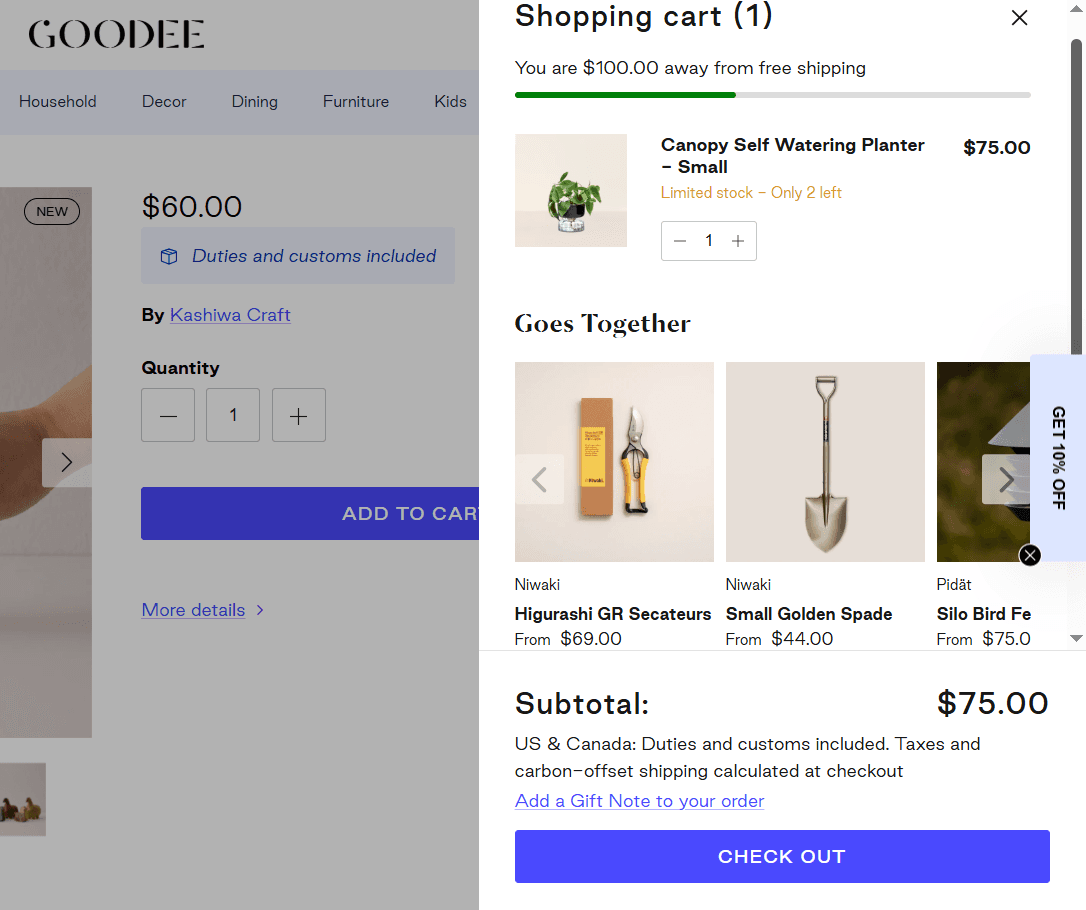
For example, Goodee displays a progress bar right at the top of their cart to tell customers they are 100$ away from the free shipping threshold. They also show suitable and relevant options of products to add just below that to make it simpler for customers to add something more and unlock free shipping.
Tiered Rewards
Some stores stack multiple milestones, such as free shipping at $50, a discount at $75, and a free gift at $100. The bar moves through each stage, giving customers multiple reasons to keep adding to their cart.
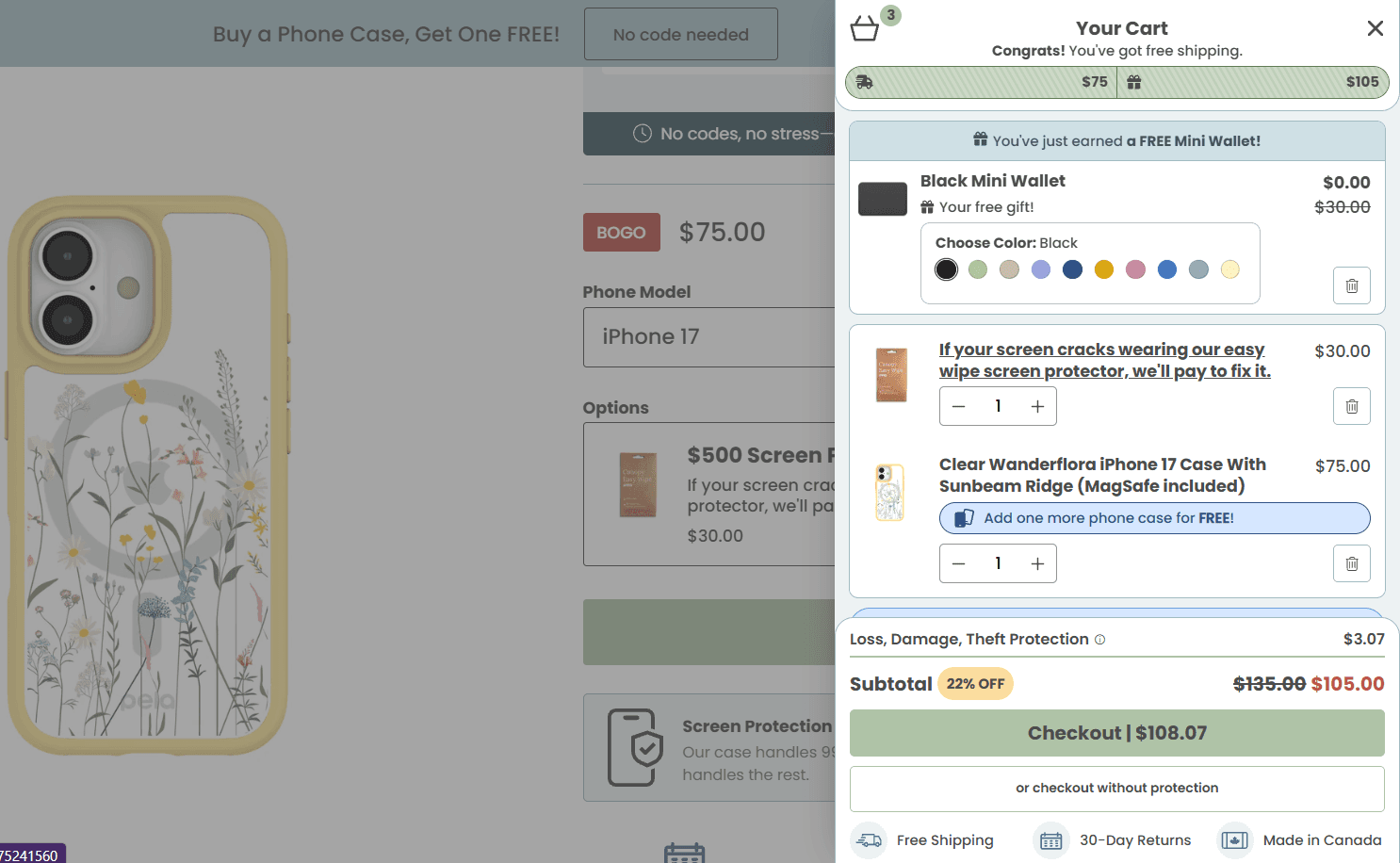
For example, Pela displays a tiered reward bar where customers unlock free delivery when they spend $75 and also get a free gift as soon as they cross the 105$ threshold. The benefit here is that customers do not stop when they unlock free shipping; they at least try to unlock the next reward that silently waits for them.
Why Do Cart Progress Bars Work?
Cart progress bars work by triggering the goal gradient effect, a psychological principle where people push harder toward a goal the closer they get to it. Here is a breakdown of exactly why they are so effective:
Psychological Triggers
Cart progress bars tap into the way people are already wired to think and behave. A progress bar literally visualizes that gap. When a customer sees they are $12 away from a free gift, that $12 suddenly feels very small. They are not thinking about whether they need another product; they are thinking about how close they are to winning something.
Conversion Impact
A customer who is actively working toward a reward is far less likely to abandon their cart. They are invested. The progress bar gives them a reason to stay on the page, keep browsing, and follow through to checkout. It removes that "I'll come back later" moment because leaving now means losing progress, and people hate losing progress.
Higher Perceived Value
When a customer unlocks a free gift, the overall order feels like a better deal even if they spent more than they originally planned. The perceived value of what they are getting goes up, and the perceived cost of what they spent goes down. That is a genuinely powerful shift that a simple discount code can rarely replicate.
Encourage Higher Spend
When someone sees they need to spend just a little more to unlock a reward, they will find a way to spend it. They will add a product they were on the fence about, grab something they have been meaning to try, or throw in a smaller item just to cross the threshold. The progress bar does not pressure them; it just gives them a very clear and appealing reason to spend a bit more.
Support Product Discovery
Here is a benefit that often gets overlooked. When a customer is $15 away from a reward and browsing to make up the gap, they are exploring your store with fresh eyes. They are open to adding something new, which means they might stumble across a product they had no idea you sold. Progress bars quietly turn reward-chasing into product discovery, and that is good for long-term customer value too.
Better Customer Experience
Nobody likes feeling sold to. But a progress bar does not feel like a sales tactic, but a game. Customers enjoy the experience of watching the bar fill up. It makes shopping feel more interactive and rewarding, and that positive feeling gets associated with your brand. A customer who had a good time shopping is a customer who comes back.
Put all of the above together, and the result is a higher average order value almost every time. Customers spend more to hit thresholds, discover additional products along the way, and complete purchases they might otherwise have abandoned. It is one of the few tools in ecommerce that improves the experience for the customer while directly improving the numbers for you, and that is exactly why it works.
How to Set Up a Cart Progress Bar Using Monk Free Gift + BOGO
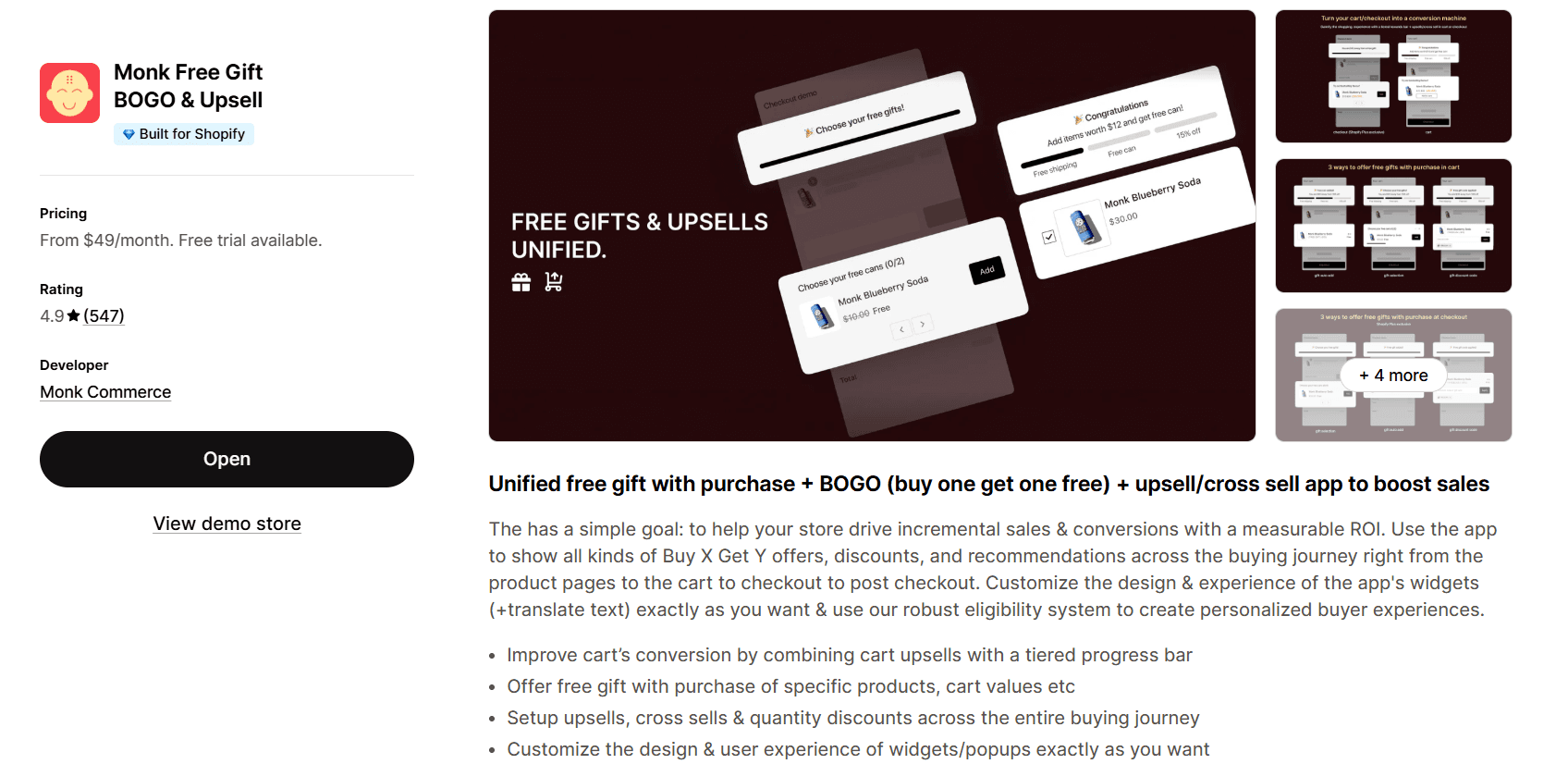
Monk Free Gift + BOGO is a Shopify app built to help merchants increase their average order value through smart, gamified cart experiences. One of its most powerful features is the Cart Progress Bar, a fully customizable, tiered reward bar that sits right inside your cart and nudges customers toward spending more at every step.
What makes Monk Free Gift + BOGO stand out is how flexible it is. You can stack multiple reward types, including free shipping, auto-added gifts, gift selection, and discounts, all within a single progress bar, without touching a single line of your theme's code. It works with all cart types, too, whether you're running a drawer cart, a cart popup, or a full cart page.
Step-by-Step Setup Using an Example
For this walkthrough, let’s set up the a common three-tier progress bar:
Tier 1 — $100: Free Shipping
Tier 2 — $200: Free Gift (Auto Added)
Tier 3 — $400: Free Gift Selection
Step 1: Create the Offer
Head to your Monk Free Gift + BOGO dashboard and go to Manage Offers > Create Offer.
You’ll find various categories of ready-to-build offer templates. Choose “Cart Goals” and look for “Tiered Cart Rewards."
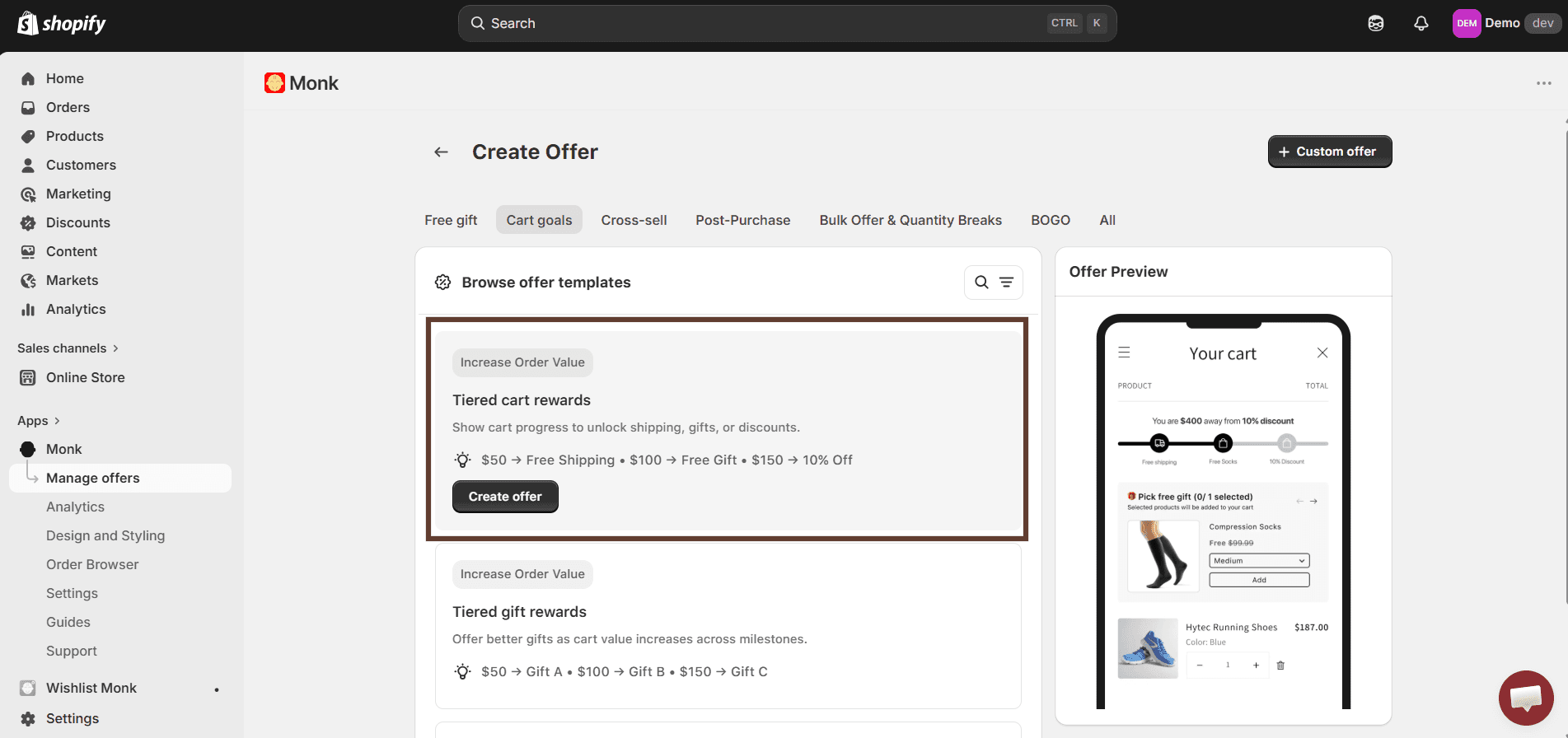
Then select your desired reward type. Since our example setup combines free shipping, auto-add gift, and gift selection across three tiers, you can also custom-build your offer by selecting each reward type manually.
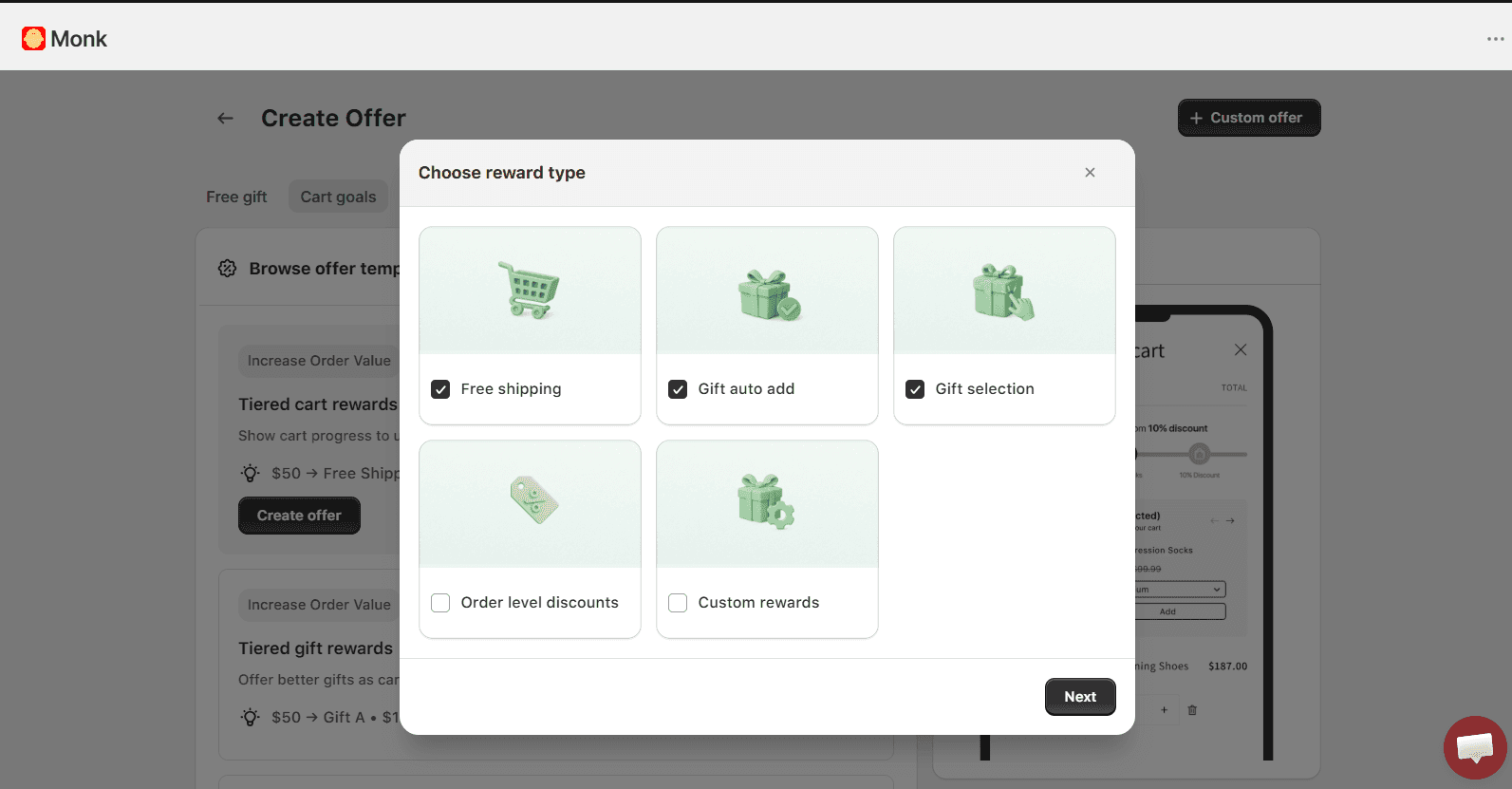
Click ‘next’ and choose an appropriate name for your offer, as this name will appear at checkout as the discount. Be sure not to use any generic names to avoid misuse.
Step 2: Set the Display
As Step 1 of the offer, choose where you want the progress bar to appear: home page, product page, cart, or at checkout.
Keep in mind that checkout page progress bars are only available for Shopify Plus stores.
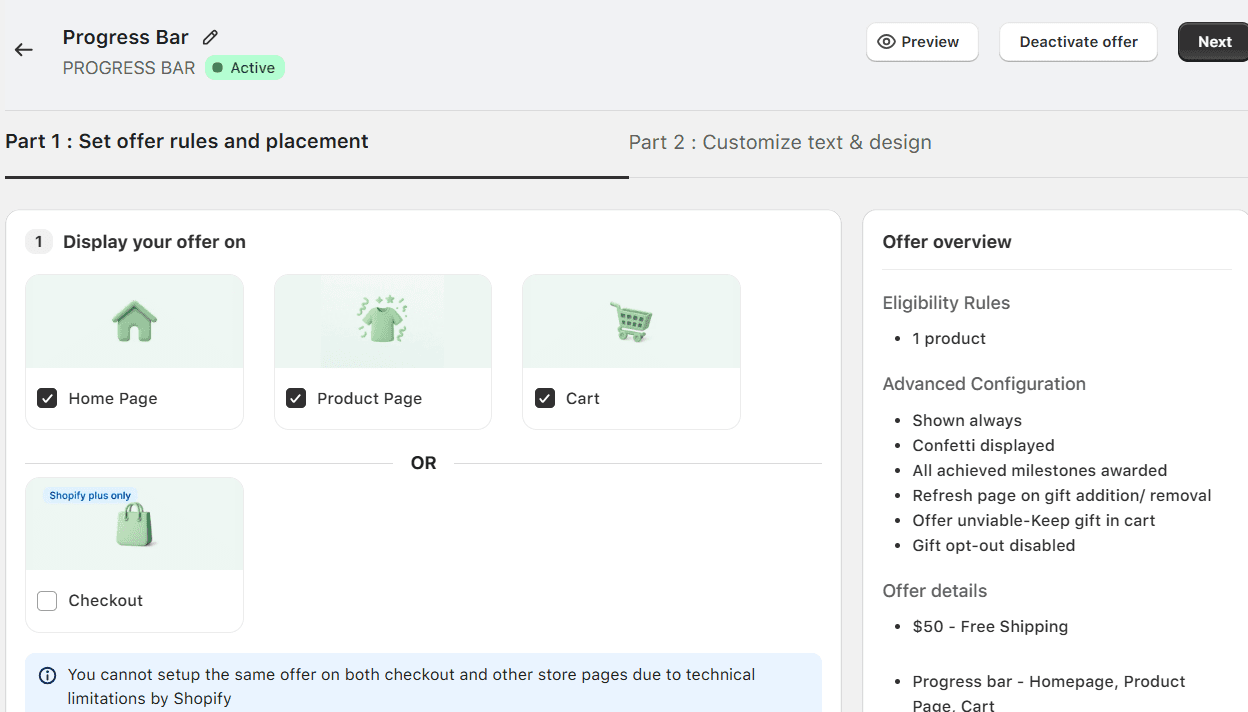
Step 3: Set Eligibility Rules
Here, you can decide who can see the progress bar. You can keep it broad and show it to all customers or narrow it down based on product, customer, location, or language segments. For a general store-wide campaign, it’s recommended that you leave this open to everyone.
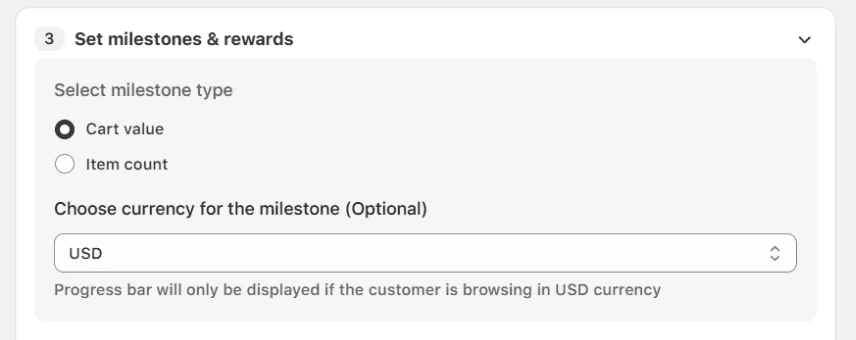
Now choose whether your milestones will be based on cart value or the number of items in the cart. Let’s proceed with cart value and USD as preferred currency, since our tiers are $100, $200, and, $400.
If your store sells in multiple currencies, Monk will automatically convert the milestone amounts based on your store's base currency, so customers always see the right threshold in their local currency.
Step 4: Configure Milestones and Rewards
This is the heart of the setup. Here's exactly how to configure each tier:
Tier 1- $100 - Free Shipping
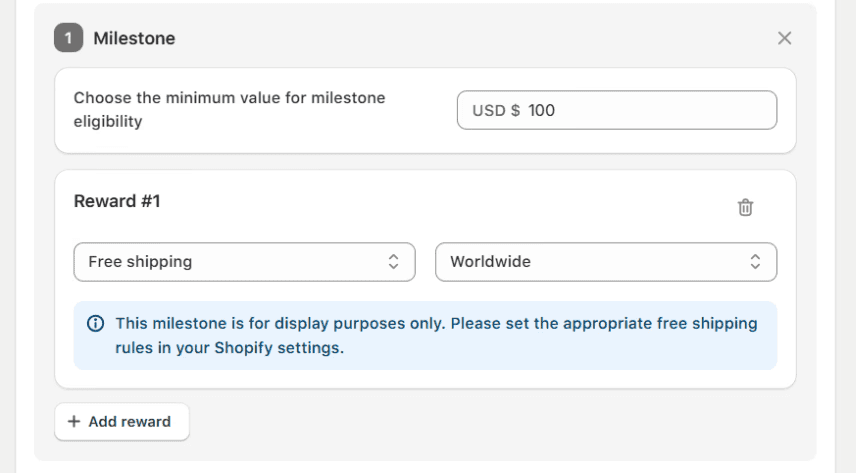
Set the milestone amount to $100 and select Free Shipping as the reward. This is a display-based reward, meaning Monk Free Gift + BOGO will show it on the progress bar, but you will need to make sure your free shipping rule is already set up in your Shopify backend under Settings > Shipping and Delivery.
Tier 2 - $200 - Free Gift Auto Add
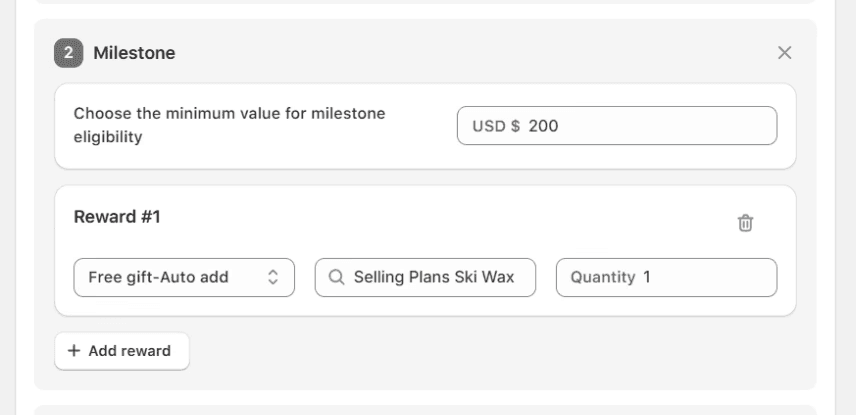
Set the milestone to $200 and select Free Gift- Auto Add as the reward. Choose the product you want to automatically add to the cart once the customer hits $200. The gift drops in on its own.
Tier 3 - $400 - Free Gift Selection
Set the milestone to $400 and select Free Gift Selection. This lets customers choose their own gift from a list of options you define. You can also allow them to pick a specific variant, including size, color, etc., and decide whether the selection appears as an embedded widget or a pop-up.
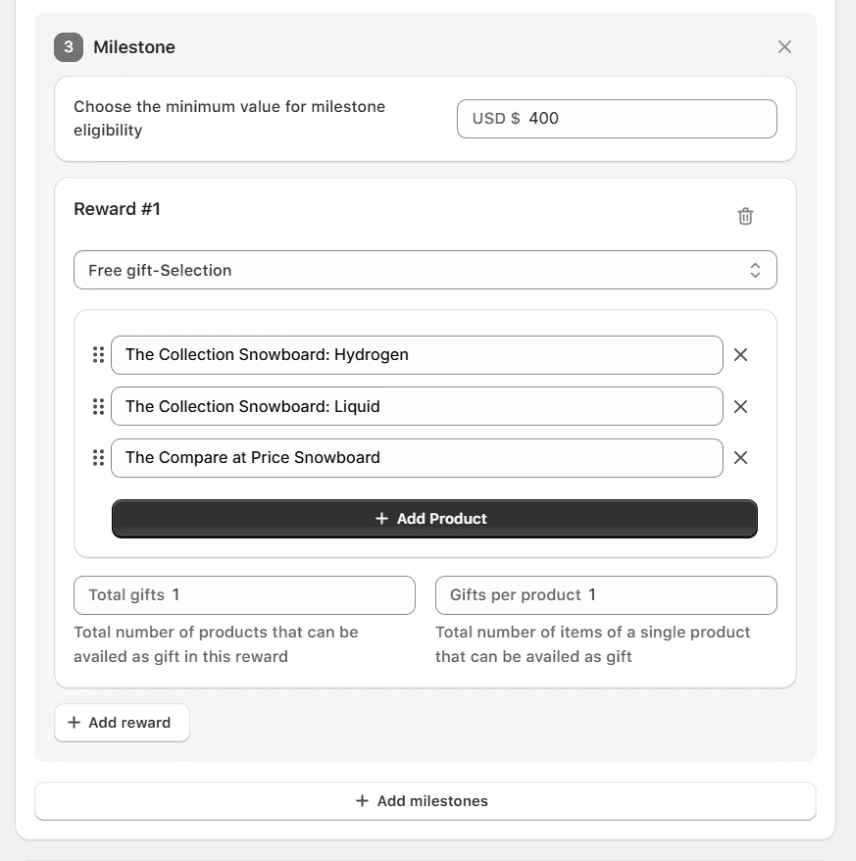
Using Monk, you can add as many rewards per milestone and as many milestones as you want based on your strategy.
Step 5: Configure Offer Settings
Once your milestones are in place, fine-tune how the bar behaves:
Turn on Auto Remove if you want to remove the free gift products when the customer is ineligible
Enable Allow Gift Opt Out if you want customers to have the option to remove the gift from their cart
Turn on Show Confetti to give customers a small celebration moment when they hit each milestone
Enable Display Milestones and Display Rewards so customers can clearly see what each tier unlocks and how much more they need to spend
If you want customers to keep all previously unlocked rewards as they move up the tiers, make sure Most Recent Milestone is turned off.
There are various display settings available for a highly customized progress bar inside Monk, including banners, confetti, and much more.
Step 6: Customize Text and Design
The last step is making the bar look and feel like your brand. Monk Free Gift + BOGO gives you full control over the text at every stage, from what it says when a customer is working toward a tier, when they unlock one, and everything in between.
You can also edit fonts, colors, spacing, and the bar's background directly from the global design editor. If you want a different layout for mobile versus desktop, that option is also available under Advanced Display Settings.
Once you're happy with how it looks, save and publish, and your tiered progress bar will be live.
Why Monk Free Gift?
There are plenty of progress bar apps out there, but here is why Monk Free Gift + BOGO is worth paying attention to:
Easy Goal Configuration: Setting up multiple tiers with different reward types sounds complicated, but Monk Free Gift keeps it straightforward. The milestone builder is clean and intuitive; you set your amount, pick your reward type, and move on. No developer needed, no code to write, and no risk of breaking your theme since the app does not touch your existing code at any point.
Seamless Integration: Monk Free Gift + BOGO works with all cart types out of the box, including drawer, popup, or page. It also handles multi-currency automatically, so if you're selling internationally, the right threshold shows up in the right currency for every customer without any extra configuration on your end.
Customization: The bar is not a one-size-fits-all widget. You control the layout, colors, fonts, text, and milestone icons. You can schedule offers for specific date ranges, target specific countries or collections, and even set up separate progress bars for different customer segments, all from within the same dashboard.
Best Practices for Using Cart Progress Bars in Shopify
Setting up a progress bar is the easy part. Getting it to actually perform is where most stores either win or leave money on the table. Here are the practices that make the difference:
Set Achievable Thresholds Based on Customer Purchase History
Before you pick a number, look at your data. If your average order value sits around $65, setting a free shipping threshold at $150 is just going to feel out of reach and get ignored. The sweet spot is usually 20–30% above your current AOV. That gap is small enough to feel achievable but large enough to actually lift your numbers.
Use Clear Messaging
Customers should know exactly what they are working toward and how close they are. "You are $18 away from a free gift" is clear. "Add more to unlock rewards" is not. Be specific about what the reward is, and make the language feel exciting rather than transactional.
Optimize for Mobile
A large portion of your customers are shopping on their phones, and a progress bar that looks great on a desktop can look cramped or confusing on a smaller screen. Make sure your bar is tested across devices before going live. Keep the text short, ensure the bar itself is visible without zooming in, and check that the gift selection pop-up opens cleanly on mobile without covering the entire screen.
Conclusion
Cart progress bars are one of those rare tools that benefit everyone involved. Customers get rewards they feel like they genuinely earned, and you get a higher AOV, better conversion rates, and a shopping experience people actually enjoy. It is not about tricking anyone into spending more; it is about giving people a clear, visual, and satisfying reason to do what they were already considering.
The key is getting the details right. Realistic thresholds, clear messaging, a clean UI, and a reward that actually means something to your customers.
If you are ready to set one up, Monk Free Gift + BOGO makes the whole process straightforward, flexible, and code-free. Whether you are running a single free shipping threshold or a full three-tier reward system, it gives you everything you need to build a progress bar that works as hard as you do.
Frequently Asked Questions
What is a Cart Goal Progress Bar in Shopify?
A cart goal progress bar is a visual element that appears in your Shopify cart and shows customers how close they are to unlocking a reward such as free shipping, a free gift, or a discount. As customers add products to their cart, the bar fills up in real time, motivating them to spend a little more to hit the next milestone.
Do Progress Bars Really Increase AOV?
Yes, progress bars directly assist in increasing AOV. When customers can see they are close to a reward, they are far more likely to add one more item than abandon the cart. The visual progress triggers a psychological push that a static banner or discount code simply cannot replicate.
Can I Offer Free Gifts Using a Progress Bar?
Free gifts are actually one of the most effective reward types you can pair with a progress bar. You can set it up so a gift is automatically added to the cart once a customer hits a threshold, or give them the option to choose from a selection of gifts.
Where Should I Place the Progress Bar?
The cart is the most effective placement, specifically inside the cart drawer or cart page, where customers are already in buying mode and actively reviewing what they have added. Some stores also add a version to the product page or as an announcement bar to create early awareness. Adding the progress bar at checkout requires a Shopify Plus subscription.
Cart Progress Bars for Shopify Explained: Boost AOV with Smart Incentives
Summary
Shopify upsell apps help increase average order value by offering relevant product recommendations at key moments in the customer journey. From product pages to cart and post-purchase, upsell strategies encourage customers to upgrade or add complementary items. While Shopify has limited native upsell features, apps enable advanced targeting, automation, and seamless user experiences. With features like one-click upsells, smart recommendations, and cart incentives, Shopify upsell apps make it easier to boost conversions, improve customer experience, and drive more revenue from every order.
When a customer knows a free reward is within reach, you can get them to do almost anything to unlock it, including tossing a few extra products into their cart. That's just human psychology.
The moment a customer realizes they're close to earning something, they add one more item, you get a higher AOV, and they walk away feeling like they earned it. Everyone wins.
But here's where it gets more interesting. What if your customer could actually see themselves getting closer to that reward with every product they add? That's exactly what a visual progress bar does.
Whether it's a free gift with purchase on Shopify, a BOGO deal, or free shipping, a progress bar shows customers how close they are in real time. It's harder to ignore than a static banner, and there's something deeply satisfying about watching it fill up.
In this article, we'll show you how progress bars can boost your AOV and how to set one up.
What is a Cart Progress Bar in Shopify?
A cart progress bar is a dynamic visual element that sits on your Shopify store, usually on the cart page or as a sticky bar, and shows customers how close they are to unlocking a reward. As a customer adds products to their cart, the bar fills up, nudging them closer to a free gift, free shipping, or any other incentive you have set up.
The logic behind a cart progress bar is straightforward. You set a threshold, say, $75 for free shipping or $100 for a free gift, and the bar tracks your customer's cart value against that goal in real time.
The bar gamifies the shopping experience. Instead of a customer deciding they're done shopping, the bar gives them a reason to keep going, and more importantly, a visual reason they can see and feel. In fact, just by adding the cart progress bar, businesses can see a 15 to 30% higher average order value.
Most Shopify apps that offer this feature also let you stack multiple rewards across different thresholds, so a customer might unlock free shipping at $50, and a free gift at $100, keeping the motivation going throughout their entire shopping journey.
Common Setup Examples
A cart progress bar can be configured in several different ways, depending on what you want to offer your customers. Here are the most popular setups stores use:
Free Shipping Threshold
The most common use case is free shipping since customers hate to pay extra for product delivery. The bar shows customers how far they are from qualifying for free shipping. Simple, effective, and something customers already expect and look for.
For example, Goodee displays a progress bar right at the top of their cart to tell customers they are 100$ away from the free shipping threshold. They also show suitable and relevant options of products to add just below that to make it simpler for customers to add something more and unlock free shipping.
Tiered Rewards
Some stores stack multiple milestones, such as free shipping at $50, a discount at $75, and a free gift at $100. The bar moves through each stage, giving customers multiple reasons to keep adding to their cart.
For example, Pela displays a tiered reward bar where customers unlock free delivery when they spend $75 and also get a free gift as soon as they cross the 105$ threshold. The benefit here is that customers do not stop when they unlock free shipping; they at least try to unlock the next reward that silently waits for them.
Why Do Cart Progress Bars Work?
Cart progress bars work by triggering the goal gradient effect, a psychological principle where people push harder toward a goal the closer they get to it. Here is a breakdown of exactly why they are so effective:
Psychological Triggers
Cart progress bars tap into the way people are already wired to think and behave. A progress bar literally visualizes that gap. When a customer sees they are $12 away from a free gift, that $12 suddenly feels very small. They are not thinking about whether they need another product; they are thinking about how close they are to winning something.
Conversion Impact
A customer who is actively working toward a reward is far less likely to abandon their cart. They are invested. The progress bar gives them a reason to stay on the page, keep browsing, and follow through to checkout. It removes that "I'll come back later" moment because leaving now means losing progress, and people hate losing progress.
Higher Perceived Value
When a customer unlocks a free gift, the overall order feels like a better deal even if they spent more than they originally planned. The perceived value of what they are getting goes up, and the perceived cost of what they spent goes down. That is a genuinely powerful shift that a simple discount code can rarely replicate.
Encourage Higher Spend
When someone sees they need to spend just a little more to unlock a reward, they will find a way to spend it. They will add a product they were on the fence about, grab something they have been meaning to try, or throw in a smaller item just to cross the threshold. The progress bar does not pressure them; it just gives them a very clear and appealing reason to spend a bit more.
Support Product Discovery
Here is a benefit that often gets overlooked. When a customer is $15 away from a reward and browsing to make up the gap, they are exploring your store with fresh eyes. They are open to adding something new, which means they might stumble across a product they had no idea you sold. Progress bars quietly turn reward-chasing into product discovery, and that is good for long-term customer value too.
Better Customer Experience
Nobody likes feeling sold to. But a progress bar does not feel like a sales tactic, but a game. Customers enjoy the experience of watching the bar fill up. It makes shopping feel more interactive and rewarding, and that positive feeling gets associated with your brand. A customer who had a good time shopping is a customer who comes back.
Put all of the above together, and the result is a higher average order value almost every time. Customers spend more to hit thresholds, discover additional products along the way, and complete purchases they might otherwise have abandoned. It is one of the few tools in ecommerce that improves the experience for the customer while directly improving the numbers for you, and that is exactly why it works.
How to Set Up a Cart Progress Bar Using Monk Free Gift + BOGO
Monk Free Gift + BOGO is a Shopify app built to help merchants increase their average order value through smart, gamified cart experiences. One of its most powerful features is the Cart Progress Bar, a fully customizable, tiered reward bar that sits right inside your cart and nudges customers toward spending more at every step.
What makes Monk Free Gift + BOGO stand out is how flexible it is. You can stack multiple reward types, including free shipping, auto-added gifts, gift selection, and discounts, all within a single progress bar, without touching a single line of your theme's code. It works with all cart types, too, whether you're running a drawer cart, a cart popup, or a full cart page.
Step-by-Step Setup Using an Example
For this walkthrough, let’s set up the a common three-tier progress bar:
Tier 1 — $100: Free Shipping
Tier 2 — $200: Free Gift (Auto Added)
Tier 3 — $400: Free Gift Selection
Step 1: Create the Offer
Head to your Monk Free Gift + BOGO dashboard and go to Manage Offers > Create Offer.
You’ll find various categories of ready-to-build offer templates. Choose “Cart Goals” and look for “Tiered Cart Rewards."
Then select your desired reward type. Since our example setup combines free shipping, auto-add gift, and gift selection across three tiers, you can also custom-build your offer by selecting each reward type manually.
Click ‘next’ and choose an appropriate name for your offer, as this name will appear at checkout as the discount. Be sure not to use any generic names to avoid misuse.
Step 2: Set the Display
As Step 1 of the offer, choose where you want the progress bar to appear: home page, product page, cart, or at checkout.
Keep in mind that checkout page progress bars are only available for Shopify Plus stores.
Step 3: Set Eligibility Rules
Here, you can decide who can see the progress bar. You can keep it broad and show it to all customers or narrow it down based on product, customer, location, or language segments. For a general store-wide campaign, it’s recommended that you leave this open to everyone.
Now choose whether your milestones will be based on cart value or the number of items in the cart. Let’s proceed with cart value and USD as preferred currency, since our tiers are $100, $200, and, $400.
If your store sells in multiple currencies, Monk will automatically convert the milestone amounts based on your store's base currency, so customers always see the right threshold in their local currency.
Step 4: Configure Milestones and Rewards
This is the heart of the setup. Here's exactly how to configure each tier:
Tier 1- $100 - Free Shipping
Set the milestone amount to $100 and select Free Shipping as the reward. This is a display-based reward, meaning Monk Free Gift + BOGO will show it on the progress bar, but you will need to make sure your free shipping rule is already set up in your Shopify backend under Settings > Shipping and Delivery.
Tier 2 - $200 - Free Gift Auto Add
Set the milestone to $200 and select Free Gift- Auto Add as the reward. Choose the product you want to automatically add to the cart once the customer hits $200. The gift drops in on its own.
Tier 3 - $400 - Free Gift Selection
Set the milestone to $400 and select Free Gift Selection. This lets customers choose their own gift from a list of options you define. You can also allow them to pick a specific variant, including size, color, etc., and decide whether the selection appears as an embedded widget or a pop-up.
Using Monk, you can add as many rewards per milestone and as many milestones as you want based on your strategy.
Step 5: Configure Offer Settings
Once your milestones are in place, fine-tune how the bar behaves:
Turn on Auto Remove if you want to remove the free gift products when the customer is ineligible
Enable Allow Gift Opt Out if you want customers to have the option to remove the gift from their cart
Turn on Show Confetti to give customers a small celebration moment when they hit each milestone
Enable Display Milestones and Display Rewards so customers can clearly see what each tier unlocks and how much more they need to spend
If you want customers to keep all previously unlocked rewards as they move up the tiers, make sure Most Recent Milestone is turned off.
There are various display settings available for a highly customized progress bar inside Monk, including banners, confetti, and much more.
Step 6: Customize Text and Design
The last step is making the bar look and feel like your brand. Monk Free Gift + BOGO gives you full control over the text at every stage, from what it says when a customer is working toward a tier, when they unlock one, and everything in between.
You can also edit fonts, colors, spacing, and the bar's background directly from the global design editor. If you want a different layout for mobile versus desktop, that option is also available under Advanced Display Settings.
Once you're happy with how it looks, save and publish, and your tiered progress bar will be live.
Why Monk Free Gift?
There are plenty of progress bar apps out there, but here is why Monk Free Gift + BOGO is worth paying attention to:
Easy Goal Configuration: Setting up multiple tiers with different reward types sounds complicated, but Monk Free Gift keeps it straightforward. The milestone builder is clean and intuitive; you set your amount, pick your reward type, and move on. No developer needed, no code to write, and no risk of breaking your theme since the app does not touch your existing code at any point.
Seamless Integration: Monk Free Gift + BOGO works with all cart types out of the box, including drawer, popup, or page. It also handles multi-currency automatically, so if you're selling internationally, the right threshold shows up in the right currency for every customer without any extra configuration on your end.
Customization: The bar is not a one-size-fits-all widget. You control the layout, colors, fonts, text, and milestone icons. You can schedule offers for specific date ranges, target specific countries or collections, and even set up separate progress bars for different customer segments, all from within the same dashboard.
Best Practices for Using Cart Progress Bars in Shopify
Setting up a progress bar is the easy part. Getting it to actually perform is where most stores either win or leave money on the table. Here are the practices that make the difference:
Set Achievable Thresholds Based on Customer Purchase History
Before you pick a number, look at your data. If your average order value sits around $65, setting a free shipping threshold at $150 is just going to feel out of reach and get ignored. The sweet spot is usually 20–30% above your current AOV. That gap is small enough to feel achievable but large enough to actually lift your numbers.
Use Clear Messaging
Customers should know exactly what they are working toward and how close they are. "You are $18 away from a free gift" is clear. "Add more to unlock rewards" is not. Be specific about what the reward is, and make the language feel exciting rather than transactional.
Optimize for Mobile
A large portion of your customers are shopping on their phones, and a progress bar that looks great on a desktop can look cramped or confusing on a smaller screen. Make sure your bar is tested across devices before going live. Keep the text short, ensure the bar itself is visible without zooming in, and check that the gift selection pop-up opens cleanly on mobile without covering the entire screen.
Conclusion
Cart progress bars are one of those rare tools that benefit everyone involved. Customers get rewards they feel like they genuinely earned, and you get a higher AOV, better conversion rates, and a shopping experience people actually enjoy. It is not about tricking anyone into spending more; it is about giving people a clear, visual, and satisfying reason to do what they were already considering.
The key is getting the details right. Realistic thresholds, clear messaging, a clean UI, and a reward that actually means something to your customers.
If you are ready to set one up, Monk Free Gift + BOGO makes the whole process straightforward, flexible, and code-free. Whether you are running a single free shipping threshold or a full three-tier reward system, it gives you everything you need to build a progress bar that works as hard as you do.
Frequently Asked Questions
What is a Cart Goal Progress Bar in Shopify?
A cart goal progress bar is a visual element that appears in your Shopify cart and shows customers how close they are to unlocking a reward such as free shipping, a free gift, or a discount. As customers add products to their cart, the bar fills up in real time, motivating them to spend a little more to hit the next milestone.
Do Progress Bars Really Increase AOV?
Yes, progress bars directly assist in increasing AOV. When customers can see they are close to a reward, they are far more likely to add one more item than abandon the cart. The visual progress triggers a psychological push that a static banner or discount code simply cannot replicate.
Can I Offer Free Gifts Using a Progress Bar?
Free gifts are actually one of the most effective reward types you can pair with a progress bar. You can set it up so a gift is automatically added to the cart once a customer hits a threshold, or give them the option to choose from a selection of gifts.
Where Should I Place the Progress Bar?
The cart is the most effective placement, specifically inside the cart drawer or cart page, where customers are already in buying mode and actively reviewing what they have added. Some stores also add a version to the product page or as an announcement bar to create early awareness. Adding the progress bar at checkout requires a Shopify Plus subscription.
Ravish (RV)
Co-Founder, Monk Commerce
Ravish is an ecommerce and SaaS marketing expert with 6+ years of experience in Shopify and ecommerce and 10+ years of experience in marketing, and growth strategy. He has worked closely with Shopify merchants to solve real ecommerce challenges and shares practical, research-backed insights, industry best practices, and emerging trends.
Contents
Related Articles
How to Enable Free Gift Selection on Shopify
Free Gift With Purchase Shopify Setup in 5 Minutes
BOGO Strategy for Shopify Stores to Boost Revenue
Get Monk Free Gift app for just $1/month this Black Friday
First month: $1 after your 7-day free trial. All features included. Offer live!
Claim offer now

Get Monk Free Gift app for just $1/month this Black Friday
First month: $1 after your 7-day free trial. All features included. Offer live!
Claim offer now
Get Monk Free Gift app for just $1/month this Black Friday
First month: $1 after your 7-day free trial. All features included. Offer live!
Claim offer now