How to Enable Free Gift Selection on Shopify
Summary
Free gift selection in Shopify allows customers to choose their preferred gift when they meet conditions like cart value or product purchase, increasing engagement and average order value. Unlike Shopify’s native discounts, which lack a gift picker, auto-add, and customization, apps enable a seamless selection experience with visual widgets and advanced rules. By leveraging customer choice and perceived value, free gift selection improves retention, reduces cart abandonment, and enhances the overall shopping experience, making it a high-impact ecommerce promotion strategy.

Key Takeaways
Free gift selection in Shopify allows customers to choose their preferred gift when they meet conditions like cart value or product purchase, increasing engagement and average order value. Unlike Shopify’s native discounts, which lack a gift picker, auto-add, and customization, apps enable a seamless selection experience with visual widgets and advanced rules. By leveraging customer choice and perceived value, free gift selection improves retention, reduces cart abandonment, and enhances the overall shopping experience, making it a high-impact ecommerce promotion strategy.
Customers feel a sense of ownership when they’re allowed to select their gift themselves. This also makes them far less likely to remove it at checkout. In return, you can experience a higher average order value, lower cart abandonment, and a more satisfying shopping experience.
However, Shopify's native discount system does not support free gift selection. There is no built-in gift picker UI, no auto-add functionality, and no way to present customers with a curated set of options when they hit a cart threshold.
This guide explains exactly how to enable free gift selection on Shopify using Monk: a dedicated gift-with-purchase app built for Shopify merchants. By the end, you will have a fully configured gift selection widget live in your store, with no coding required.
What is Free Gift Selection and Why Does it Matter?
Free gift selection is a UI widget that lets customers choose their preferred gift from a curated set of options when they meet a defined eligibility condition. For example, reaching a cart value threshold, purchasing a specific product, or entering a discount code.
This is different from auto-add, where a gift product is placed directly into the cart without any customer input. Auto-add is simple to implement, but it can feel intrusive. Customers who did not consciously choose the gift are more likely to remove it when they see it in their cart.
Gift selection, on the other hand, uses the endowment effect, a well-documented psychological principle that describes how people assign higher value to things they have actively chosen. A customer who picked a travel candle over a lip balm will fight to keep it.
The business impact is direct: higher gift retention through checkout, higher average order values, and a more memorable brand experience that drives repeat purchases.
Why Shopify's Native Discounts Fall Short?
Shopify offers a ‘Buy X Get Y’ discount type that can be configured to give customers a free product when they purchase qualifying items. On the surface, this sounds like it covers the use case. In practice, it falls well short of what most merchants need.
Here is what Shopify's native Buy X Get Y discount cannot do:
No auto-add: Customers must manually find and add the gift product to their cart.
No gift picker UI: You cannot present customers with a selection of gift options.
Only one automatic discount runs at a time: Tiered gift campaigns are not possible with native discounts.
No progress bar or gamified UI: There is no way to show customers how close they are to unlocking the gift.
Shopify Plus required: Merchants on standard Shopify plans cannot use apps to modify the checkout experience, which limits where the gift widget can appear.
For merchants who want true free gift selection, one that works across all Shopify plans, supports cart-value thresholds, and shows customers a real picker UI, a dedicated app is the right solution. Monk is purpose-built for this.
How to Enable Free Gift Selection Using Monk?
Here is a complete step-by-step walkthrough for setting up free gift selection.
Step 1: Install Monk from the Shopify App Store
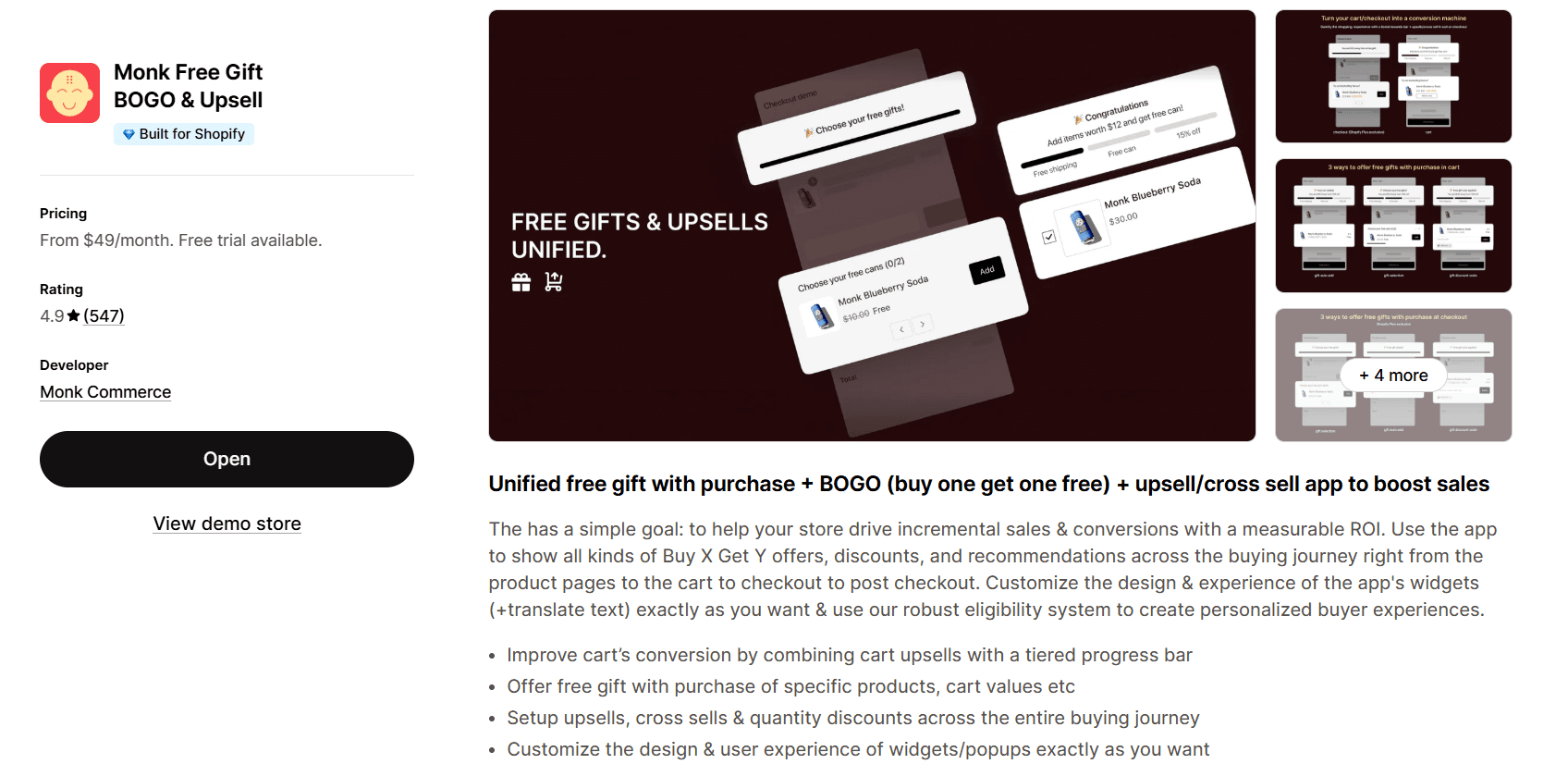
Open the Shopify App Store and search for Monk Free Gift BOGO & Upsell.
Click "Install" and follow the standard Shopify app authorization flow. Once installed, Monk will appear in your Shopify admin under Apps.
Step 2: Open the App and Create a New Offer
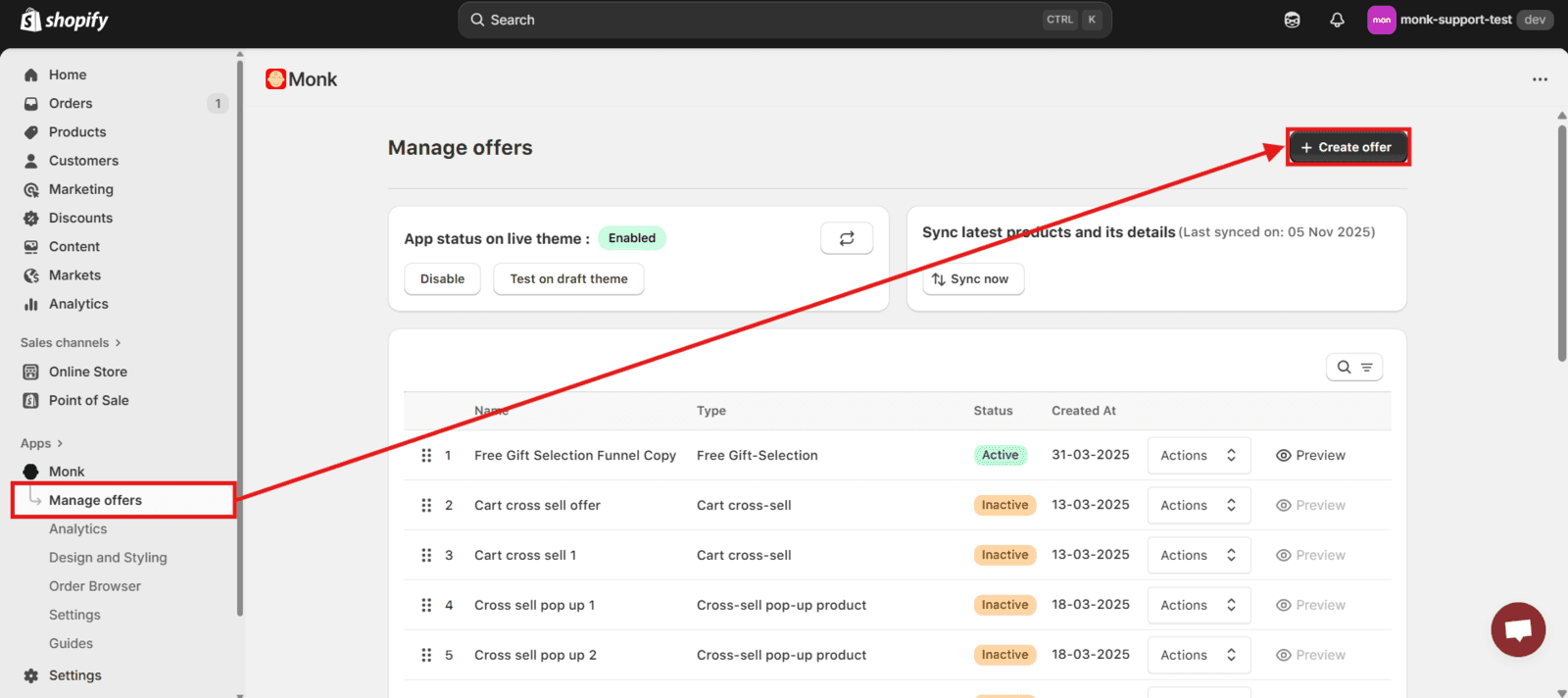
From the Monk dashboard, navigate to Manage Offers and click Create Offer:
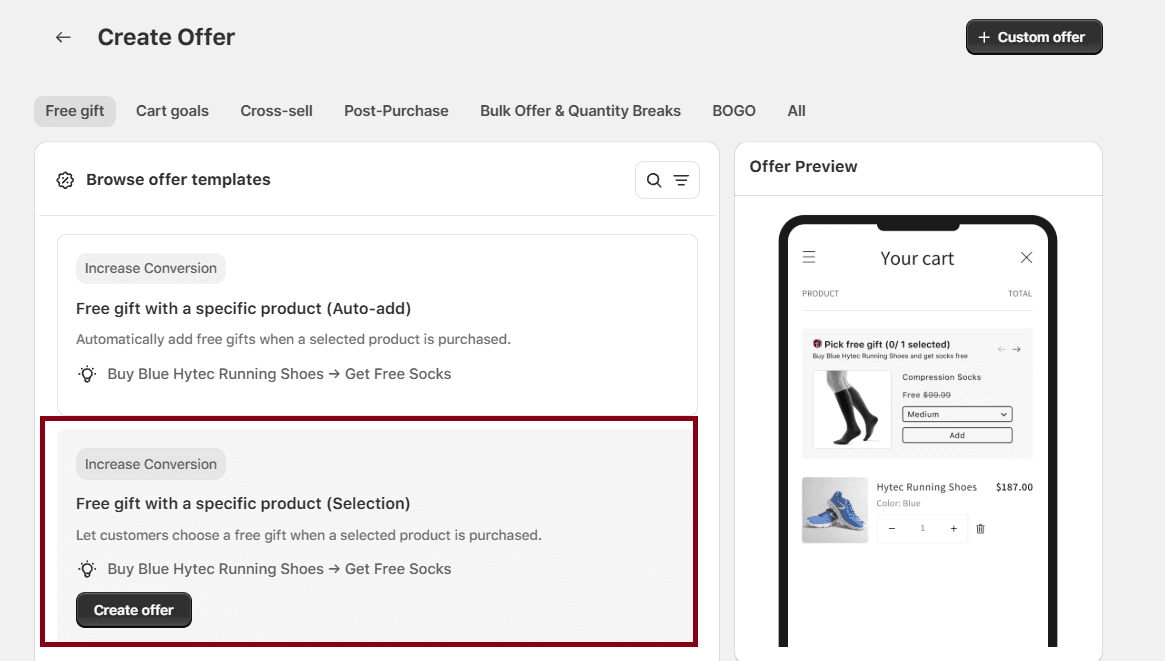
You will see several offer categories, such as Free Gift, BOGO, etc., and templates. Here are the free gift selection templates you can find in Monk:
Free gift with a specific product (Selection)
Free gift via code or link (Selection)
Free gift on cart value (Selection)
Free gift on selected collection items (Selection)
Ensure you choose the right one based on your strategy and eligibility criteria.
Step 3: Offer Rules and Placements
Monk lets you place the free gift-selection widget in the product page, cart, or checkout or even as a pop-up.
After setting up the display, you can configure the eligibility rules, meaning how you want the free gift to be triggered. You can set it up for a cart value, item quantity, specific collection, geographic location, customer tags, etc. You can also layer multiple criteria to create a highly specific and targeted offer for your customers.
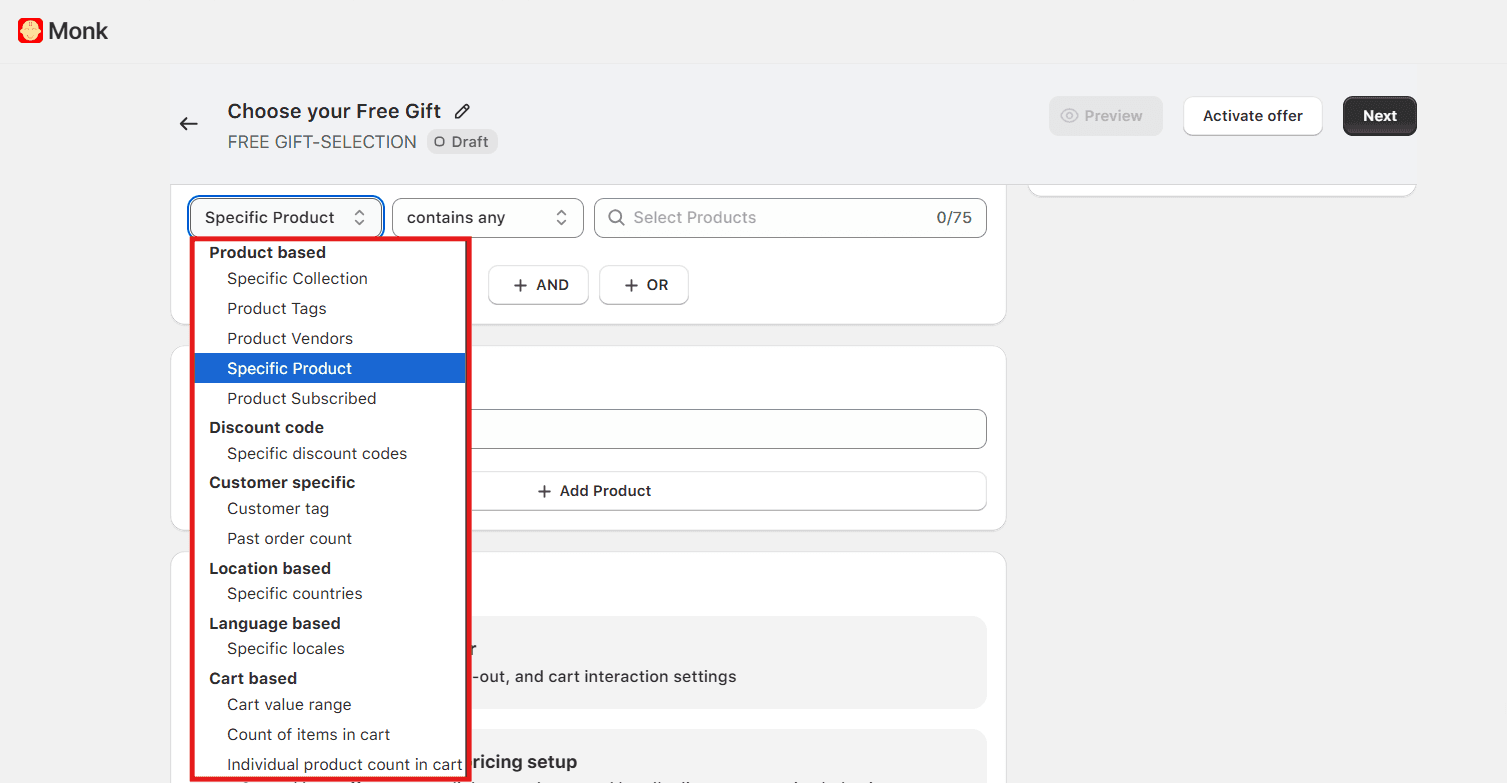
Next, you can pick the free gift options. For a free gift selection offer, be sure to pick at least 3 items to be displayed in the widget.
Step 4: Customize Messaging and Appearance
Monk's highly customizable widget editor lets you customize every visible element of the gift selection widget to match your brand.
You can also use different layouts for mobile and desktop. By default, the same layout is used across both desktop and mobile.
Step 5: Test and Optimize
Ensure to save and activate your offer. This is how the selection widget may look on your store.
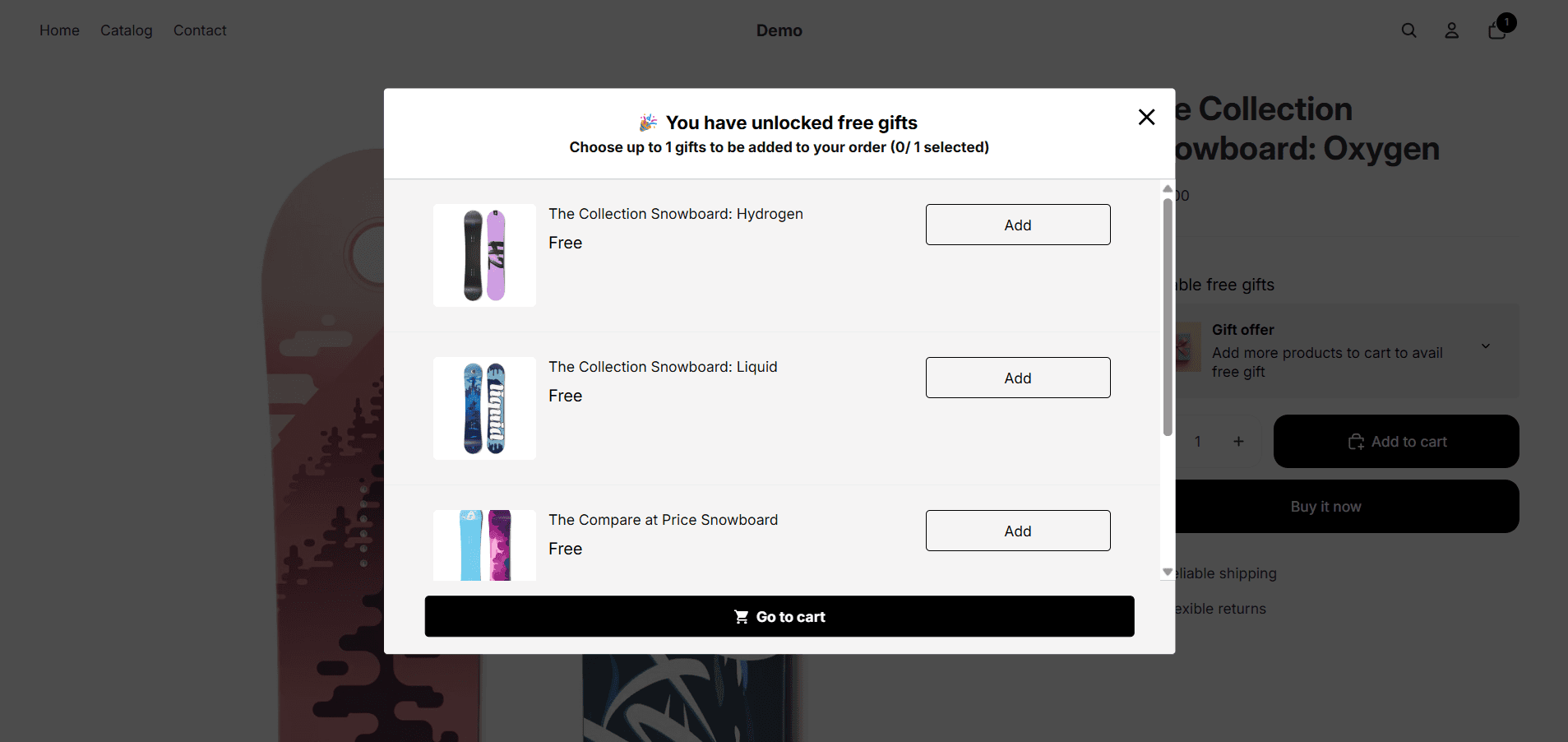
Test the offer on your store and optimize accordingly.
Advanced Use Cases:
Once you have the basic gift selection flow working, Monk supports several advanced configurations worth exploring.
Tiered gift campaigns: Set up multiple offers with different cart-value or item quantity thresholds along with a progress bar. For example: spend $50 and choose from Gift Set A; spend $100 and choose from Gift Set B.
Multi-currency stores: Monk is compatible with Shopify Markets and the major currency converter apps on the Shopify App Store. Cart-value thresholds can be set in your store's base currency and will convert correctly for international customers.
Cheapest item free: Configure a promotion where the lowest-priced item currently in the customer's cart is automatically made free once they hit a qualifying threshold.
Best Practices for Free Gift Selection on Shopify
Getting the mechanics right is only half the job. Here is how to make sure your free gift selection campaign actually performs.
Offer 3 to 5 gift options: This range maximizes perceived choice without triggering decision fatigue. If you offer 10 options, customers will spend more time choosing and more often abandon the decision entirely.
Keep gift cost under 5 to 10 percent of the qualifying order value: A gift that costs you $4 on a $50 qualifying cart is sustainable. A gift that costs $15 on a $50 cart will erode margins quickly at scale.
Choose gifts with high perceived value but low unit cost: Travel-size products, samples, branded accessories, and digital products work well. Customers should feel like they are getting something worth having, not a product you are trying to offload.
Promote the offer everywhere: The gift selection widget in the cart is the conversion tool, but the awareness of the offer should start much earlier. Add a banner to your product pages, mention it in your email sequences, and include it in your SMS campaigns.
Monitor gift selection data and rotate options: Track which gifts customers choose most often. If one option consistently dominates, test whether swapping lower-performing options for new alternatives improves overall conversion.
Always verify auto-remove behavior: If a customer drops below the qualifying cart threshold, the gift must disappear automatically. A gift that stays in the cart after the customer no longer qualifies is a customer service issue and a revenue leak.
Also read: 20+ Best Free Gift Ideas for Shopify Stores That Drive More Sales
Enable Free Gift Selection in Shopify with Monk
Free gift selection works efficiently because it puts the customer in control. Customers who choose their own gift are more invested in it, thus remembering the experience positively.
Shopify's native discount system cannot deliver this experience. Monk, on the other hand, enables you to set up an offer without requiring any coding. From install to activation, a functional gift selection campaign can be live in under 30 minutes on any Shopify plan.
If you are running gift promotions today and relying on manual customer action or auto-add, testing gift selection is one of the highest-ROI experiments available to you right now.
Frequently Asked Questions
Can I let customers choose their free gift on Shopify?
Yes, you can let customers choose their free gift on Shopify by using an app like Monk. You can display a gift selection widget in the cart drawer, cart page, or at checkout. Customers choose from a curated list of options when they meet your eligibility criteria, such as reaching a cart value threshold or entering a discount code.
Does Shopify natively support free gift selection?
No, Shopify does not natively support free gift selection. It requires customers to manually add the gift product to their cart and provides no gift picker UI. A dedicated app like Monk Free Gift is required for true free gift selection with a visual chooser widget.
How many gift options should I offer?
It is recommended to offer 3 to 5 gift options in a free gift selection widget on a Shopify store. Too many choices cause decision fatigue, which leads to customers skipping the gift selection entirely. Too few feel restrictive and reduce the perceived value of the promotion.
Does Monk's free gift selection work on all Shopify plans?
Yes, Monk's free gift selection works on all Shopify plans. Non-Shopify Plus merchants can place the gift selection widget in the product page, cart, and as a pop-up. Only checkout-level widget placement requires Shopify Plus.
What is the difference between auto-add and gift selection in Monk?
Auto-add places the gift product in the cart automatically as soon as the customer qualifies. Gift selection shows the customer a picker widget so they can choose their preferred gift from a set of options.
How to Enable Free Gift Selection on Shopify
Summary
Free gift selection in Shopify allows customers to choose their preferred gift when they meet conditions like cart value or product purchase, increasing engagement and average order value. Unlike Shopify’s native discounts, which lack a gift picker, auto-add, and customization, apps enable a seamless selection experience with visual widgets and advanced rules. By leveraging customer choice and perceived value, free gift selection improves retention, reduces cart abandonment, and enhances the overall shopping experience, making it a high-impact ecommerce promotion strategy.
Customers feel a sense of ownership when they’re allowed to select their gift themselves. This also makes them far less likely to remove it at checkout. In return, you can experience a higher average order value, lower cart abandonment, and a more satisfying shopping experience.
However, Shopify's native discount system does not support free gift selection. There is no built-in gift picker UI, no auto-add functionality, and no way to present customers with a curated set of options when they hit a cart threshold.
This guide explains exactly how to enable free gift selection on Shopify using Monk: a dedicated gift-with-purchase app built for Shopify merchants. By the end, you will have a fully configured gift selection widget live in your store, with no coding required.
What is Free Gift Selection and Why Does it Matter?
Free gift selection is a UI widget that lets customers choose their preferred gift from a curated set of options when they meet a defined eligibility condition. For example, reaching a cart value threshold, purchasing a specific product, or entering a discount code.
This is different from auto-add, where a gift product is placed directly into the cart without any customer input. Auto-add is simple to implement, but it can feel intrusive. Customers who did not consciously choose the gift are more likely to remove it when they see it in their cart.
Gift selection, on the other hand, uses the endowment effect, a well-documented psychological principle that describes how people assign higher value to things they have actively chosen. A customer who picked a travel candle over a lip balm will fight to keep it.
The business impact is direct: higher gift retention through checkout, higher average order values, and a more memorable brand experience that drives repeat purchases.
Why Shopify's Native Discounts Fall Short?
Shopify offers a ‘Buy X Get Y’ discount type that can be configured to give customers a free product when they purchase qualifying items. On the surface, this sounds like it covers the use case. In practice, it falls well short of what most merchants need.
Here is what Shopify's native Buy X Get Y discount cannot do:
No auto-add: Customers must manually find and add the gift product to their cart.
No gift picker UI: You cannot present customers with a selection of gift options.
Only one automatic discount runs at a time: Tiered gift campaigns are not possible with native discounts.
No progress bar or gamified UI: There is no way to show customers how close they are to unlocking the gift.
Shopify Plus required: Merchants on standard Shopify plans cannot use apps to modify the checkout experience, which limits where the gift widget can appear.
For merchants who want true free gift selection, one that works across all Shopify plans, supports cart-value thresholds, and shows customers a real picker UI, a dedicated app is the right solution. Monk is purpose-built for this.
How to Enable Free Gift Selection Using Monk?
Here is a complete step-by-step walkthrough for setting up free gift selection.
Step 1: Install Monk from the Shopify App Store
Open the Shopify App Store and search for Monk Free Gift BOGO & Upsell.
Click "Install" and follow the standard Shopify app authorization flow. Once installed, Monk will appear in your Shopify admin under Apps.
Step 2: Open the App and Create a New Offer
From the Monk dashboard, navigate to Manage Offers and click Create Offer:
You will see several offer categories, such as Free Gift, BOGO, etc., and templates. Here are the free gift selection templates you can find in Monk:
Free gift with a specific product (Selection)
Free gift via code or link (Selection)
Free gift on cart value (Selection)
Free gift on selected collection items (Selection)
Ensure you choose the right one based on your strategy and eligibility criteria.
Step 3: Offer Rules and Placements
Monk lets you place the free gift-selection widget in the product page, cart, or checkout or even as a pop-up.
After setting up the display, you can configure the eligibility rules, meaning how you want the free gift to be triggered. You can set it up for a cart value, item quantity, specific collection, geographic location, customer tags, etc. You can also layer multiple criteria to create a highly specific and targeted offer for your customers.
Next, you can pick the free gift options. For a free gift selection offer, be sure to pick at least 3 items to be displayed in the widget.
Step 4: Customize Messaging and Appearance
Monk's highly customizable widget editor lets you customize every visible element of the gift selection widget to match your brand.
You can also use different layouts for mobile and desktop. By default, the same layout is used across both desktop and mobile.
Step 5: Test and Optimize
Ensure to save and activate your offer. This is how the selection widget may look on your store.
Test the offer on your store and optimize accordingly.
Advanced Use Cases:
Once you have the basic gift selection flow working, Monk supports several advanced configurations worth exploring.
Tiered gift campaigns: Set up multiple offers with different cart-value or item quantity thresholds along with a progress bar. For example: spend $50 and choose from Gift Set A; spend $100 and choose from Gift Set B.
Multi-currency stores: Monk is compatible with Shopify Markets and the major currency converter apps on the Shopify App Store. Cart-value thresholds can be set in your store's base currency and will convert correctly for international customers.
Cheapest item free: Configure a promotion where the lowest-priced item currently in the customer's cart is automatically made free once they hit a qualifying threshold.
Best Practices for Free Gift Selection on Shopify
Getting the mechanics right is only half the job. Here is how to make sure your free gift selection campaign actually performs.
Offer 3 to 5 gift options: This range maximizes perceived choice without triggering decision fatigue. If you offer 10 options, customers will spend more time choosing and more often abandon the decision entirely.
Keep gift cost under 5 to 10 percent of the qualifying order value: A gift that costs you $4 on a $50 qualifying cart is sustainable. A gift that costs $15 on a $50 cart will erode margins quickly at scale.
Choose gifts with high perceived value but low unit cost: Travel-size products, samples, branded accessories, and digital products work well. Customers should feel like they are getting something worth having, not a product you are trying to offload.
Promote the offer everywhere: The gift selection widget in the cart is the conversion tool, but the awareness of the offer should start much earlier. Add a banner to your product pages, mention it in your email sequences, and include it in your SMS campaigns.
Monitor gift selection data and rotate options: Track which gifts customers choose most often. If one option consistently dominates, test whether swapping lower-performing options for new alternatives improves overall conversion.
Always verify auto-remove behavior: If a customer drops below the qualifying cart threshold, the gift must disappear automatically. A gift that stays in the cart after the customer no longer qualifies is a customer service issue and a revenue leak.
Also read: 20+ Best Free Gift Ideas for Shopify Stores That Drive More Sales
Enable Free Gift Selection in Shopify with Monk
Free gift selection works efficiently because it puts the customer in control. Customers who choose their own gift are more invested in it, thus remembering the experience positively.
Shopify's native discount system cannot deliver this experience. Monk, on the other hand, enables you to set up an offer without requiring any coding. From install to activation, a functional gift selection campaign can be live in under 30 minutes on any Shopify plan.
If you are running gift promotions today and relying on manual customer action or auto-add, testing gift selection is one of the highest-ROI experiments available to you right now.
Frequently Asked Questions
Can I let customers choose their free gift on Shopify?
Yes, you can let customers choose their free gift on Shopify by using an app like Monk. You can display a gift selection widget in the cart drawer, cart page, or at checkout. Customers choose from a curated list of options when they meet your eligibility criteria, such as reaching a cart value threshold or entering a discount code.
Does Shopify natively support free gift selection?
No, Shopify does not natively support free gift selection. It requires customers to manually add the gift product to their cart and provides no gift picker UI. A dedicated app like Monk Free Gift is required for true free gift selection with a visual chooser widget.
How many gift options should I offer?
It is recommended to offer 3 to 5 gift options in a free gift selection widget on a Shopify store. Too many choices cause decision fatigue, which leads to customers skipping the gift selection entirely. Too few feel restrictive and reduce the perceived value of the promotion.
Does Monk's free gift selection work on all Shopify plans?
Yes, Monk's free gift selection works on all Shopify plans. Non-Shopify Plus merchants can place the gift selection widget in the product page, cart, and as a pop-up. Only checkout-level widget placement requires Shopify Plus.
What is the difference between auto-add and gift selection in Monk?
Auto-add places the gift product in the cart automatically as soon as the customer qualifies. Gift selection shows the customer a picker widget so they can choose their preferred gift from a set of options.
Contents
Related Articles
Free Gift With Purchase Shopify Setup in 5 Minutes
Free Gift Campaigns for Shopify Stores: Tips, Strategies & Benefits
20+ Best Free Gift Ideas for Shopify Stores That Drive More Sales
Get Monk Free Gift app for just $1/month this Black Friday
First month: $1 after your 7-day free trial. All features included. Offer live!
Claim offer now

Get Monk Free Gift app for just $1/month this Black Friday
First month: $1 after your 7-day free trial. All features included. Offer live!
Claim offer now
Get Monk Free Gift app for just $1/month this Black Friday
First month: $1 after your 7-day free trial. All features included. Offer live!
Claim offer now