How to Add a Cart Progress Bar on Shopify (Step-by-Step Guide)
Summary
A Shopify cart progress bar visually shows customers how close they are to rewards like free shipping, discounts, or gifts, updating in real time as items are added. It works by applying goal-gradient, loss aversion, and gamification effects, encouraging shoppers to increase cart value and improving AOV and conversion rates. It is most effective when the reward threshold is close to the store’s average order value and when add-on products are available.
Implementation can be done via custom code or apps, with apps offering faster setup, real-time syncing, analytics, and better compatibility. Key placement is the cart drawer or cart page, with optional product or home page visibility. Success depends on realistic thresholds, clean UX, mobile optimization, and ongoing testing to track impact on AOV, revenue, and cart conversion rates.

Ravish (RV)
Senior Content Writer
Ravish is an ecommerce and SaaS marketing expert with 6+ years of experience in Shopify and ecommerce and 10+ years of experience in marketing, and growth strategy. He has worked closely with Shopify merchants to solve real ecommerce challenges and shares practical, research-backed insights, industry best practices, and emerging trends.
Key Takeaways
A Shopify cart progress bar visually shows customers how close they are to rewards like free shipping, discounts, or gifts, updating in real time as items are added. It works by applying goal-gradient, loss aversion, and gamification effects, encouraging shoppers to increase cart value and improving AOV and conversion rates. It is most effective when the reward threshold is close to the store’s average order value and when add-on products are available.
Implementation can be done via custom code or apps, with apps offering faster setup, real-time syncing, analytics, and better compatibility. Key placement is the cart drawer or cart page, with optional product or home page visibility. Success depends on realistic thresholds, clean UX, mobile optimization, and ongoing testing to track impact on AOV, revenue, and cart conversion rates.
If you’re looking for a simple way to encourage customers to spend a little more in your Shopify store, a cart progress bar can make a big difference. Instead of just showing a total at checkout, it lets customers see how close they are to earning something extra like free shipping or a special discount.
When customers read a personalized message like “You’re only $15 away from free shipping,” the offer feels achievable, and that small push often motivates them to add one more item to their cart.
In this article, let’s dive into how to add a cart progress bar on your Shopify store and leverage this feature into a tool for growing sales and making the shopping experience better for your customers.
What Is a Cart Progress Bar in Shopify
A cart progress bar in Shopify is a visual indicator that shows customers how close they are to unlocking a reward, such as free shipping, a discount, or a free gift. It typically appears on the cart page or inside a cart drawer and updates automatically when customers add items to their cart.
For example, it might say, “You’re $20 away from FREE shipping,” along with a bar that fills up as the cart total increases.
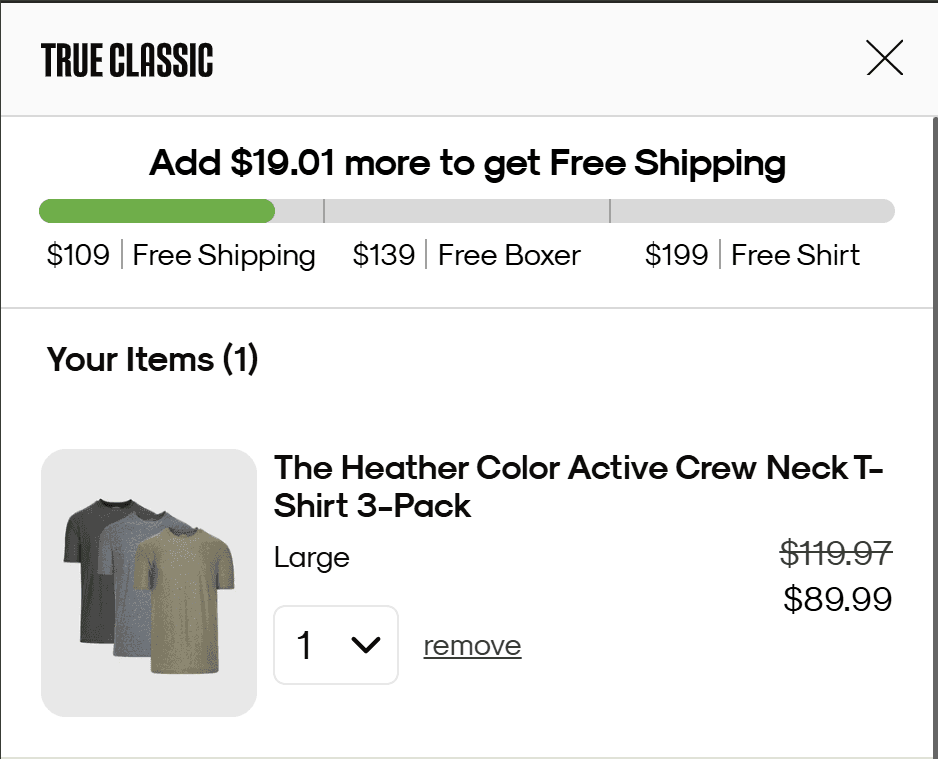
This feature is a soft push to the customers. Instead of leaving customers guessing about how much more they need to spend, it clearly shows them the goal and their progress toward it.
A cart progress bar makes the reward seem possible, which encourages customers to add one more item to their order. This helps store owners raise the average order value while keeping the shopping experience fun and clear.
Why Cart Progress Bars Increase Conversions and AOV
Cart progress bars work because they guide shopper behavior at the decision stage of the purchase journey. By showing customers how close they are to a reward like free shipping or a free gift with purchase on Shopify, they encourage shoppers to complete the purchase and often add more items to their cart.
Key Reasons They Work
Leverages the goal-gradient effect
Customers are more motivated to complete a task when they see they are close to a reward. A nearly filled progress bar pushes them to finish the purchase.
Encourages incremental purchases
When shoppers see messages like “You’re ₹200 away from free shipping,” they are more likely to add another product to reach the reward.
Reduces checkout hesitation
The progress bar provides a clear next step instead of leaving shoppers wondering whether they should add more items.
Creates a sense of value
Unlocking rewards such as free shipping, discounts, or gifts makes the purchase feel more worthwhile.
Uses loss aversion psychology
Once customers see a reward within reach, abandoning the cart feels like missing out on a benefit.
Anchors customers to a higher cart value
The threshold (e.g., free shipping at $199) becomes a reference point, nudging shoppers toward higher spending.
Adds a subtle gamification element
The visual progress toward a reward creates a completion instinct that motivates shoppers to “finish the bar.”
The Result
Higher Average Order Value (AOV) on Shopify store as customers add items to reach the reward threshold. Improved conversion rates because shoppers feel motivated to complete the purchase once they see progress toward a benefit. |
Is a Cart Progress Bar Right for Your Shopify Store
Cart progress bars can increase Average Order Value (AOV) and checkout conversions on your Shopify store, but they are not universally effective. Their impact depends on your store’s pricing structure, product catalog, and customer behavior.
Here are the key factors to evaluate before implementing one.
1. Your Average Order Value vs. Reward Threshold
A progress bar works best when the gap between the current AOV and the reward threshold is small.
Example:
Metric | Value |
|---|---|
Current AOV | $42 |
Free shipping threshold | $50 |
In this case, customers only need to add $8 more to unlock the reward. A progress bar can effectively nudge them to increase their cart value.
If the gap is too large (for example, AOV $40 and free shipping at $100), customers are less likely to respond.
2. Your Product Catalog Supports Add-Ons
Progress bars perform well when your store has complementary or impulse products customers can easily add.
Common examples include
Accessories
Low-cost add-ons
Product bundles
Consumables or refills
If your store sells single high-ticket products, customers usually won’t add another item just to reach a threshold.
3. Your Margins Can Absorb the Incentive
Rewards often include:
Free shipping
Free gifts
Small discounts
Your margins must comfortably support these incentives. If margins are already tight, increasing cart size may not translate into higher profitability.
4. Your Customers Are Price-Sensitive
Progress bars are particularly effective for audiences that respond to deals and savings.
They may be less effective for:
Luxury brands
High-end niche products
Purchase decisions driven mainly by brand prestige rather than value.
5. Your Cart Experience Has Room for It
A progress bar should guide users, not clutter the cart.
It works best when:
It appears near the top of the cart
It updates dynamically as items are added
It clearly communicates the reward
If your cart is already crowded with upsells, cross-sells, and messages, adding another element may overwhelm shoppers.
6. You Can Measure Its Impact
The most reliable way to decide is through testing.
Track metrics such as:
Average Order Value
Cart conversion rate
Revenue per visitor
Cart abandonment rate
If the progress bar increases AOV without hurting checkout completion, it’s a strong addition.
Quick Checklist for a Cart Progress Bar
A cart progress bar is likely a good fit if:
✅ Your AOV is close to a reward threshold |
✅ Your catalog includes small add-on products |
✅ Your margins allow incentives like free shipping or gifts |
✅ Your cart experience is clean and uncluttered |
✅ You can track performance and run tests |
Different Ways to Add a Cart Progress Bar on Shopify
A cart progress bar is a great approach to get customers to spend more money by giving them incentives like free delivery or discounts.
There are two ways to add a cart progress bar to your Shopify store:
Adding a Cart Progress Bar Using Custom Code
Adding a cart progress bar with custom code gives you full control over design, messaging, and functionality.
To do this, you need to change the files for your Shopify theme (typically the cart page or cart drawer template) and add code that compares the total of the cart to a set target, like free shipping.
This method is best if you want a simple solution without apps, need a lot of customization, or want the progress bar to match your brand design completely.
Using an app to add a Cart Progress Bar in Shopify
While a cart progress bar can be added using custom codes, the quickest and easiest way to add a progress bar to your store is to use a third-party app from the Shopify App Store, like Monk Free Gift + BOGO app. This approach requires no prior coding experience.
No-code or low-code implementation
Apps allow merchants to add a progress bar without modifying theme files, reducing the risk of breaking the store layout or checkout flow.Dynamic reward rules & Real-time cart syncing:
Apps can automatically update the progress bar based on cart value, item quantity, specific collections, etc. Apps update the cart progress bar when customers add or remove items, along with responsive messaging like "You're $8 away from free shipping" or "You've unlocked free shipping!" as the cart changes.Faster setup and deployment:
Instead of writing and testing custom Liquid and JavaScript, an app can implement the feature in minutes.Built-in customization options:
Apps allow easy adjustments to the size, colors, design, messaging, and placement of the tiered progress bar.Advanced features beyond a simple bar:
Many apps include additional conversion tools such as free gifts, buy-one-get-one offers, upsell and cross-sell suggestions, conditional discounts, and smart product recommendations.Automatic compatibility with theme updates:
Shopify theme updates can break custom-coded elements. Apps are usually maintained and updated to remain compatible.Performance tracking and analytics:
Some apps provide data on AOV lift, rewards availed, and conversion improvements.Continuous improvements from the app provider:
Apps frequently release updates with new CRO features and optimizations without requiring extra development work.Mobile Optimization:
Apps let you customize the design for various device types for a better UX.
Step-by-Step Guide to Add a Cart Progress Bar Using Monk
This is a step-by-step guide on setting up a tiered reward based on cart value/number of items in the cart using Monk’s Cart Progress Bar offer. Since Monk is a third-party app, it does not add, remove, or edit any of your theme’s existing code.

Create the Offer using Monk
Firstly, install the Monk App from the Shopify App Store. Under Shopify Admin Dashboard > Monk > Manage Offers.
You can either choose a structure template under the Cart Goals for a ready-made tiered progress bar that aligns with your offer structure.
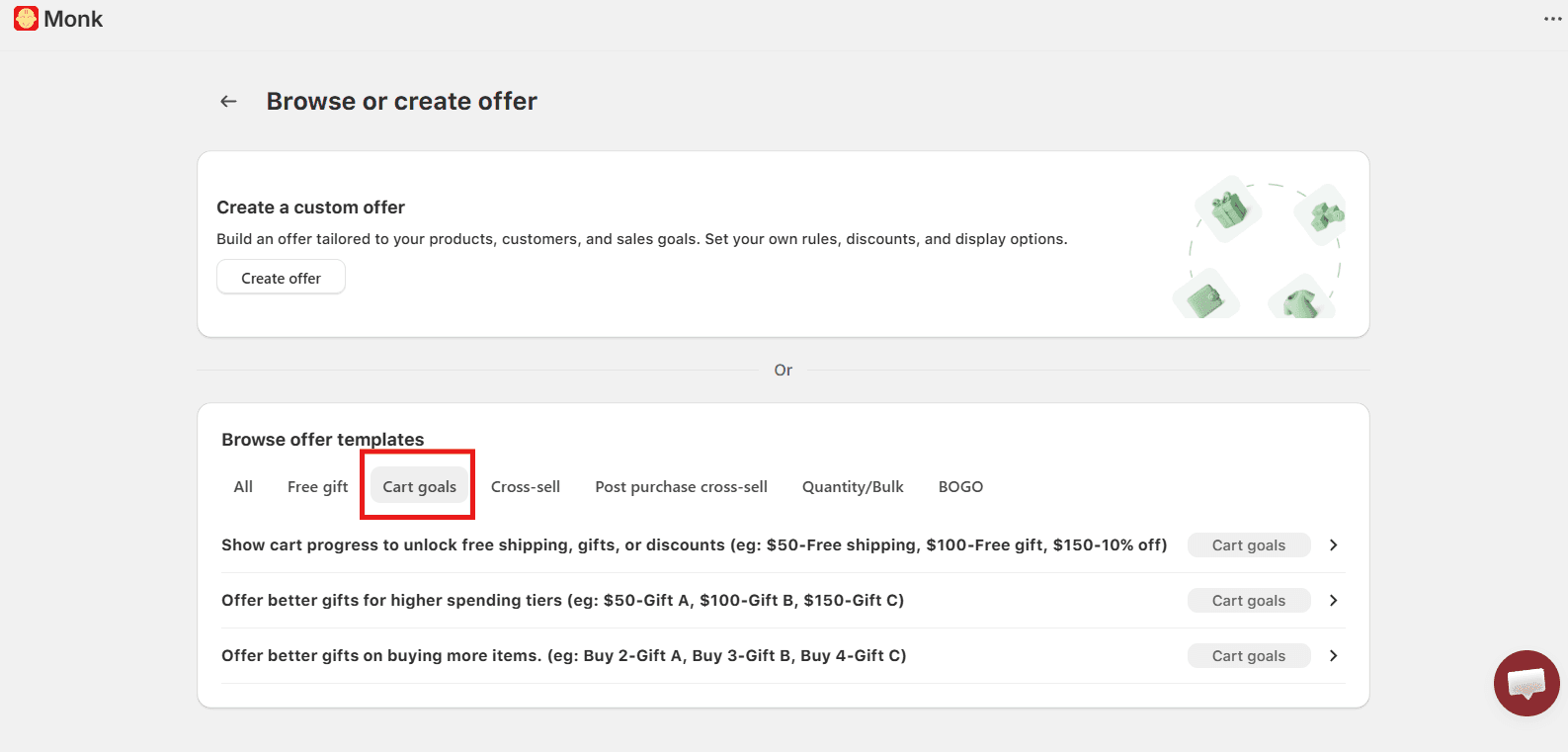
You can also create customized tiers by clicking on Create Offers > Gifts, shipping and cart goals > Cart Based Goals and build an offer with tiered free shipping, gift auto-add, gift-selection, order-level discounts, etc.
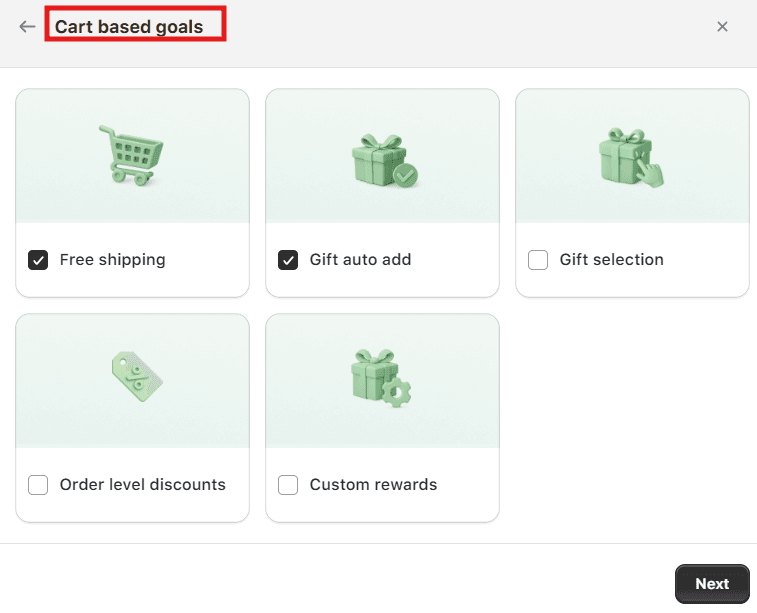
Ensure to name your offer correctly, as the name will appear on the cart and discount page and will also help you track your campaign performance. Avoid using generic names to prevent misuse.
Offer rules and placement:
In this step of the offer creation, you can choose where in the customer journey you want to display the tiered progress bar: product page, home page, cart, or checkout page(Shopify-plus only).
Due to technical limitations by Shopify, you will be able to set up the offer either on the checkout or on the other pages of your store.
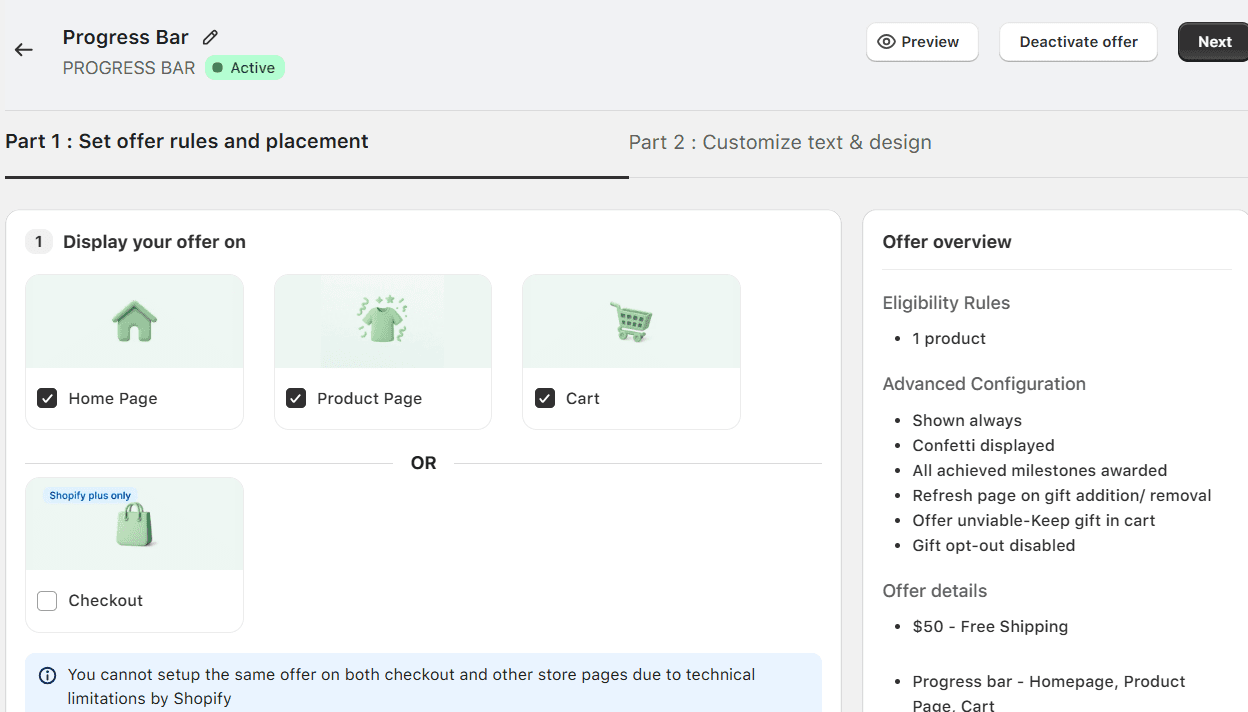
Choose the rules for whether you want the progress bar rewards to be displayed based on a specific product, collection, country, or customer tag.
The milestone criteria of the rewards can be based on the item quantity or the cart value range.
Note: You can only select one of these 2 options. For example, if you select cart value, all your milestones will be displayed for cart value.
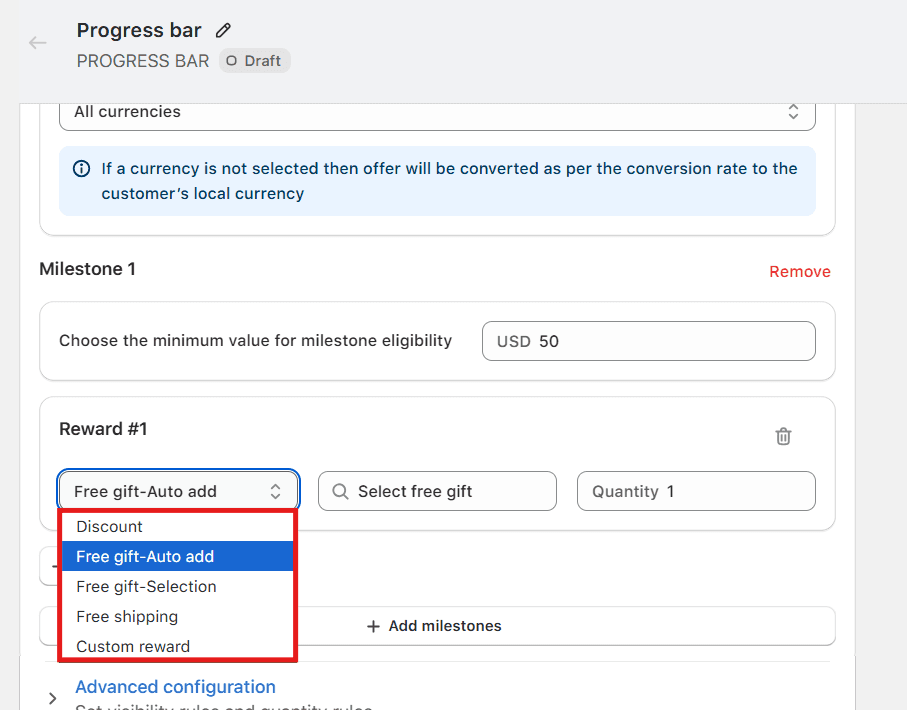
Lastly and most importantly, set the number of milestones, eligibility, and rewards for the progress bar.
For example,
Tier 1 - $50 - Free Shipping
Tier 2- $100- Free Gift automatically added to the cart
Tier 3- $150- 10% discount on the cart value
Note: Using Monk, you can add unlimited milestones and up to 6 rewards in each milestone.
Customize text and design
Monk offers various layouts for displaying the cart progress bar. You can choose to customize the progress bar thoroughly by changing the text, size, colors, icons for different devices.
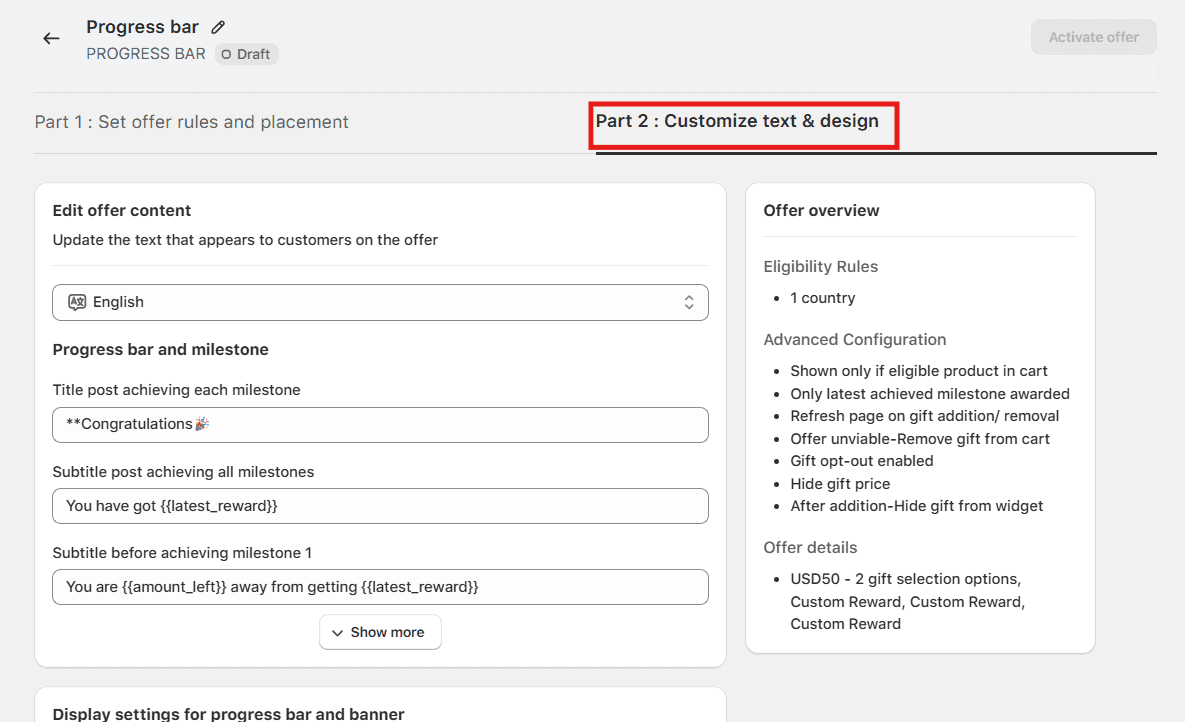
Under the 'Advanced display settings', you can also select different layouts for different devices.
You can also edit the exact offer body configurations to match your theme and brand guidelines, like the text styles, currency, price, and discount.
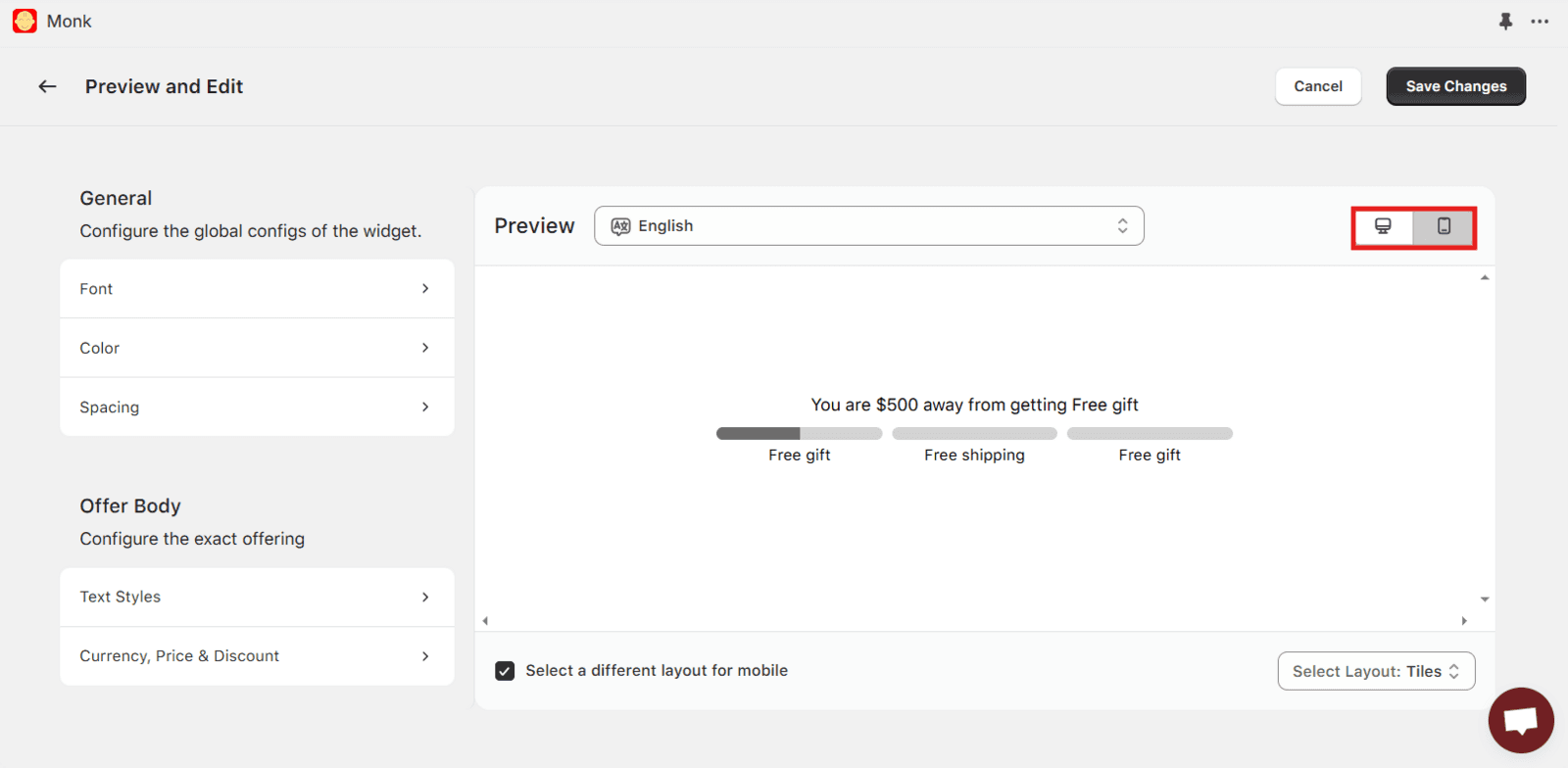
Don't forget to save and activate the offer. Ensure to test it on your live Shopify store.
Best Placement for a Cart Progress Bar in Shopify
On the cart drawer or cart page:
The best placement is at the top of the cart drawer (slide-out drawer) or cart page, i.e., above the cart items. It updates in real time as products are added and does not interrupt browsing.
Product page and Home page
Placing the progress bar on the product page and home page helps encourage customers to buy earlier.
Avoid placing the progress bar at the bottom of the pages or only at checkout, as Shopify limits customization at checkout.
Best Practices for adding Cart Progress Bars in Shopify
Show instant updates when customers add/remove products so the cart total and progress bar adjust without having the entire page reload.
Set realistic free-shipping or reward goals based on your average order value to keep incentives encouraging.
Use past sales data and customer behavior insights to determine the most effective reward tiers and messaging.
For a smooth and reliable shopping experience, make sure that the colors, fonts, tone, and motion style all match your brand theme.
To prevent slowing down the checkout process, make sure the progress bar is responsive, doesn't get in the way, and works well on small displays.
Keep testing different thresholds, designs, and messages to find out what gets the most conversions and AOV.
Common Mistakes to Avoid When Adding a Cart Progress Bar
Setting unrealistic cart goals
If your free shipping or reward threshold is far above your current AOV, customers won’t try to reach it and will ignore the progress bar entirely.
Poor contrast or visibility
If the bar blends into your background or the text is hard to read, customers won’t notice it which makes the feature ineffective.
Slowing down page speed
Heavy scripts or poorly coded apps can delay cart loading, which hurts user experience and reduces conversion rates.
Conflicting apps or scripts
Multiple upsell, cart, or discount apps can clash with your progress bar logic, causing incorrect totals or broken real-time updates.
Measuring the Impact of a Cart Progress Bar
Tracking AOV changes
Check the average order value of the Shopify store before and after you install the cart progress bar to determine if customers are paying more on each order.
Monitoring conversion rates
Keep an eye on your cart-to-checkout and overall Shopify store conversion rates to make sure the progress indicator is encouraging people to buy instead of making them dissatisfied
Using Shopify analytics and app reports
Use Shopify’s built-in analytics and your progress bar app’s reports to track revenue lift, goal completion rate, and customer behavior patterns over time.
Conclusion
A cart progress bar is a simple but effective technique to raise the average order value and make the shopping experience better on your Shopify site. You may motivate, clarify, and make customers feel like they've accomplished something by showing them prizes like free shipping or special discounts in real time. This will make them want to add one or even more item to their cart.
A cart progress bar becomes more than just a visual feature when it is used in a smart way, with realistic goals, changing messages, mobile optimization, and continual A/B testing. It becomes a conversion tool that encourages clients to buy more while making the checkout process easy and fun.
FAQs:
What is a cart progress bar in Shopify?
A tiered progress bar, commonly known as a cart progress bar in Shopify, is a feature that has multiple milestones to reward the customers. The bar increases or decreases when a product is added to the cart or removed. It shows how close a customer is to getting a reward.
How does a cart progress bar increase average order value?
A cart progress bar increases the average order value by encouraging customers to add more products to their cart and meet goals to earn rewards.
Can I add a cart progress bar without coding in Shopify?
Yes, you can add a cart progress bar without coding in Shopify by using third-party apps that support progress bars, like Monk Free Gift + BOGO + Cart Upsell.
Which is the best app to add a cart progress bar for Shopify stores?
There are various third-party Shopify apps available for adding a cart progress bar to your Shopify store. Monk Free Gift + BOGO is one of the most popular choices among the Shopify merchants. It does not take over your cart but rather blends seamlessly with your theme’s native cart and doesn’t slow down your store. It is also highly customizable to match your store and brand guidelines.
Where should a cart progress bar be placed on a Shopify store?
A tiered progress bar can be placed in the cart page, cart drawer/slider, product page, and/or even the home page. Shopify Plus merchants can also place the progress bar at teh checkout, where the intent is high.
Does a cart progress bar work with the cart drawer in Shopify themes?
Yes, a cart progress bar works with the cart drawer in Shopify themes.
Can I show free shipping progress in the carts in Shopify?
Yes, you can show free shipping progress in Shopify carts. You can add a personalized progress bar for the cart or use Shopify apps designed for cart goals.
Will a cart progress bar affect Shopify store speed?
No, a cart progress bar usually has little to no impact on Shopify store speed if it is implemented properly. Ensure not to overlap multiple apps in your cart; rather, use an all-in-one app like Monk Free Gift + BOGO + Cart Upsell.
How do I customize cart progress bar messaging?
You can choose a highly customizable app like Monk Free Gift + BOGO to customize cart progress bar messaging according to you. You can also change the font style, size, color, and images according to your brand guidelines for a seamless cart experience.
Is a cart progress bar suitable for mobile users?
Yes, a cart progress bar is suitable and rather recommended for mobile users when designed properly, i.e., it should be easy to read and placed where it does not block important buttons like 'Checkout.'
How to Add a Cart Progress Bar on Shopify (Step-by-Step Guide)
Summary
A Shopify cart progress bar visually shows customers how close they are to rewards like free shipping, discounts, or gifts, updating in real time as items are added. It works by applying goal-gradient, loss aversion, and gamification effects, encouraging shoppers to increase cart value and improving AOV and conversion rates. It is most effective when the reward threshold is close to the store’s average order value and when add-on products are available.
Implementation can be done via custom code or apps, with apps offering faster setup, real-time syncing, analytics, and better compatibility. Key placement is the cart drawer or cart page, with optional product or home page visibility. Success depends on realistic thresholds, clean UX, mobile optimization, and ongoing testing to track impact on AOV, revenue, and cart conversion rates.
If you’re looking for a simple way to encourage customers to spend a little more in your Shopify store, a cart progress bar can make a big difference. Instead of just showing a total at checkout, it lets customers see how close they are to earning something extra like free shipping or a special discount.
When customers read a personalized message like “You’re only $15 away from free shipping,” the offer feels achievable, and that small push often motivates them to add one more item to their cart.
In this article, let’s dive into how to add a cart progress bar on your Shopify store and leverage this feature into a tool for growing sales and making the shopping experience better for your customers.
What Is a Cart Progress Bar in Shopify
A cart progress bar in Shopify is a visual indicator that shows customers how close they are to unlocking a reward, such as free shipping, a discount, or a free gift. It typically appears on the cart page or inside a cart drawer and updates automatically when customers add items to their cart.
For example, it might say, “You’re $20 away from FREE shipping,” along with a bar that fills up as the cart total increases.
This feature is a soft push to the customers. Instead of leaving customers guessing about how much more they need to spend, it clearly shows them the goal and their progress toward it.
A cart progress bar makes the reward seem possible, which encourages customers to add one more item to their order. This helps store owners raise the average order value while keeping the shopping experience fun and clear.
Why Cart Progress Bars Increase Conversions and AOV
Cart progress bars work because they guide shopper behavior at the decision stage of the purchase journey. By showing customers how close they are to a reward like free shipping or a free gift with purchase on Shopify, they encourage shoppers to complete the purchase and often add more items to their cart.
Key Reasons They Work
Leverages the goal-gradient effect
Customers are more motivated to complete a task when they see they are close to a reward. A nearly filled progress bar pushes them to finish the purchase.
Encourages incremental purchases
When shoppers see messages like “You’re ₹200 away from free shipping,” they are more likely to add another product to reach the reward.
Reduces checkout hesitation
The progress bar provides a clear next step instead of leaving shoppers wondering whether they should add more items.
Creates a sense of value
Unlocking rewards such as free shipping, discounts, or gifts makes the purchase feel more worthwhile.
Uses loss aversion psychology
Once customers see a reward within reach, abandoning the cart feels like missing out on a benefit.
Anchors customers to a higher cart value
The threshold (e.g., free shipping at $199) becomes a reference point, nudging shoppers toward higher spending.
Adds a subtle gamification element
The visual progress toward a reward creates a completion instinct that motivates shoppers to “finish the bar.”
The Result
Higher Average Order Value (AOV) on Shopify store as customers add items to reach the reward threshold. Improved conversion rates because shoppers feel motivated to complete the purchase once they see progress toward a benefit. |
Is a Cart Progress Bar Right for Your Shopify Store
Cart progress bars can increase Average Order Value (AOV) and checkout conversions on your Shopify store, but they are not universally effective. Their impact depends on your store’s pricing structure, product catalog, and customer behavior.
Here are the key factors to evaluate before implementing one.
1. Your Average Order Value vs. Reward Threshold
A progress bar works best when the gap between the current AOV and the reward threshold is small.
Example:
Metric | Value |
|---|---|
Current AOV | $42 |
Free shipping threshold | $50 |
In this case, customers only need to add $8 more to unlock the reward. A progress bar can effectively nudge them to increase their cart value.
If the gap is too large (for example, AOV $40 and free shipping at $100), customers are less likely to respond.
2. Your Product Catalog Supports Add-Ons
Progress bars perform well when your store has complementary or impulse products customers can easily add.
Common examples include
Accessories
Low-cost add-ons
Product bundles
Consumables or refills
If your store sells single high-ticket products, customers usually won’t add another item just to reach a threshold.
3. Your Margins Can Absorb the Incentive
Rewards often include:
Free shipping
Free gifts
Small discounts
Your margins must comfortably support these incentives. If margins are already tight, increasing cart size may not translate into higher profitability.
4. Your Customers Are Price-Sensitive
Progress bars are particularly effective for audiences that respond to deals and savings.
They may be less effective for:
Luxury brands
High-end niche products
Purchase decisions driven mainly by brand prestige rather than value.
5. Your Cart Experience Has Room for It
A progress bar should guide users, not clutter the cart.
It works best when:
It appears near the top of the cart
It updates dynamically as items are added
It clearly communicates the reward
If your cart is already crowded with upsells, cross-sells, and messages, adding another element may overwhelm shoppers.
6. You Can Measure Its Impact
The most reliable way to decide is through testing.
Track metrics such as:
Average Order Value
Cart conversion rate
Revenue per visitor
Cart abandonment rate
If the progress bar increases AOV without hurting checkout completion, it’s a strong addition.
Quick Checklist for a Cart Progress Bar
A cart progress bar is likely a good fit if:
✅ Your AOV is close to a reward threshold |
✅ Your catalog includes small add-on products |
✅ Your margins allow incentives like free shipping or gifts |
✅ Your cart experience is clean and uncluttered |
✅ You can track performance and run tests |
Different Ways to Add a Cart Progress Bar on Shopify
A cart progress bar is a great approach to get customers to spend more money by giving them incentives like free delivery or discounts.
There are two ways to add a cart progress bar to your Shopify store:
Adding a Cart Progress Bar Using Custom Code
Adding a cart progress bar with custom code gives you full control over design, messaging, and functionality.
To do this, you need to change the files for your Shopify theme (typically the cart page or cart drawer template) and add code that compares the total of the cart to a set target, like free shipping.
This method is best if you want a simple solution without apps, need a lot of customization, or want the progress bar to match your brand design completely.
Using an app to add a Cart Progress Bar in Shopify
While a cart progress bar can be added using custom codes, the quickest and easiest way to add a progress bar to your store is to use a third-party app from the Shopify App Store, like Monk Free Gift + BOGO app. This approach requires no prior coding experience.
No-code or low-code implementation
Apps allow merchants to add a progress bar without modifying theme files, reducing the risk of breaking the store layout or checkout flow.Dynamic reward rules & Real-time cart syncing:
Apps can automatically update the progress bar based on cart value, item quantity, specific collections, etc. Apps update the cart progress bar when customers add or remove items, along with responsive messaging like "You're $8 away from free shipping" or "You've unlocked free shipping!" as the cart changes.Faster setup and deployment:
Instead of writing and testing custom Liquid and JavaScript, an app can implement the feature in minutes.Built-in customization options:
Apps allow easy adjustments to the size, colors, design, messaging, and placement of the tiered progress bar.Advanced features beyond a simple bar:
Many apps include additional conversion tools such as free gifts, buy-one-get-one offers, upsell and cross-sell suggestions, conditional discounts, and smart product recommendations.Automatic compatibility with theme updates:
Shopify theme updates can break custom-coded elements. Apps are usually maintained and updated to remain compatible.Performance tracking and analytics:
Some apps provide data on AOV lift, rewards availed, and conversion improvements.Continuous improvements from the app provider:
Apps frequently release updates with new CRO features and optimizations without requiring extra development work.Mobile Optimization:
Apps let you customize the design for various device types for a better UX.
Step-by-Step Guide to Add a Cart Progress Bar Using Monk
This is a step-by-step guide on setting up a tiered reward based on cart value/number of items in the cart using Monk’s Cart Progress Bar offer. Since Monk is a third-party app, it does not add, remove, or edit any of your theme’s existing code.
Create the Offer using Monk
Firstly, install the Monk App from the Shopify App Store. Under Shopify Admin Dashboard > Monk > Manage Offers.
You can either choose a structure template under the Cart Goals for a ready-made tiered progress bar that aligns with your offer structure.
You can also create customized tiers by clicking on Create Offers > Gifts, shipping and cart goals > Cart Based Goals and build an offer with tiered free shipping, gift auto-add, gift-selection, order-level discounts, etc.
Ensure to name your offer correctly, as the name will appear on the cart and discount page and will also help you track your campaign performance. Avoid using generic names to prevent misuse.
Offer rules and placement:
In this step of the offer creation, you can choose where in the customer journey you want to display the tiered progress bar: product page, home page, cart, or checkout page(Shopify-plus only).
Due to technical limitations by Shopify, you will be able to set up the offer either on the checkout or on the other pages of your store.
Choose the rules for whether you want the progress bar rewards to be displayed based on a specific product, collection, country, or customer tag.
The milestone criteria of the rewards can be based on the item quantity or the cart value range.
Note: You can only select one of these 2 options. For example, if you select cart value, all your milestones will be displayed for cart value.
Lastly and most importantly, set the number of milestones, eligibility, and rewards for the progress bar.
For example,
Tier 1 - $50 - Free Shipping
Tier 2- $100- Free Gift automatically added to the cart
Tier 3- $150- 10% discount on the cart value
Note: Using Monk, you can add unlimited milestones and up to 6 rewards in each milestone.
Customize text and design
Monk offers various layouts for displaying the cart progress bar. You can choose to customize the progress bar thoroughly by changing the text, size, colors, icons for different devices.
Under the 'Advanced display settings', you can also select different layouts for different devices.
You can also edit the exact offer body configurations to match your theme and brand guidelines, like the text styles, currency, price, and discount.
Don't forget to save and activate the offer. Ensure to test it on your live Shopify store.
Best Placement for a Cart Progress Bar in Shopify
On the cart drawer or cart page:
The best placement is at the top of the cart drawer (slide-out drawer) or cart page, i.e., above the cart items. It updates in real time as products are added and does not interrupt browsing.
Product page and Home page
Placing the progress bar on the product page and home page helps encourage customers to buy earlier.
Avoid placing the progress bar at the bottom of the pages or only at checkout, as Shopify limits customization at checkout.
Best Practices for adding Cart Progress Bars in Shopify
Show instant updates when customers add/remove products so the cart total and progress bar adjust without having the entire page reload.
Set realistic free-shipping or reward goals based on your average order value to keep incentives encouraging.
Use past sales data and customer behavior insights to determine the most effective reward tiers and messaging.
For a smooth and reliable shopping experience, make sure that the colors, fonts, tone, and motion style all match your brand theme.
To prevent slowing down the checkout process, make sure the progress bar is responsive, doesn't get in the way, and works well on small displays.
Keep testing different thresholds, designs, and messages to find out what gets the most conversions and AOV.
Common Mistakes to Avoid When Adding a Cart Progress Bar
Setting unrealistic cart goals
If your free shipping or reward threshold is far above your current AOV, customers won’t try to reach it and will ignore the progress bar entirely.
Poor contrast or visibility
If the bar blends into your background or the text is hard to read, customers won’t notice it which makes the feature ineffective.
Slowing down page speed
Heavy scripts or poorly coded apps can delay cart loading, which hurts user experience and reduces conversion rates.
Conflicting apps or scripts
Multiple upsell, cart, or discount apps can clash with your progress bar logic, causing incorrect totals or broken real-time updates.
Measuring the Impact of a Cart Progress Bar
Tracking AOV changes
Check the average order value of the Shopify store before and after you install the cart progress bar to determine if customers are paying more on each order.
Monitoring conversion rates
Keep an eye on your cart-to-checkout and overall Shopify store conversion rates to make sure the progress indicator is encouraging people to buy instead of making them dissatisfied
Using Shopify analytics and app reports
Use Shopify’s built-in analytics and your progress bar app’s reports to track revenue lift, goal completion rate, and customer behavior patterns over time.
Conclusion
A cart progress bar is a simple but effective technique to raise the average order value and make the shopping experience better on your Shopify site. You may motivate, clarify, and make customers feel like they've accomplished something by showing them prizes like free shipping or special discounts in real time. This will make them want to add one or even more item to their cart.
A cart progress bar becomes more than just a visual feature when it is used in a smart way, with realistic goals, changing messages, mobile optimization, and continual A/B testing. It becomes a conversion tool that encourages clients to buy more while making the checkout process easy and fun.
FAQs:
What is a cart progress bar in Shopify?
A tiered progress bar, commonly known as a cart progress bar in Shopify, is a feature that has multiple milestones to reward the customers. The bar increases or decreases when a product is added to the cart or removed. It shows how close a customer is to getting a reward.
How does a cart progress bar increase average order value?
A cart progress bar increases the average order value by encouraging customers to add more products to their cart and meet goals to earn rewards.
Can I add a cart progress bar without coding in Shopify?
Yes, you can add a cart progress bar without coding in Shopify by using third-party apps that support progress bars, like Monk Free Gift + BOGO + Cart Upsell.
Which is the best app to add a cart progress bar for Shopify stores?
There are various third-party Shopify apps available for adding a cart progress bar to your Shopify store. Monk Free Gift + BOGO is one of the most popular choices among the Shopify merchants. It does not take over your cart but rather blends seamlessly with your theme’s native cart and doesn’t slow down your store. It is also highly customizable to match your store and brand guidelines.
Where should a cart progress bar be placed on a Shopify store?
A tiered progress bar can be placed in the cart page, cart drawer/slider, product page, and/or even the home page. Shopify Plus merchants can also place the progress bar at teh checkout, where the intent is high.
Does a cart progress bar work with the cart drawer in Shopify themes?
Yes, a cart progress bar works with the cart drawer in Shopify themes.
Can I show free shipping progress in the carts in Shopify?
Yes, you can show free shipping progress in Shopify carts. You can add a personalized progress bar for the cart or use Shopify apps designed for cart goals.
Will a cart progress bar affect Shopify store speed?
No, a cart progress bar usually has little to no impact on Shopify store speed if it is implemented properly. Ensure not to overlap multiple apps in your cart; rather, use an all-in-one app like Monk Free Gift + BOGO + Cart Upsell.
How do I customize cart progress bar messaging?
You can choose a highly customizable app like Monk Free Gift + BOGO to customize cart progress bar messaging according to you. You can also change the font style, size, color, and images according to your brand guidelines for a seamless cart experience.
Is a cart progress bar suitable for mobile users?
Yes, a cart progress bar is suitable and rather recommended for mobile users when designed properly, i.e., it should be easy to read and placed where it does not block important buttons like 'Checkout.'
Ravish (RV)
Co-Founder, Monk Commerce
Ravish is an ecommerce and SaaS marketing expert with 6+ years of experience in Shopify and ecommerce and 10+ years of experience in marketing, and growth strategy. He has worked closely with Shopify merchants to solve real ecommerce challenges and shares practical, research-backed insights, industry best practices, and emerging trends.
Contents
Related Articles
Free Gift Promotion Strategy [8 Proven Ways to Boost Conversions, AOV & Customer Loyalty]
BOGO Strategy for Shopify Stores to Boost Revenue
How to Create a Discount Code in Shopify in 2026: A Step-by-Step Guide
Get Monk Free Gift app for just $1/month this Black Friday
First month: $1 after your 7-day free trial. All features included. Offer live!
Claim offer now

Get Monk Free Gift app for just $1/month this Black Friday
First month: $1 after your 7-day free trial. All features included. Offer live!
Claim offer now
Get Monk Free Gift app for just $1/month this Black Friday
First month: $1 after your 7-day free trial. All features included. Offer live!
Claim offer now