How to Create a “Buy X Products And Get The Cheapest Item For Free” Promotion on Shopify
Summary
Learn how to set up a 'Buy X, Get the Cheapest Item Free' promotion on Shopify to boost average order value and conversions. This guide covers Shopify discount rules, native discount setup, and app-based methods like BOGO and bundle discounts for advanced automation. Discover step-by-step instructions, real examples, best practices, and common mistakes to avoid when running cart-based promotions. Ideal for merchants looking to increase revenue with smart, automatic discount strategies and upsell offers that drive repeat Shopify sales.

Key Takeaways
Learn how to set up a 'Buy X, Get the Cheapest Item Free' promotion on Shopify to boost average order value and conversions. This guide covers Shopify discount rules, native discount setup, and app-based methods like BOGO and bundle discounts for advanced automation. Discover step-by-step instructions, real examples, best practices, and common mistakes to avoid when running cart-based promotions. Ideal for merchants looking to increase revenue with smart, automatic discount strategies and upsell offers that drive repeat Shopify sales.
When a customer is already eyeing a product on your Shopify store, their wallet is halfway open, and that's your golden moment. Hit them with the right offer, and they'll gleefully toss something extra into their cart without a second thought.
And few offers do this better than "Buy X products and get the cheapest item for free."
It works so well simply because of the word FREE.
This offer is a great strategy in e-commerce, which is why several brands prefer using it as part of their marketing strategy to boost AOV and increase revenue.
Ready to get started? In this guide, we will explain exactly what this offer is, why it matters so much for Shopify stores, and how to apply it using Shopify's native features and apps.
What Is a “Buy X Get Cheapest Item Free” Promotion?
As the name suggests, buy X and get the cheapest item for free means that, when buying a certain number of items, the customer gets the lowest-value item in their cart for free. This could be on buying two items, three items, or even five or more.
This offer provides an immediate incentive for customers to add more products to their cart to get something for free. The business benefits from increased revenue and higher AOV, while the customer walks away with more value and a sense of winning.
Here's a quick example to make it clear: Let’s say a customer is looking to buy a serum and a lip balm for a skincare routine. Now, they see the promotion "Buy any 3 products, get the cheapest one free." This tempts them to add another product to their cart. Vitamin C Serum: $45 Moisturizer: $30 Lip Balm: $8 So at checkout, the Lip Balm ($8 - Lowest value) is free and automatically deducted from the total. The customer came in planning to spend maybe $53, but because of this offer, they spent more and ultimately gained a benefit of $8. |
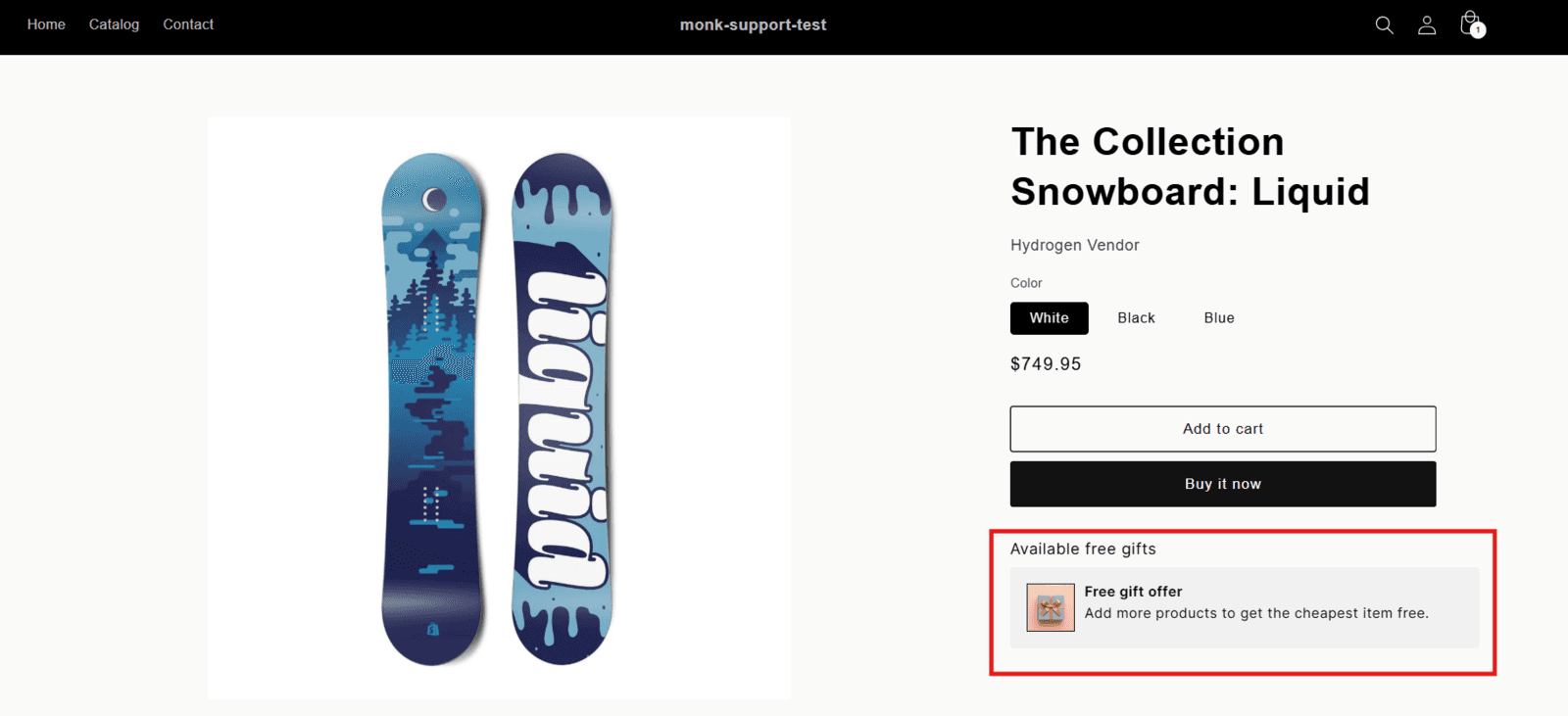
Here is what this offer looks like when displayed on the product page:
Here is how the value of the least expensive product is slashed out when calculating the total cart value:

Benefits of "Cheapest Item for Free" Promotion for Shopify Stores
You are probably thinking, "Why sell something to the customer for free? But believe us, there are more benefits of running this offer than you can imagine. Here's what you actually get out of it:
Your average order value goes up, almost automatically: When customers know they need to hit a certain number of products to unlock the deal, they start looking for things to add. That one-item shopper suddenly becomes a three-item shopper, not because you pushed them, but because the math made sense to them.
Customers feel like they won something: There's a big psychological difference between "10% off" and "free." A percentage discount feels transactional. A free item feels like a gift. And when people feel they got a good deal, they leave happy, which means better reviews, more word of mouth, and a higher chance they'll come back.
You stay in control of your margins: Because it's always the cheapest item that's free, you're never giving away something that hurts. Your high-ticket, high-margin products stay protected. The promotion practically manages itself without eating into your profits more than you're comfortable with.
It helps move products that are just sitting there: Got slower-moving inventory or lower-priced add-ons that don't get much attention? This promotion nudges customers to pick them up because adding a cheaper item to hit the threshold feels like a no-brainer when it might end up being free anyway.
It makes your store more competitive without slashing prices: Instead of running a sitewide sale or cutting prices across the board, this offer gives customers a reason to buy more while keeping your pricing intact. It's a smarter way to stand out during peak seasons or competitive periods.
It builds the habit of buying more: Customers who experience this deal once start to expect it. They come back knowing that stocking up or bundling their purchase comes with a reward. That kind of behavior is exactly what drives long-term revenue growth for your store.
Can You Create a "Cheapest Item for Free" Offer Natively in Shopify?
Shopify does have a built-in Buy X Get Y discount feature, but it's fairly basic. You can set up simple deals like "buy 2, get 1 free," but only if you specify exactly which product the free item will be. Shopify's native discounts don't have the logic to look at a customer's cart, compare prices, and automatically identify the cheapest item on the go.
So if a customer adds three different products and you want the lowest-priced one to automatically drop to zero, Shopify can't do that on its own.
Let's look at a step-by-step breakdown of what Shopify’s native features can help you accomplish and another method to set up the cheapest item for a free offer effortlessly.
Method 1: Using Shopify Discounts
As we just discussed, Shopify's native discount feature can't automatically identify the cheapest item in a customer's cart and set its price to zero. That dynamic logic just isn't built in. But before you jump straight to other options, it's worth knowing that there is a variation of this promotion you can pull off with Shopify's built-in tools; it just requires a little more manual decision-making on your end.
Instead of the system figuring out the cheapest item, you decide upfront which product will be the free one. So the offer becomes something like: "Buy any 3 products and get [this specific item] for free."
Here's how to set it up:
Head over to your Shopify admin and open the Discounts section: From your dashboard, click on Discounts in the left-hand menu. This is where all your promotions live.
Create a new discount and choose the right type: Hit "Create discount" and select "Buy X Get Y" from the options. This is the closest native option Shopify has to this kind of promotion.
Set your purchase requirement: Under the "Customer buys" section, choose "Minimum quantity of items," then enter the number. Then select whether the discount applies to specific products, collections, or your entire store, depending on how broad you want the offer to be.
Define the free product: Under the "Customer gets" section, set the quantity to 1 and select the specific product you want to give away for free. This is the step where Shopify differs from a fully automated version: you're manually selecting the free item rather than letting the cart decide.
Set the discount value to 100%: Choose Percentage as the discount type and enter 100% so the selected item is completely free.
Choose between a discount code or an automatic discount: If you want the discount to apply automatically when conditions are met, select Automatic discount. If you'd rather have customers enter a code at checkout, go with a discount code.
Set usage limits or date ranges if needed: You can cap the number of uses, restrict it to one per customer, or schedule it for specific dates.
Save and test it: Before going live, always run a test. Add the required number of products to the cart and ensure the free item is applied correctly at checkout.
When This Method Works Best
This approach makes the most sense when you have a go-to low-cost product you're comfortable offering as the free item every time, such as a travel-size product, a basic accessory, or an entry-level item in your catalog.
However, if your store has a wide variety of products and you want the free item to genuinely be the cheapest in the cart, this method will feel limiting. That's exactly where the next approach comes in.
Method 2: Using Shopify Apps like Monk Free Gift BOGO
If you want the promotion to work the way it's supposed to, where the cart automatically identifies the cheapest item and makes it free, no matter what the customer picks, a Shopify app is the way to go. Here is why third-party apps are a better choice:
Apps handle the logic you can't build natively: Apps can scan a customer's cart in real time, compare product prices, and automatically apply the discount to the cheapest item.
Setup is visual and beginner-friendly: You don't need to touch a single line of code. Most apps walk you through the entire setup through a clean dashboard with toggles, dropdowns, and templates, making it accessible even if you're not technical.
You get more control over the rules: Want the offer to trigger only for certain products, specific customer tags, or a particular region? Apps let you layer in eligibility rules that Shopify's native feature simply doesn't support.
The customer experience is seamless: With the apps, the free item is automatically applied at checkout. It just works, which makes the whole experience feel polished and effortless for the shopper.
Step-by-Step Guide Using Monk Free Gift + BOGO
For this walkthrough, we're using Monk Free Gift + BOGO, one of the more capable and straightforward apps for setting up this exact kind of promotion on Shopify.
Here's how to get it done:
Install Monk Free Gift + BOGO from the Shopify App Store: Search for the app, install it, and open it from your Shopify admin. Once you're in, head to the Manage Offers page.

Create a new offer: Click Create Offer in the top right corner. From there, navigate to Gifts, Shipping, and Cart Goals → General Free Gifts → Cheapest Item. This is the specific template built for this promotion.
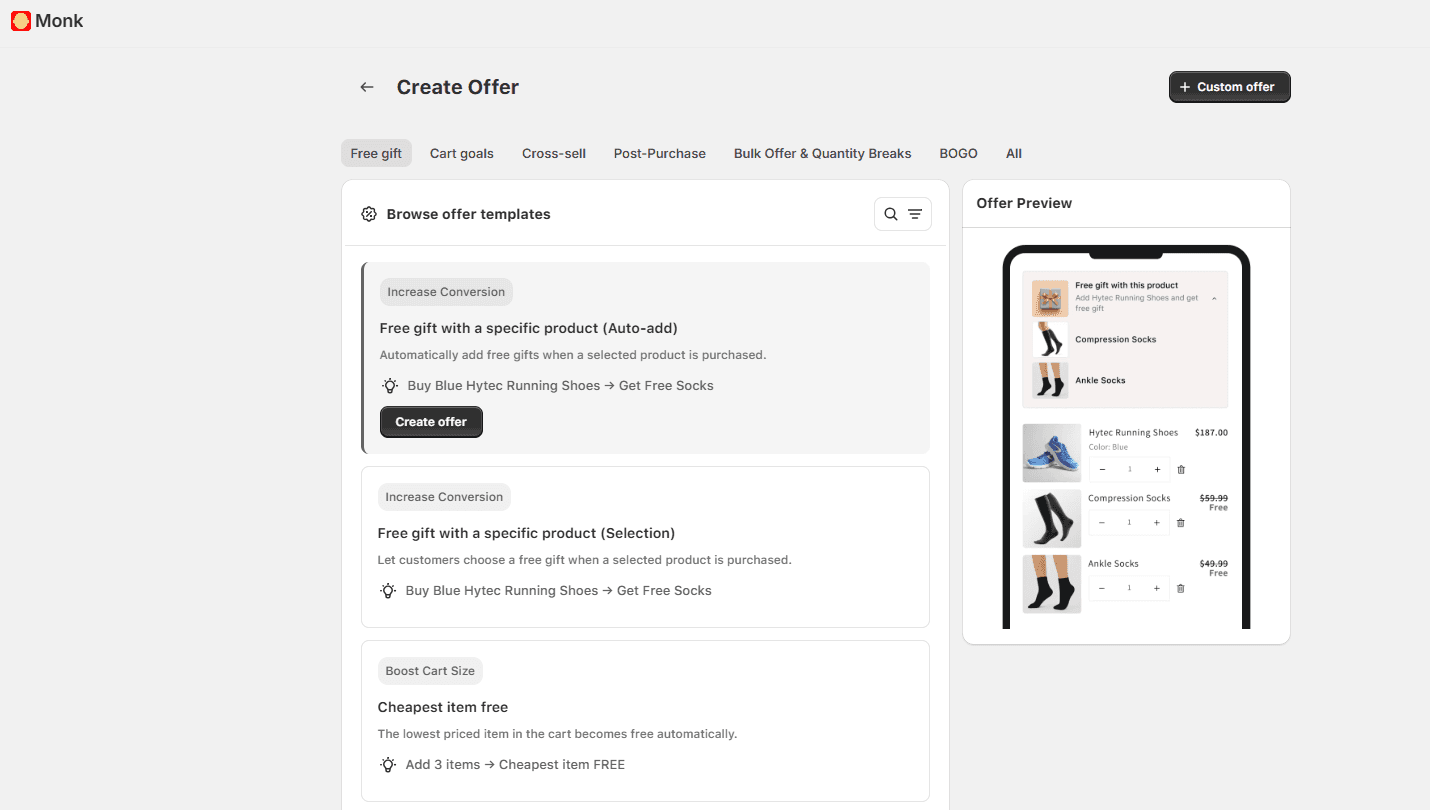
Choose your display location: In step 1 of the offer setup, select where you want the offer banner to appear. Note that this offer can only be created at the cart level. So the banner and the free item trigger will show up when the customer is viewing their cart.
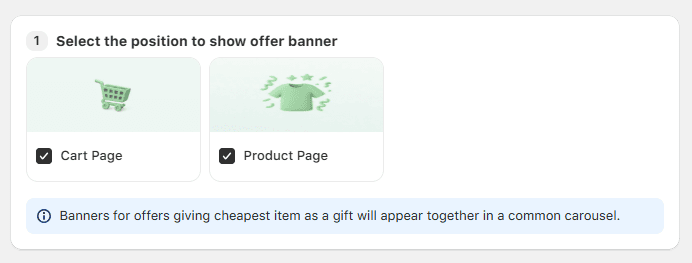
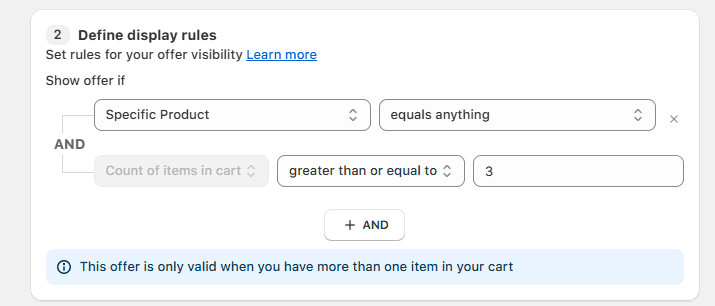
Set your eligibility rules: After setting up the display, configure the eligibility rules that determine when the free gift offer gets triggered, such as a specific location, locale, or customer tags. The "count of items in cart" trigger is selected by default with a minimum count of 2; you can adjust it based on your promotion.
Configure the offer settings: Under the offer settings, you'll find the option to show the banner only when eligible useful if you're running the promotion for specific trigger products rather than your entire store. You can also toggle the auto-add setting so the cheapest item is automatically added to the cart when the condition is met.
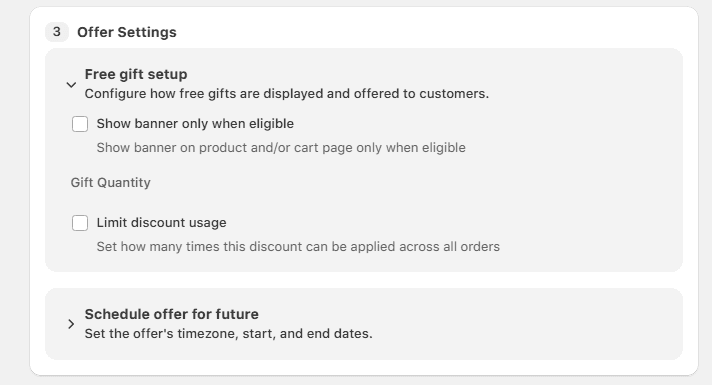
Schedule it if needed: If you want the promotion to run only during a specific date range, you can schedule it directly from step 1 of the offer setup. This is handy for holiday sales, flash promotions, or limited-time campaigns.
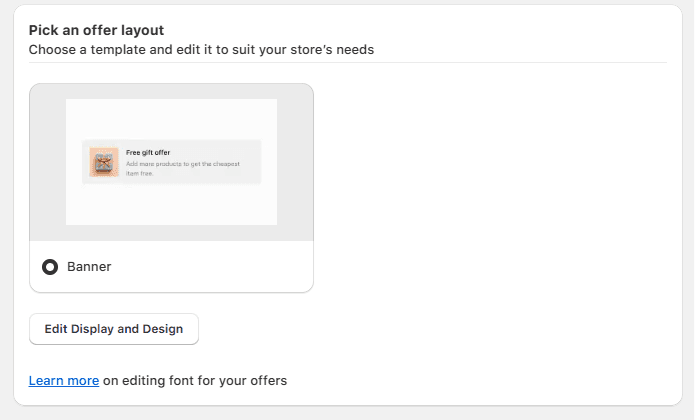
Customize the banner design: Step 2 of the setup lets you edit the text and design of the offer banner to match your store's branding, including font, colors, and spacing for both mobile and desktop views. Make it feel like a natural part of your store, not a bolted-on add-on.
Save, activate, and test: Once everything looks good, click Save Changes, then Activate Offer. Before you start promoting it, do a quick test; add the required number of products to your cart and confirm that the cheapest item gets automatically discounted to free.
Best Practices and Common Mistakes to Avoid
Setting up the promotion is the easy part. Getting the most out of it is where most stores either win big or leave money on the table. Here are three common mistakes worth avoiding and what to do instead:
Setting the threshold too high and killing the incentive
Fix: The whole point of this promotion is to feel achievable. If a customer needs to buy 6 items to unlock the free one, most of them will just shrug and move on. Start with a lower threshold, like "Buy 2, Get the Cheapest Free" or "Buy 3."
Not communicating the offer clearly enough across the store
Fix: A promotion that customers don't know about doesn't convert. Don't just set it up and hope people stumble onto it at checkout. Put a banner on your homepage, mention it on product pages, and if you're using an app like Monk Free Gift + BOGO, activate the cart banner so shoppers can see exactly how close they are to unlocking the deal. The more visible the offer, the more it drives behavior.
Running the promotion on every product without any strategy
Fix: Applying this offer across your entire catalog without thinking it through can quietly hurt your margins. Instead, be intentional in the scope of the promotion to specific collections, product categories, or items where you can afford to give something away. Use it to move slower inventory, push lower-margin add-ons, or drive volume in a specific category.
Conclusion
The "Buy X Get Cheapest Item Free" promotion works for everyone involved. Customers feel like they're getting a genuine deal, and you walk away with a higher order value, more units moved, and a shopper who's likely to come back. It's simple to understand, easy to market, and when set up correctly, completely automatic.
As we've walked through in this guide, Shopify's native tools can get you part of the way there with a fixed free product, but if you want a dynamic promotion that automatically detects and discounts the cheapest item in the cart, an app like Monk Free Gift + BOGO is the smarter path.
Frequently Asked Questions
How does the "Buy X, Get the Cheapest Item Free" promotion work on Shopify?
The promotion automatically discounts the lowest-priced item in a customer's cart to $0 once they add a set number of qualifying products. Once live, it runs with zero manual effort, rewarding customers instantly at checkout.
Can Shopify automatically detect the cheapest item in a cart?
No. Shopify's native discount tool requires you to pre-select the free product; it can't scan a cart and discount the cheapest item on its own. For true automatic detection, you need a third-party Shopify app like Monk Free Gift + BOGO.
Is "cheapest item free" better than a standard BOGO offer?
Yes, in most cases. A cheapest-item-free promotion feels more personalized because the free item depends on what's already in the shopper's cart, unlike a standard BOGO deal, where the free product is fixed in advance.
Do I need a Shopify app for a "cheapest item free" promotion?
Not always. Shopify's built-in discounts support a basic version with a pre-selected free item. A third-party app is only required if you want the discount to automatically apply to whichever item in the cart is cheapest.
How do I limit a "cheapest item free" offer to specific collections?
Set eligibility rules in a third-party app, or use Shopify's native "Customer buys" condition to restrict the Buy X Get Y discount to chosen collections or product categories.
How can I display a "cheapest item free" offer on my store?
Use a homepage banner, a sticky announcement bar, or a cart progress widget showing shoppers how close they are to unlocking the free item. Most Shopify apps include no-code banner and display options for product and cart pages.
Does a "cheapest item free" promotion hurt profit margins?
Not if it's set up correctly. Since only the lowest-priced cart item is free, higher-margin products stay protected. Setting the right purchase threshold ensures extra revenue from bigger orders offsets the cost of the free item.
How to Create a “Buy X Products And Get The Cheapest Item For Free” Promotion on Shopify
Summary
Learn how to set up a 'Buy X, Get the Cheapest Item Free' promotion on Shopify to boost average order value and conversions. This guide covers Shopify discount rules, native discount setup, and app-based methods like BOGO and bundle discounts for advanced automation. Discover step-by-step instructions, real examples, best practices, and common mistakes to avoid when running cart-based promotions. Ideal for merchants looking to increase revenue with smart, automatic discount strategies and upsell offers that drive repeat Shopify sales.
When a customer is already eyeing a product on your Shopify store, their wallet is halfway open, and that's your golden moment. Hit them with the right offer, and they'll gleefully toss something extra into their cart without a second thought.
And few offers do this better than "Buy X products and get the cheapest item for free."
It works so well simply because of the word FREE.
This offer is a great strategy in e-commerce, which is why several brands prefer using it as part of their marketing strategy to boost AOV and increase revenue.
Ready to get started? In this guide, we will explain exactly what this offer is, why it matters so much for Shopify stores, and how to apply it using Shopify's native features and apps.
What Is a “Buy X Get Cheapest Item Free” Promotion?
As the name suggests, buy X and get the cheapest item for free means that, when buying a certain number of items, the customer gets the lowest-value item in their cart for free. This could be on buying two items, three items, or even five or more.
This offer provides an immediate incentive for customers to add more products to their cart to get something for free. The business benefits from increased revenue and higher AOV, while the customer walks away with more value and a sense of winning.
Here's a quick example to make it clear: Let’s say a customer is looking to buy a serum and a lip balm for a skincare routine. Now, they see the promotion "Buy any 3 products, get the cheapest one free." This tempts them to add another product to their cart. Vitamin C Serum: $45 Moisturizer: $30 Lip Balm: $8 So at checkout, the Lip Balm ($8 - Lowest value) is free and automatically deducted from the total. The customer came in planning to spend maybe $53, but because of this offer, they spent more and ultimately gained a benefit of $8. |
Here is what this offer looks like when displayed on the product page:
Here is how the value of the least expensive product is slashed out when calculating the total cart value:
Benefits of "Cheapest Item for Free" Promotion for Shopify Stores
You are probably thinking, "Why sell something to the customer for free? But believe us, there are more benefits of running this offer than you can imagine. Here's what you actually get out of it:
Your average order value goes up, almost automatically: When customers know they need to hit a certain number of products to unlock the deal, they start looking for things to add. That one-item shopper suddenly becomes a three-item shopper, not because you pushed them, but because the math made sense to them.
Customers feel like they won something: There's a big psychological difference between "10% off" and "free." A percentage discount feels transactional. A free item feels like a gift. And when people feel they got a good deal, they leave happy, which means better reviews, more word of mouth, and a higher chance they'll come back.
You stay in control of your margins: Because it's always the cheapest item that's free, you're never giving away something that hurts. Your high-ticket, high-margin products stay protected. The promotion practically manages itself without eating into your profits more than you're comfortable with.
It helps move products that are just sitting there: Got slower-moving inventory or lower-priced add-ons that don't get much attention? This promotion nudges customers to pick them up because adding a cheaper item to hit the threshold feels like a no-brainer when it might end up being free anyway.
It makes your store more competitive without slashing prices: Instead of running a sitewide sale or cutting prices across the board, this offer gives customers a reason to buy more while keeping your pricing intact. It's a smarter way to stand out during peak seasons or competitive periods.
It builds the habit of buying more: Customers who experience this deal once start to expect it. They come back knowing that stocking up or bundling their purchase comes with a reward. That kind of behavior is exactly what drives long-term revenue growth for your store.
Can You Create a "Cheapest Item for Free" Offer Natively in Shopify?
Shopify does have a built-in Buy X Get Y discount feature, but it's fairly basic. You can set up simple deals like "buy 2, get 1 free," but only if you specify exactly which product the free item will be. Shopify's native discounts don't have the logic to look at a customer's cart, compare prices, and automatically identify the cheapest item on the go.
So if a customer adds three different products and you want the lowest-priced one to automatically drop to zero, Shopify can't do that on its own.
Let's look at a step-by-step breakdown of what Shopify’s native features can help you accomplish and another method to set up the cheapest item for a free offer effortlessly.
Method 1: Using Shopify Discounts
As we just discussed, Shopify's native discount feature can't automatically identify the cheapest item in a customer's cart and set its price to zero. That dynamic logic just isn't built in. But before you jump straight to other options, it's worth knowing that there is a variation of this promotion you can pull off with Shopify's built-in tools; it just requires a little more manual decision-making on your end.
Instead of the system figuring out the cheapest item, you decide upfront which product will be the free one. So the offer becomes something like: "Buy any 3 products and get [this specific item] for free."
Here's how to set it up:
Head over to your Shopify admin and open the Discounts section: From your dashboard, click on Discounts in the left-hand menu. This is where all your promotions live.
Create a new discount and choose the right type: Hit "Create discount" and select "Buy X Get Y" from the options. This is the closest native option Shopify has to this kind of promotion.
Set your purchase requirement: Under the "Customer buys" section, choose "Minimum quantity of items," then enter the number. Then select whether the discount applies to specific products, collections, or your entire store, depending on how broad you want the offer to be.
Define the free product: Under the "Customer gets" section, set the quantity to 1 and select the specific product you want to give away for free. This is the step where Shopify differs from a fully automated version: you're manually selecting the free item rather than letting the cart decide.
Set the discount value to 100%: Choose Percentage as the discount type and enter 100% so the selected item is completely free.
Choose between a discount code or an automatic discount: If you want the discount to apply automatically when conditions are met, select Automatic discount. If you'd rather have customers enter a code at checkout, go with a discount code.
Set usage limits or date ranges if needed: You can cap the number of uses, restrict it to one per customer, or schedule it for specific dates.
Save and test it: Before going live, always run a test. Add the required number of products to the cart and ensure the free item is applied correctly at checkout.
When This Method Works Best
This approach makes the most sense when you have a go-to low-cost product you're comfortable offering as the free item every time, such as a travel-size product, a basic accessory, or an entry-level item in your catalog.
However, if your store has a wide variety of products and you want the free item to genuinely be the cheapest in the cart, this method will feel limiting. That's exactly where the next approach comes in.
Method 2: Using Shopify Apps like Monk Free Gift BOGO
If you want the promotion to work the way it's supposed to, where the cart automatically identifies the cheapest item and makes it free, no matter what the customer picks, a Shopify app is the way to go. Here is why third-party apps are a better choice:
Apps handle the logic you can't build natively: Apps can scan a customer's cart in real time, compare product prices, and automatically apply the discount to the cheapest item.
Setup is visual and beginner-friendly: You don't need to touch a single line of code. Most apps walk you through the entire setup through a clean dashboard with toggles, dropdowns, and templates, making it accessible even if you're not technical.
You get more control over the rules: Want the offer to trigger only for certain products, specific customer tags, or a particular region? Apps let you layer in eligibility rules that Shopify's native feature simply doesn't support.
The customer experience is seamless: With the apps, the free item is automatically applied at checkout. It just works, which makes the whole experience feel polished and effortless for the shopper.
Step-by-Step Guide Using Monk Free Gift + BOGO
For this walkthrough, we're using Monk Free Gift + BOGO, one of the more capable and straightforward apps for setting up this exact kind of promotion on Shopify.
Here's how to get it done:
Install Monk Free Gift + BOGO from the Shopify App Store: Search for the app, install it, and open it from your Shopify admin. Once you're in, head to the Manage Offers page.
Create a new offer: Click Create Offer in the top right corner. From there, navigate to Gifts, Shipping, and Cart Goals → General Free Gifts → Cheapest Item. This is the specific template built for this promotion.
Choose your display location: In step 1 of the offer setup, select where you want the offer banner to appear. Note that this offer can only be created at the cart level. So the banner and the free item trigger will show up when the customer is viewing their cart.
Set your eligibility rules: After setting up the display, configure the eligibility rules that determine when the free gift offer gets triggered, such as a specific location, locale, or customer tags. The "count of items in cart" trigger is selected by default with a minimum count of 2; you can adjust it based on your promotion.
Configure the offer settings: Under the offer settings, you'll find the option to show the banner only when eligible useful if you're running the promotion for specific trigger products rather than your entire store. You can also toggle the auto-add setting so the cheapest item is automatically added to the cart when the condition is met.
Schedule it if needed: If you want the promotion to run only during a specific date range, you can schedule it directly from step 1 of the offer setup. This is handy for holiday sales, flash promotions, or limited-time campaigns.
Customize the banner design: Step 2 of the setup lets you edit the text and design of the offer banner to match your store's branding, including font, colors, and spacing for both mobile and desktop views. Make it feel like a natural part of your store, not a bolted-on add-on.
Save, activate, and test: Once everything looks good, click Save Changes, then Activate Offer. Before you start promoting it, do a quick test; add the required number of products to your cart and confirm that the cheapest item gets automatically discounted to free.
Best Practices and Common Mistakes to Avoid
Setting up the promotion is the easy part. Getting the most out of it is where most stores either win big or leave money on the table. Here are three common mistakes worth avoiding and what to do instead:
Setting the threshold too high and killing the incentive
Fix: The whole point of this promotion is to feel achievable. If a customer needs to buy 6 items to unlock the free one, most of them will just shrug and move on. Start with a lower threshold, like "Buy 2, Get the Cheapest Free" or "Buy 3."
Not communicating the offer clearly enough across the store
Fix: A promotion that customers don't know about doesn't convert. Don't just set it up and hope people stumble onto it at checkout. Put a banner on your homepage, mention it on product pages, and if you're using an app like Monk Free Gift + BOGO, activate the cart banner so shoppers can see exactly how close they are to unlocking the deal. The more visible the offer, the more it drives behavior.
Running the promotion on every product without any strategy
Fix: Applying this offer across your entire catalog without thinking it through can quietly hurt your margins. Instead, be intentional in the scope of the promotion to specific collections, product categories, or items where you can afford to give something away. Use it to move slower inventory, push lower-margin add-ons, or drive volume in a specific category.
Conclusion
The "Buy X Get Cheapest Item Free" promotion works for everyone involved. Customers feel like they're getting a genuine deal, and you walk away with a higher order value, more units moved, and a shopper who's likely to come back. It's simple to understand, easy to market, and when set up correctly, completely automatic.
As we've walked through in this guide, Shopify's native tools can get you part of the way there with a fixed free product, but if you want a dynamic promotion that automatically detects and discounts the cheapest item in the cart, an app like Monk Free Gift + BOGO is the smarter path.
Frequently Asked Questions
How does the "Buy X, Get the Cheapest Item Free" promotion work on Shopify?
The promotion automatically discounts the lowest-priced item in a customer's cart to $0 once they add a set number of qualifying products. Once live, it runs with zero manual effort, rewarding customers instantly at checkout.
Can Shopify automatically detect the cheapest item in a cart?
No. Shopify's native discount tool requires you to pre-select the free product; it can't scan a cart and discount the cheapest item on its own. For true automatic detection, you need a third-party Shopify app like Monk Free Gift + BOGO.
Is "cheapest item free" better than a standard BOGO offer?
Yes, in most cases. A cheapest-item-free promotion feels more personalized because the free item depends on what's already in the shopper's cart, unlike a standard BOGO deal, where the free product is fixed in advance.
Do I need a Shopify app for a "cheapest item free" promotion?
Not always. Shopify's built-in discounts support a basic version with a pre-selected free item. A third-party app is only required if you want the discount to automatically apply to whichever item in the cart is cheapest.
How do I limit a "cheapest item free" offer to specific collections?
Set eligibility rules in a third-party app, or use Shopify's native "Customer buys" condition to restrict the Buy X Get Y discount to chosen collections or product categories.
How can I display a "cheapest item free" offer on my store?
Use a homepage banner, a sticky announcement bar, or a cart progress widget showing shoppers how close they are to unlocking the free item. Most Shopify apps include no-code banner and display options for product and cart pages.
Does a "cheapest item free" promotion hurt profit margins?
Not if it's set up correctly. Since only the lowest-priced cart item is free, higher-margin products stay protected. Setting the right purchase threshold ensures extra revenue from bigger orders offsets the cost of the free item.
Contents
Related Articles
How to Set Up Shopify Free Gift With Purchase Based On Cart Value?
How to Enable Free Gift Selection on Shopify
How to Add a Shopify Free Gift With Multiple Purchase Criteria?
Get Monk Free Gift app for just $1/month this Black Friday
First month: $1 after your 7-day free trial. All features included. Offer live!
Claim offer now

Get Monk Free Gift app for just $1/month this Black Friday
First month: $1 after your 7-day free trial. All features included. Offer live!
Claim offer now
Get Monk Free Gift app for just $1/month this Black Friday
First month: $1 after your 7-day free trial. All features included. Offer live!
Claim offer now