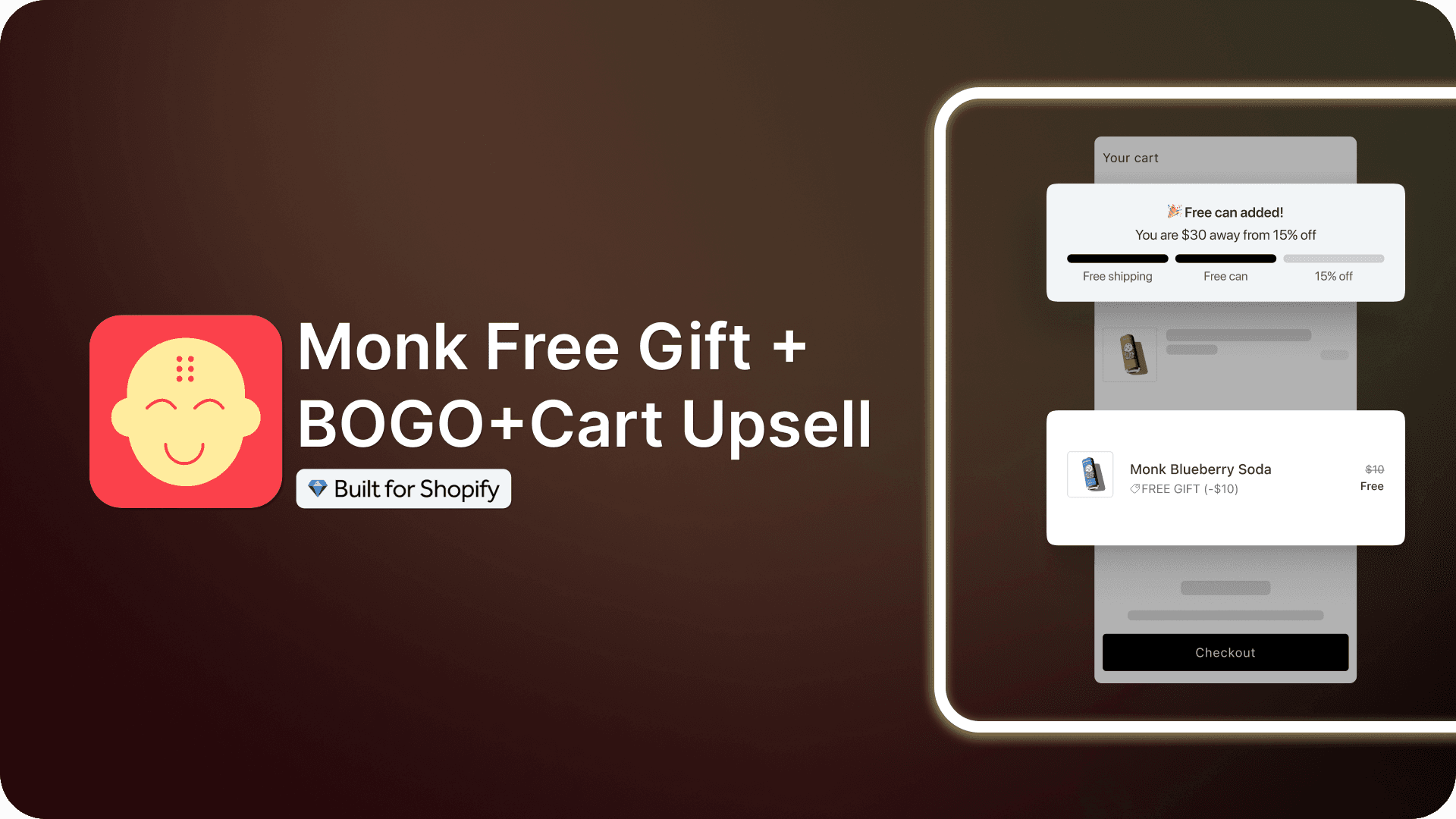
How to Automatically Add a Free Gift to the Cart in Shopify (Step-by-Step Guide)
Summary
Shopify’s native Buy X Get Y discount can make a gift free, but it can’t add the gift to the cart. This guide explains how to add free gifts to the cart automatically based on cart value, products, collections, discount codes, or customer segments. It covers step-by-step setup in Monk Free Gift, a comparison with native Shopify, common mistakes that make gift offers misfire, and the metrics to track.

Senior Content Writer
Key Takeaways
Shopify’s native Buy X Get Y discount can make a gift free, but it can’t add the gift to the cart. This guide explains how to add free gifts to the cart automatically based on cart value, products, collections, discount codes, or customer segments. It covers step-by-step setup in Monk Free Gift, a comparison with native Shopify, common mistakes that make gift offers misfire, and the metrics to track.
A free gift with purchase on Shopify works for both sides of the sale. Shoppers get something extra, and stores get bigger orders, because customers will often add one more item to unlock the gift.
The challenge is the mechanics. Shopify’s native Buy X Get Y discount can make a gift free, but it can’t add the gift to the cart. Customers have to find the item and add it themselves, and many never do.
This guide shows how to add a free gift to the cart automatically based on cart value, products, collections, or customer segments. It covers setup in Monk Free Gift, the strategies that work best, and the mistakes that cause gift offers to misfire.
What Is an Automatic Free Gift in Shopify?
An automatic free gift is a product that gets added to a customer’s cart on its own. The customer doesn’t need to search for it, select it, or apply a code. The store owner sets the rules that trigger the gift, such as a minimum cart value, a specific product purchase, or a particular collection.
Once a customer meets the rule, the gift product appears in the cart at a 100% discount. With Auto Remove enabled, the gift is also removed if the customer stops qualifying, for example after removing an item that drops them below the required threshold. All of this happens in real time, with no manual work from the store team.
This is different from a standard discount or coupon code because the customer doesn’t have to do anything extra. The gift appears automatically, which removes friction and makes it more likely they complete the purchase with the gift still in their cart.
Why Automatically Adding Free Gifts Increases Sales
Free gift automation affects buying behavior in several measurable ways:
Higher average order value: Customers often add extra items or increase their cart value to unlock a free gift, which raises the average order value across the store.
Reduced cart abandonment: A visible incentive at checkout gives hesitant shoppers a reason to complete their purchase instead of leaving the site.
Increased perceived value: Receiving a free product alongside a purchase makes customers feel they got more value for their money, which supports customer satisfaction.
Encouraged repeat purchases: Customers who receive a well-chosen gift are more likely to try a new product category and come back to buy it again.
Better inventory movement: Gifts can be used strategically to move slow-selling stock without discounting the main product catalog.
Stronger promotional messaging: An automatic gift-with-purchase campaign gives marketing teams a clear, easy-to-communicate offer for email, social media, and on-site banners.
Because the gift is added automatically, none of these benefits depend on the customer remembering a code or completing an extra step. The offer works in the background of every eligible transaction.
Can Shopify Automatically Add a Free Gift?
Not natively. Shopify’s built-in Buy X Get Y automatic discount can make a gift product free when a customer meets a condition, such as buying a specific product or reaching a minimum purchase amount. But it doesn’t add the gift to the cart. The customer has to find the gift product and add it themselves before the discount applies, and many shoppers never do.
Store owners who want more than that need a dedicated app. That includes having the gift added automatically, removed when the customer no longer qualifies, promoted with an on-site banner, and managed across multiple campaigns. Monk Free Gift, a Built for Shopify certified app, handles all of this without custom development.
Capability | Native Shopify (Buy X Get Y) | Monk Free Gift (Auto Add) |
|---|---|---|
Adds the gift to the cart automatically | No, the customer must add it | Yes |
Removes the gift when the customer no longer qualifies | Not applicable | Yes |
Cart value threshold | Yes (minimum purchase amount) | Yes |
Product / collection triggers | Yes | Yes |
Customer segment / location / tag rules | Customer segments only | Location, locale, customer tags, and more |
On-site gift banner | No | Yes, Product page and Cart |
Scaling gifts (Buy 2 Get 2, Buy 3 Get 3) with a cap | Limited | Yes, with a max gift limit |
Scheduled start/end dates | Yes | Yes |
Checkout-level triggers | Not applicable | Shopify Plus only |
Step-by-Step: Automatically Add a Free Gift Using Monk Free Gift
Follow these steps to set up an automatic free gift offer with Monk Free Gift inside the Shopify admin.

Open Monk Free Gift and start a new offer: Go to Manage Offers-> Offer Library -> Offer types and Click on Free Gift. Monk has over 10 types of free gift offer templates that can be used to instantly create an offer on your Shopify store.
Look for an Auto-add offer based on your requirement or the eligibility that you want to set; cart value, item quantity, specific product etc. This adds the gift to the cart automatically, ensuring a seamless customer experience.

Configure the display settings: On step one of setup, choose where the offer banner appears on the product page and/or the cart and select the trigger page; cart or checkout(Shopify Plus only).
Set up eligibility rules: Define what makes a customer eligible to get the gift.
Select the gift products: Choose the product(s) that get added automatically once the rules are met.
Configure cart refresh and behavior settings: Enable Auto Refresh if needed, decide on Auto Remove, and set whether customers can manually remove the gift.
Decide on banner visibility: Show it only on trigger products, or store-wide.
Customize the offer content and design: On step two, edit banner text, translations, fonts, colors, spacing, and pricing/discount display.
Save and activate the offer.
Things to Remember
If you want a BOGO structure instead of a simple auto-add gift, set it up as a separate offer type in the app.
Checkout-level triggers are only available on Shopify Plus.
Turn on combination settings if you want more than one Free Gift Auto Add offer to stack on the same order.
Set start and end dates in the offer setup so it activates and deactivates automatically, with no manual monitoring needed.
Common Strategies for Automatically Adding a Free Gift in Shopify
There are several ways to structure an automatic gift offer, and the right approach depends on the store’s goals:
Trigger | Best for | Example |
|---|---|---|
Cart value | Raising AOV | Free tote on orders over $75 |
Product quantity | Consumables, bulk buys | Buy 3 serums, get a free travel size |
Specific product | Launches, cross-sells | Buy the new blender, get a free recipe book |
Collection | Category promotions | Any skincare item unlocks a free sample |
Discount code | Email, influencer campaigns | Code GLOW adds a free lip balm |
Customer segment | Loyalty, first-time buyers | First order gets a free gift |
Based on Cart Value
This strategy triggers a free gift once a customer’s cart total reaches a set amount. It’s one of the most effective ways to increase average order value, since customers often add an extra item to reach the threshold.
For example:
Buy above $200 and get a free pouch
Based on Product Quantity
This approach rewards customers for buying multiple units of a product, such as a free item after two or three units of the same product are added to the cart. It works well for consumable products or items customers are likely to buy in bulk.
For example:
Buy any 2 products and get a hat for free
Based on Specific Products Purchased
This method ties the gift to the purchase of a particular product rather than a cart total. It’s useful for promoting a new product launch or encouraging customers to try a complementary item with a specific purchase.
For example:
Buy a Camera and get an SD cart for free
Based on Specific Collections
Instead of tying the offer to one product, this strategy applies the gift when a customer buys any item from a defined collection. Customers get more flexibility, while the promotion stays focused on one product category.
For example:
Buy any T-shirt to get a bag for free
Based on Discount Codes
A free gift can also be tied to a discount code, so the gift is added automatically once the customer applies the code at checkout. This is a common approach for email campaigns, influencer partnerships, or limited-time promotions.
For example:
Use Code "Christmas" and get an ornament for free
Based on Customer Segments
Gifts can be restricted to specific customer segments, such as first-time buyers, loyalty members, or customers in a particular location. Store owners can reward specific groups without extending the offer storewide.
For example:
First time customers get free samples
Common Mistakes to Avoid
Several avoidable errors reduce the effectiveness of a free gift automation strategy:
Choosing a gift with low perceived value: A gift that feels insignificant to the customer won’t meaningfully influence their purchase decision.
Setting an unrealistic cart value threshold: A threshold set too high discourages customers instead of motivating them to spend more.
Failing to monitor gift product inventory: If the gift product runs out of stock and the offer isn’t updated, customers may see an offer they can’t actually receive.
Not testing the offer before launch: Untested rules can misfire, applying the gift to ineligible orders or failing to apply it to eligible ones.
Overlapping multiple gift offers without combination settings enabled: Only one offer may apply when the store intended multiple gifts to stack.
Ignoring mobile display: A gift banner that isn’t optimized for mobile can go unnoticed by a large share of store traffic.
How to Measure Success
Tracking the right metrics shows whether a free gift campaign is delivering results:
Average order value before and after the offer: Shows whether the gift is getting customers to spend more per order.
Conversion rate on the offer page or cart: Shows how many eligible customers complete their purchase after the gift is added.
Cart abandonment rate: A decrease suggests the gift is reducing hesitation at checkout.
Redemption rate of the gift offer: Shows how many customers reach the eligibility threshold compared with how many see the promotion.
Repeat purchase rate among customers who received the gift: Shows whether the gift product introduces customers to items they come back to buy.
Monk Free Gift Makes Automatic Free Gifts Easy
Automatically adding a free gift to the cart is one of the simplest ways to lift average order value, reduce cart abandonment, and give customers a reason to come back, without asking them to do anything extra.
Since Shopify can’t add gifts to the cart natively, the real work is in three areas. Choose the right trigger (cart value, product quantity, collections, or customer segments). Set up clean eligibility rules. Keep a close eye on gift inventory and mobile display so the offer never misfires. Get those fundamentals right, track the metrics that matter, and a gift-with-purchase campaign can become one of your most reliable, low-effort growth levers.
With an app like Monk Free Gift handling the setup, launching one takes minutes.
Frequently Asked Questions
Can Shopify automatically add a free gift to the cart?
No. Shopify’s native Buy X Get Y discount can make a gift free, but the customer has to add the gift product to the cart themselves. To add gifts automatically based on rules like cart value or product purchase, store owners need a dedicated app such as Monk Free Gift.
Does Shopify support automatic gifts without an app?
Only partially. Native Buy X Get Y discounts apply the discount automatically once the gift is in the cart, but they don’t add or remove the gift product. Fully automated gift-with-purchase offers require a third-party app like Monk Free Gift.
Can I add a free gift based on cart value?
Yes, you can add free gifts based on a cart value. Cart value is one of the most common eligibility rules for automatic gift offers. You can configure it so a gift is added once a customer’s cart total reaches a set amount.
Can customers choose their free gift?
Yes, but that’s a different setup from Auto Add. Instead of adding one fixed gift automatically, a choose-your-gift offer lets customers pick from a list of eligible gift products. Learn how to add a free gift based on selection offer using Monk Free Gift.
Can free gifts be removed automatically?
Yes, when Auto Remove is enabled, the gift is taken out of the cart if the customer no longer meets the eligibility requirements, such as after removing an item that lowered their cart value.
Can a discount code trigger a free gift?
Yes, a free gift can be set to add automatically when a customer applies a specific discount code at checkout. This is a common approach for email and influencer promotions.
Will automatic gifts work with Shopify Checkout?
Automatic gift offers can be set to trigger at checkout, but checkout-level automation is only available to stores on Shopify Plus. Cart-level automations using Monk Free Gift works on all Shopify plans.
Can I show a progress bar for free gifts?
Yes, you can show a progress bar in the cart alongside the automatic gift offer to show customers how close they are to unlocking the reward using Monk, which encourages them to increase their cart value.
Can I offer multiple gift tiers?
Yes, using Monk, you can configure multiple gift tiers within a single offer so customers unlock different gifts as their cart value or quantity increases, which encourages larger purchases.
What is the best Shopify app for automatic free gifts?
Monk Free Gift is a strong option for automatic free gift campaigns. It’s Built for Shopify certified and offers rule-based eligibility, flexible gift product selection, cart and checkout triggers, and full control over banner design without custom code.
How to Automatically Add a Free Gift to the Cart in Shopify (Step-by-Step Guide)
Summary
Shopify’s native Buy X Get Y discount can make a gift free, but it can’t add the gift to the cart. This guide explains how to add free gifts to the cart automatically based on cart value, products, collections, discount codes, or customer segments. It covers step-by-step setup in Monk Free Gift, a comparison with native Shopify, common mistakes that make gift offers misfire, and the metrics to track.
A free gift with purchase on Shopify works for both sides of the sale. Shoppers get something extra, and stores get bigger orders, because customers will often add one more item to unlock the gift.
The challenge is the mechanics. Shopify’s native Buy X Get Y discount can make a gift free, but it can’t add the gift to the cart. Customers have to find the item and add it themselves, and many never do.
This guide shows how to add a free gift to the cart automatically based on cart value, products, collections, or customer segments. It covers setup in Monk Free Gift, the strategies that work best, and the mistakes that cause gift offers to misfire.
What Is an Automatic Free Gift in Shopify?
An automatic free gift is a product that gets added to a customer’s cart on its own. The customer doesn’t need to search for it, select it, or apply a code. The store owner sets the rules that trigger the gift, such as a minimum cart value, a specific product purchase, or a particular collection.
Once a customer meets the rule, the gift product appears in the cart at a 100% discount. With Auto Remove enabled, the gift is also removed if the customer stops qualifying, for example after removing an item that drops them below the required threshold. All of this happens in real time, with no manual work from the store team.
This is different from a standard discount or coupon code because the customer doesn’t have to do anything extra. The gift appears automatically, which removes friction and makes it more likely they complete the purchase with the gift still in their cart.
Why Automatically Adding Free Gifts Increases Sales
Free gift automation affects buying behavior in several measurable ways:
Higher average order value: Customers often add extra items or increase their cart value to unlock a free gift, which raises the average order value across the store.
Reduced cart abandonment: A visible incentive at checkout gives hesitant shoppers a reason to complete their purchase instead of leaving the site.
Increased perceived value: Receiving a free product alongside a purchase makes customers feel they got more value for their money, which supports customer satisfaction.
Encouraged repeat purchases: Customers who receive a well-chosen gift are more likely to try a new product category and come back to buy it again.
Better inventory movement: Gifts can be used strategically to move slow-selling stock without discounting the main product catalog.
Stronger promotional messaging: An automatic gift-with-purchase campaign gives marketing teams a clear, easy-to-communicate offer for email, social media, and on-site banners.
Because the gift is added automatically, none of these benefits depend on the customer remembering a code or completing an extra step. The offer works in the background of every eligible transaction.
Can Shopify Automatically Add a Free Gift?
Not natively. Shopify’s built-in Buy X Get Y automatic discount can make a gift product free when a customer meets a condition, such as buying a specific product or reaching a minimum purchase amount. But it doesn’t add the gift to the cart. The customer has to find the gift product and add it themselves before the discount applies, and many shoppers never do.
Store owners who want more than that need a dedicated app. That includes having the gift added automatically, removed when the customer no longer qualifies, promoted with an on-site banner, and managed across multiple campaigns. Monk Free Gift, a Built for Shopify certified app, handles all of this without custom development.
Capability | Native Shopify (Buy X Get Y) | Monk Free Gift (Auto Add) |
|---|---|---|
Adds the gift to the cart automatically | No, the customer must add it | Yes |
Removes the gift when the customer no longer qualifies | Not applicable | Yes |
Cart value threshold | Yes (minimum purchase amount) | Yes |
Product / collection triggers | Yes | Yes |
Customer segment / location / tag rules | Customer segments only | Location, locale, customer tags, and more |
On-site gift banner | No | Yes, Product page and Cart |
Scaling gifts (Buy 2 Get 2, Buy 3 Get 3) with a cap | Limited | Yes, with a max gift limit |
Scheduled start/end dates | Yes | Yes |
Checkout-level triggers | Not applicable | Shopify Plus only |
Step-by-Step: Automatically Add a Free Gift Using Monk Free Gift
Follow these steps to set up an automatic free gift offer with Monk Free Gift inside the Shopify admin.
Open Monk Free Gift and start a new offer: Go to Manage Offers-> Offer Library -> Offer types and Click on Free Gift. Monk has over 10 types of free gift offer templates that can be used to instantly create an offer on your Shopify store.
Look for an Auto-add offer based on your requirement or the eligibility that you want to set; cart value, item quantity, specific product etc. This adds the gift to the cart automatically, ensuring a seamless customer experience.
Configure the display settings: On step one of setup, choose where the offer banner appears on the product page and/or the cart and select the trigger page; cart or checkout(Shopify Plus only).
Set up eligibility rules: Define what makes a customer eligible to get the gift.
Select the gift products: Choose the product(s) that get added automatically once the rules are met.
Configure cart refresh and behavior settings: Enable Auto Refresh if needed, decide on Auto Remove, and set whether customers can manually remove the gift.
Decide on banner visibility: Show it only on trigger products, or store-wide.
Customize the offer content and design: On step two, edit banner text, translations, fonts, colors, spacing, and pricing/discount display.
Save and activate the offer.
Things to Remember
If you want a BOGO structure instead of a simple auto-add gift, set it up as a separate offer type in the app.
Checkout-level triggers are only available on Shopify Plus.
Turn on combination settings if you want more than one Free Gift Auto Add offer to stack on the same order.
Set start and end dates in the offer setup so it activates and deactivates automatically, with no manual monitoring needed.
Common Strategies for Automatically Adding a Free Gift in Shopify
There are several ways to structure an automatic gift offer, and the right approach depends on the store’s goals:
Trigger | Best for | Example |
|---|---|---|
Cart value | Raising AOV | Free tote on orders over $75 |
Product quantity | Consumables, bulk buys | Buy 3 serums, get a free travel size |
Specific product | Launches, cross-sells | Buy the new blender, get a free recipe book |
Collection | Category promotions | Any skincare item unlocks a free sample |
Discount code | Email, influencer campaigns | Code GLOW adds a free lip balm |
Customer segment | Loyalty, first-time buyers | First order gets a free gift |
Based on Cart Value
This strategy triggers a free gift once a customer’s cart total reaches a set amount. It’s one of the most effective ways to increase average order value, since customers often add an extra item to reach the threshold.
For example:
Buy above $200 and get a free pouch
Based on Product Quantity
This approach rewards customers for buying multiple units of a product, such as a free item after two or three units of the same product are added to the cart. It works well for consumable products or items customers are likely to buy in bulk.
For example:
Buy any 2 products and get a hat for free
Based on Specific Products Purchased
This method ties the gift to the purchase of a particular product rather than a cart total. It’s useful for promoting a new product launch or encouraging customers to try a complementary item with a specific purchase.
For example:
Buy a Camera and get an SD cart for free
Based on Specific Collections
Instead of tying the offer to one product, this strategy applies the gift when a customer buys any item from a defined collection. Customers get more flexibility, while the promotion stays focused on one product category.
For example:
Buy any T-shirt to get a bag for free
Based on Discount Codes
A free gift can also be tied to a discount code, so the gift is added automatically once the customer applies the code at checkout. This is a common approach for email campaigns, influencer partnerships, or limited-time promotions.
For example:
Use Code "Christmas" and get an ornament for free
Based on Customer Segments
Gifts can be restricted to specific customer segments, such as first-time buyers, loyalty members, or customers in a particular location. Store owners can reward specific groups without extending the offer storewide.
For example:
First time customers get free samples
Common Mistakes to Avoid
Several avoidable errors reduce the effectiveness of a free gift automation strategy:
Choosing a gift with low perceived value: A gift that feels insignificant to the customer won’t meaningfully influence their purchase decision.
Setting an unrealistic cart value threshold: A threshold set too high discourages customers instead of motivating them to spend more.
Failing to monitor gift product inventory: If the gift product runs out of stock and the offer isn’t updated, customers may see an offer they can’t actually receive.
Not testing the offer before launch: Untested rules can misfire, applying the gift to ineligible orders or failing to apply it to eligible ones.
Overlapping multiple gift offers without combination settings enabled: Only one offer may apply when the store intended multiple gifts to stack.
Ignoring mobile display: A gift banner that isn’t optimized for mobile can go unnoticed by a large share of store traffic.
How to Measure Success
Tracking the right metrics shows whether a free gift campaign is delivering results:
Average order value before and after the offer: Shows whether the gift is getting customers to spend more per order.
Conversion rate on the offer page or cart: Shows how many eligible customers complete their purchase after the gift is added.
Cart abandonment rate: A decrease suggests the gift is reducing hesitation at checkout.
Redemption rate of the gift offer: Shows how many customers reach the eligibility threshold compared with how many see the promotion.
Repeat purchase rate among customers who received the gift: Shows whether the gift product introduces customers to items they come back to buy.
Monk Free Gift Makes Automatic Free Gifts Easy
Automatically adding a free gift to the cart is one of the simplest ways to lift average order value, reduce cart abandonment, and give customers a reason to come back, without asking them to do anything extra.
Since Shopify can’t add gifts to the cart natively, the real work is in three areas. Choose the right trigger (cart value, product quantity, collections, or customer segments). Set up clean eligibility rules. Keep a close eye on gift inventory and mobile display so the offer never misfires. Get those fundamentals right, track the metrics that matter, and a gift-with-purchase campaign can become one of your most reliable, low-effort growth levers.
With an app like Monk Free Gift handling the setup, launching one takes minutes.
Frequently Asked Questions
Can Shopify automatically add a free gift to the cart?
No. Shopify’s native Buy X Get Y discount can make a gift free, but the customer has to add the gift product to the cart themselves. To add gifts automatically based on rules like cart value or product purchase, store owners need a dedicated app such as Monk Free Gift.
Does Shopify support automatic gifts without an app?
Only partially. Native Buy X Get Y discounts apply the discount automatically once the gift is in the cart, but they don’t add or remove the gift product. Fully automated gift-with-purchase offers require a third-party app like Monk Free Gift.
Can I add a free gift based on cart value?
Yes, you can add free gifts based on a cart value. Cart value is one of the most common eligibility rules for automatic gift offers. You can configure it so a gift is added once a customer’s cart total reaches a set amount.
Can customers choose their free gift?
Yes, but that’s a different setup from Auto Add. Instead of adding one fixed gift automatically, a choose-your-gift offer lets customers pick from a list of eligible gift products. Learn how to add a free gift based on selection offer using Monk Free Gift.
Can free gifts be removed automatically?
Yes, when Auto Remove is enabled, the gift is taken out of the cart if the customer no longer meets the eligibility requirements, such as after removing an item that lowered their cart value.
Can a discount code trigger a free gift?
Yes, a free gift can be set to add automatically when a customer applies a specific discount code at checkout. This is a common approach for email and influencer promotions.
Will automatic gifts work with Shopify Checkout?
Automatic gift offers can be set to trigger at checkout, but checkout-level automation is only available to stores on Shopify Plus. Cart-level automations using Monk Free Gift works on all Shopify plans.
Can I show a progress bar for free gifts?
Yes, you can show a progress bar in the cart alongside the automatic gift offer to show customers how close they are to unlocking the reward using Monk, which encourages them to increase their cart value.
Can I offer multiple gift tiers?
Yes, using Monk, you can configure multiple gift tiers within a single offer so customers unlock different gifts as their cart value or quantity increases, which encourages larger purchases.
What is the best Shopify app for automatic free gifts?
Monk Free Gift is a strong option for automatic free gift campaigns. It’s Built for Shopify certified and offers rule-based eligibility, flexible gift product selection, cart and checkout triggers, and full control over banner design without custom code.
Contents
Related Articles
Free Gift With Purchase Shopify Setup in 5 Minutes
How to Create a Buy X Get Y (BXGY) Offer on Shopify?
Top 10 Most Reviewed Free Gift with Purchase Apps for Shopify (2026 Guide)
Get Monk Free Gift app for just $1/month this Black Friday
First month: $1 after your 7-day free trial. All features included. Offer live!
Claim offer now

Get Monk Free Gift app for just $1/month this Black Friday
First month: $1 after your 7-day free trial. All features included. Offer live!
Claim offer now
Get Monk Free Gift app for just $1/month this Black Friday
First month: $1 after your 7-day free trial. All features included. Offer live!
Claim offer now