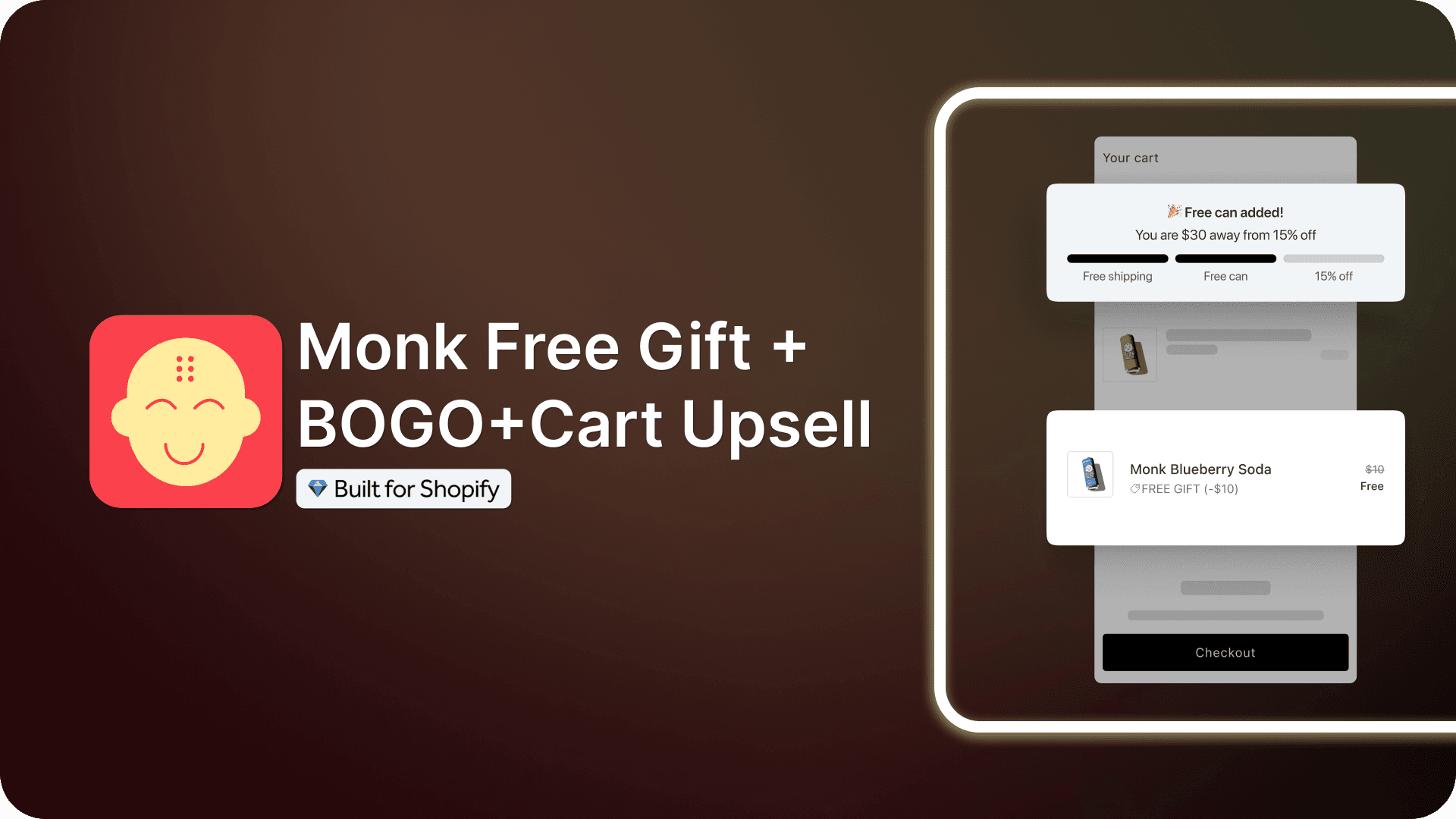
How to Automatically Add a Free Gift to Cart When a Spending Threshold Is Met
Summary
Shopify native discounts can make a gift free, but shoppers must add it themselves. To automatically add a free gift to the cart you need an app like Monk. Monk lets you set a cart value threshold, auto-add the gift, and remove it if the cart drops below the qualifying amount. Create a Free Gift Auto Add offer, set your spend rule, choose your gift product, and toggle on Auto Remove. Start with one threshold at 1.2x to 1.5x your average order value and one single-variant gift. Test your largest live discount code before launch and run the offer for two full weeks before adding a second tier. Monk's 7-day free trial lets you test everything on a draft theme first.

Ravish (RV)
Senior Content Writer
Ravish is an ecommerce and SaaS marketing expert with 6+ years of experience in Shopify and ecommerce and 10+ years of experience in marketing, and growth strategy. He has worked closely with Shopify merchants to solve real ecommerce challenges and shares practical, research-backed insights, industry best practices, and emerging trends.
Key Takeaways
Shopify native discounts can make a gift free, but shoppers must add it themselves. To automatically add a free gift to the cart you need an app like Monk. Monk lets you set a cart value threshold, auto-add the gift, and remove it if the cart drops below the qualifying amount. Create a Free Gift Auto Add offer, set your spend rule, choose your gift product, and toggle on Auto Remove. Start with one threshold at 1.2x to 1.5x your average order value and one single-variant gift. Test your largest live discount code before launch and run the offer for two full weeks before adding a second tier. Monk's 7-day free trial lets you test everything on a draft theme first.
Shopify can make a gift free once the cart hits a spend threshold, but it can’t put that gift in the cart. The shopper has to find the product and add it themselves, and many never do, so they check out without the reward your offer was built around.
To automatically add a free gift to the cart on Shopify, you need an app like Monk Free Gift. Below, you’ll see when auto-add beats gift selection, where native discounts fall short, and how to set up an auto-add offer in Monk with the settings that protect your margin.
What Is an Auto-Add Free Gift?
An auto-add free gift is a promotion that puts a free product in the cart once a cart rule is met. The most common rule is a spend X, get a free gift Shopify offer, such as "Spend $75, get a free travel-size serum." The gift line shows at a 100% discount, which means the customers pay nothing.
Three Ways to Add a Free Gift on Shopify
You have three setup paths, and only two of them add the gift for the buyer.
Method | Adds gift automatically | Removes gift below threshold | Tiered rewards | Effort |
Native Buy X Get Y discount | No, the customer adds it | Discount drops off, item stays | One gift per discount | Low |
Custom AJAX cart code | Yes, if coded | Yes, if coded | Yes, if coded | High, needs a developer |
Free gift app - Monk Free Gift | Yes | Yes, with Auto Remove | Yes | Low |
Auto-Add vs. Manual Claim in Shopify: What's the Difference?
Auto-add places the gift in the cart for the customer, while manual claim lets them pick a gift. Monk calls these two display methods "Auto-Add" and "Manual Select." Ideally, you should use Auto-Add for gifts without variants and Manual Select for gifts with size or color options.
When Auto-Add Fits Best: Single-Variant Gifts
Use auto-add when your gift has one version, such as a sample, a tote, or a travel-size item. The shopper does nothing extra, so the reward appears as soon as they qualify. Auto-add also works for promo-code gifts you send by email or SMS.
When Gift Selection Fits Best: Variants and Shopper Choice
Use free gift selection on Shopify when your gift comes in sizes or colors. A selection widget lets the buyer choose the variant they want. Monk's Free Gift Selection reward also lets you cap the total gifts and the gifts per product. Choice works well when you want to move several slow-selling items at once.
Can Customers Remove an Auto-Added Gift?
Customers can remove an auto-added gift only if you enable Monk's "Allow gift opt out" setting. With this setting off, Monk adds the gift again when a shopper deletes it. Keep opt-out on if your gift has an allergen, a scent, or another reason someone might decline it.
Auto-Add vs. Gift Selection Simplified
Factor | Auto-add | Gift selection (manual claim) |
Who adds the gift | The app adds it | The shopper picks it |
Best gift type | Single-variant items | Items with sizes or colors |
Shopper effort | Zero clicks | One or more clicks |
Monk setting | Display method: Auto add | Display method: Manual Select |
Variant control | You set the variant | Shopper chooses with a variant picker |
Main risk | The buyer may not want the gift | Customer may skip the claim step |
Removal control | Allow gift opt-out toggle | Hide gift after added toggle |
Why Shopify's Native Discounts Can't Auto-Add a Gift at a Cart Value
Shopify's native discounts can apply the discount to the free gift product, but they cannot add the gift to the cart. A Buy X Get Y discount with a minimum purchase amount makes the gift free. The shopper still has to find the gift and add it manually.
What Shopify's Buy X Get Y Discount Can Do
Shopify's Buy X Get Y discount supports a free gift with purchase threshold. You pick "Minimum purchase amount" in the Customer buys section. Then you set the gift's discounted value to "Free" in the Customer gets section. You can run it as a discount code or an automatic discount. You can also limit it to specific markets and cap uses per order.
The minimum purchase amount counts product prices only. Shopify never includes shipping costs or taxes. Only products in the Customer buys section count toward the threshold.
What Native Discounts Cannot Do
Native discounts leave several gaps for a threshold gift campaign:
Auto-add: Shopify requires customers to add all items to their cart manually.
Auto-remove: The discount stops applying below the threshold, but the gift line stays in the cart at full price.
Stock fallback: If the gift's inventory hits zero, it shows as sold out, and customers cannot use the discount.
Stacking on non-Plus plans: Products in a Buy X Get Y discount cannot take further product discounts.
Progress display: The discount editor has no setting for a cart progress bar.
You can run up to 25 active automatic discounts, including app-based discounts. So you can build several native gift tiers, but you still need to add each tier manually.
Do Shopify Functions or Cart Transform Change This?
Shopify Functions change how discounts are calculated, not what is in the cart. The Discount Function API lets one function apply savings across three classes: product, order, and shipping.
The Cart Transform Function API changes how cart lines are presented, such as for bundles. Adding a gift line is a storefront cart action that an app or theme script performs. Monk builds its gift discounts on Shopify Functions and handles the add-and-remove step in the cart.
What the Missing Auto-Add Costs You
A manual-add gift costs you the shoppers who forget to claim it. Shopify applies the discount only when the gift is in the cart. Baymard Institute's list puts the average cart abandonment rate at 70.22%.
How to Auto-Add a Free Gift Using Monk (Step-by-Step)
To auto-add a free gift in Monk, create a Free Gift - Auto Add offer with a cart value rule. The offer works in cart drawers, cart popups, and cart pages. Setup takes two steps inside the offer editor.

Step 1: Create a Free Gift Auto Add Offer
Open the Manage Offers page and click Create Offer at the top right.

Go to the Free Gift template library and choose the Free Gift on cart value (auto-add) offer.

Click on "Create Offer" an ensure to set an appropriate name for the offer, as the name will appear as the discount in the cart and checkout.
Step 2: Set the Offer rules
Choose where the offer should appear; the cart or the checkout, if you are on Shopify Plus, along with where you want the offer banner to be displayed, the cart or the product page.
It's recommended to show the banner with offer details in both product page and cart.

Then, define rules for gift addition:
As we want the gift product to be added when the cart value crosses a certain amount, enter your preferred currency and the amount.
For example:
"Cart value range" -> "greater than" -> USD -> 70

Next, select the gift product that you want to be added automatically to the cart, along with the quantity.
For example, we are offering a single unit of "Selling plans Ski Wax" as a free gift.

Step 3: Manage Cart Behavior Settings
Using Monk you can control every minute setting about a free gift offer. Like:
Auto Remove: Removes the gift when the cart no longer qualifies and blocks full-price purchase of the gift.
Allow gift opt-out: Lets shoppers delete the gift; with it off, Monk re-adds the gift.
Auto refresh: Reloads the page after a gift change if your theme lacks a cart listener.
Combine with free gift auto add offers: Lets one cart earn gifts from several qualifying offers.
Schedule offer for future: Runs the gift inside a set date range, such as a holiday week.
When a cart qualifies for several auto-add offers, Monk applies the one ranked higher on the Manage offers dashboard. Turn on the combine setting if you want customers to get every eligible gift.

Step 4: Customize the Banner and Activate
The Monk Free Gift App lets you design your banner text and layout. You can edit offer content, choose a layout, and select a different one for mobile.

Customize the text thoroughly to display the offer exactly how you intent to.
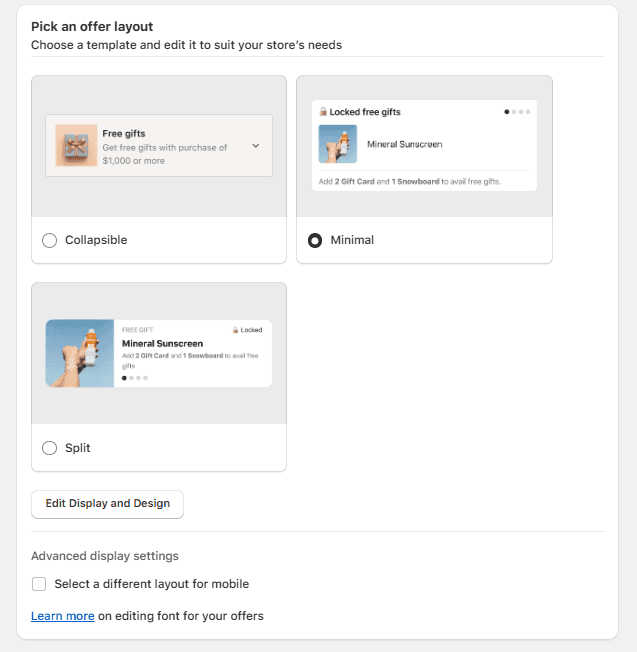
Monk Free Gift has various design layouts that you can opt for and change the font, size, color, formatting to match your store design.
Click Save changes, then Save and Activate to publish the offer.
Free Gift Threshold Mistakes and How to Fix Them
Most free gift threshold mistakes come from settings you can check before launch. The table below pairs each common mistake with its cost and its fix.
Mistake | Consequence | Best practice |
You leave Auto Remove off. | Customers keep the gift after the cart drops below the threshold. | Turn on Auto Remove in Monk's cart behavior settings. Keep it off only for same-product BOGO offers. |
You skip testing discount codes against the threshold. | A code can push the subtotal under the threshold while the gift stays in the cart. | Test your largest live code on a cart just above the threshold. |
You set the threshold below your current AOV. | You give away gifts on orders you would win anyway. | Set the threshold at 1.2x to 1.5x your AOV. Pull AOV from the last 90 days. |
You pick a gift without checking its cost. | The gift erases the margin from the extra spend. | Divide the gift's landed cost by your gross margin to find the break-even spend. A $4 gift at a 50% margin needs $8 of extra spend. |
You stock too few gift units. | Monk hides the progress bar when a single-gift milestone runs out of stock. | Forecast gift units from your order volume above the threshold. Add a second gift product as a backup. |
You choose a heavy gift. | Shopify counts every product's weight, so the order can move into a higher shipping rate. | Pick a light gift, or set the gift product's weight to zero in Shopify. |
Two apps discount the same gift product. | One discount will override the other. | Duplicate the gift, price the copy at $0, and use it in the offer. Keep Auto Remove on. |
You show the offer only in the cart. | Buyers learn about the gift too late to shop toward it. | Show Monk's offer banner on product pages, and add the progress bar to the cart drawer. Turn on "Show banner when eligible" for trigger products. |
You have no rule for gift returns. | A shopper returns paid items, drops below the threshold, and keeps the gift. | Add a gift clause to your return policy. Shopify lets you edit the refund amount to deduct the gift's value. |
You change several variables in one test. | You cannot tell which change moved your AOV. | Change one variable per test, and run each test for two full weeks. Track AOV and the share of orders above the threshold. |
Next Steps: Launch Your First Auto-Add Free Gift
To automatically add a free gift to cart on Shopify, you need an app like Monk. Shopify's native discounts can make a gift free, but shoppers must add it themselves. Start with one threshold at 1.2x to 1.5x your AOV and one single-variant gift.
Turn on Auto Remove before launch, then test your largest live discount code. Run the offer for two full weeks before you add a second tier. Once the first tier holds its margin, build a tiered progress bar in Monk.
Monk's 7-day free trial lets you test the full setup on a draft theme first.
FAQs
Can Shopify automatically add a free gift to the cart?
No, Shopify can't auto-add a free gift natively, customers need to manually add the gift product to apply the offer. However, Shopify stores can use third-party free gifting apps like Monk Free Gift to automatically add a free gift to the customer's cart.
How do I set a minimum spend for a free gift on Shopify?
You can set a minimum spend condition on your store using the native Buy X Get Y discount. Go to your Shopify store admin dashboard -> Discounts -> Create discounts -> Buy X Get Y. However, this does not add the free gift product automatically to the cart. You can use a third-party free gifting app like Monk Free Gift to automatically add a free gift to the customer's cart when a minimum spend amount is crossed.
Does the free gift get removed if the cart drops below the threshold?
Shopify's native discounts don't remove the free gift when the cart drops below the threshold. The discount stops applying, but the gift stays in the cart at full price and the customer has to manually remove it, Most customers notice the charge only at checkout, where it looks like a pricing error. Certain free gifting apps like Monk Free Gift provide the setting to remove a free gift when the cart conditions change and the customer no longer is eligible for the free gift.
Can I offer more than one free gift tier?
Shopify supports more than one free gift tier natively, with one Buy X Get Y discount per tier. Each discount has its own minimum purchase amount and gift product. Every tier uses one of Shopify's 25 active automatic discount slots. Third-party apps like Monk Free Gift let you configure multi-tiered gift offers more easily, with a customizable cart progress bar to show progress, which has proven to drive AOV efficiently.
How to Automatically Add a Free Gift to Cart When a Spending Threshold Is Met
Summary
Shopify native discounts can make a gift free, but shoppers must add it themselves. To automatically add a free gift to the cart you need an app like Monk. Monk lets you set a cart value threshold, auto-add the gift, and remove it if the cart drops below the qualifying amount. Create a Free Gift Auto Add offer, set your spend rule, choose your gift product, and toggle on Auto Remove. Start with one threshold at 1.2x to 1.5x your average order value and one single-variant gift. Test your largest live discount code before launch and run the offer for two full weeks before adding a second tier. Monk's 7-day free trial lets you test everything on a draft theme first.
Shopify can make a gift free once the cart hits a spend threshold, but it can’t put that gift in the cart. The shopper has to find the product and add it themselves, and many never do, so they check out without the reward your offer was built around.
To automatically add a free gift to the cart on Shopify, you need an app like Monk Free Gift. Below, you’ll see when auto-add beats gift selection, where native discounts fall short, and how to set up an auto-add offer in Monk with the settings that protect your margin.
What Is an Auto-Add Free Gift?
An auto-add free gift is a promotion that puts a free product in the cart once a cart rule is met. The most common rule is a spend X, get a free gift Shopify offer, such as "Spend $75, get a free travel-size serum." The gift line shows at a 100% discount, which means the customers pay nothing.
Three Ways to Add a Free Gift on Shopify
You have three setup paths, and only two of them add the gift for the buyer.
Method | Adds gift automatically | Removes gift below threshold | Tiered rewards | Effort |
Native Buy X Get Y discount | No, the customer adds it | Discount drops off, item stays | One gift per discount | Low |
Custom AJAX cart code | Yes, if coded | Yes, if coded | Yes, if coded | High, needs a developer |
Free gift app - Monk Free Gift | Yes | Yes, with Auto Remove | Yes | Low |
Auto-Add vs. Manual Claim in Shopify: What's the Difference?
Auto-add places the gift in the cart for the customer, while manual claim lets them pick a gift. Monk calls these two display methods "Auto-Add" and "Manual Select." Ideally, you should use Auto-Add for gifts without variants and Manual Select for gifts with size or color options.
When Auto-Add Fits Best: Single-Variant Gifts
Use auto-add when your gift has one version, such as a sample, a tote, or a travel-size item. The shopper does nothing extra, so the reward appears as soon as they qualify. Auto-add also works for promo-code gifts you send by email or SMS.
When Gift Selection Fits Best: Variants and Shopper Choice
Use free gift selection on Shopify when your gift comes in sizes or colors. A selection widget lets the buyer choose the variant they want. Monk's Free Gift Selection reward also lets you cap the total gifts and the gifts per product. Choice works well when you want to move several slow-selling items at once.
Can Customers Remove an Auto-Added Gift?
Customers can remove an auto-added gift only if you enable Monk's "Allow gift opt out" setting. With this setting off, Monk adds the gift again when a shopper deletes it. Keep opt-out on if your gift has an allergen, a scent, or another reason someone might decline it.
Auto-Add vs. Gift Selection Simplified
Factor | Auto-add | Gift selection (manual claim) |
Who adds the gift | The app adds it | The shopper picks it |
Best gift type | Single-variant items | Items with sizes or colors |
Shopper effort | Zero clicks | One or more clicks |
Monk setting | Display method: Auto add | Display method: Manual Select |
Variant control | You set the variant | Shopper chooses with a variant picker |
Main risk | The buyer may not want the gift | Customer may skip the claim step |
Removal control | Allow gift opt-out toggle | Hide gift after added toggle |
Why Shopify's Native Discounts Can't Auto-Add a Gift at a Cart Value
Shopify's native discounts can apply the discount to the free gift product, but they cannot add the gift to the cart. A Buy X Get Y discount with a minimum purchase amount makes the gift free. The shopper still has to find the gift and add it manually.
What Shopify's Buy X Get Y Discount Can Do
Shopify's Buy X Get Y discount supports a free gift with purchase threshold. You pick "Minimum purchase amount" in the Customer buys section. Then you set the gift's discounted value to "Free" in the Customer gets section. You can run it as a discount code or an automatic discount. You can also limit it to specific markets and cap uses per order.
The minimum purchase amount counts product prices only. Shopify never includes shipping costs or taxes. Only products in the Customer buys section count toward the threshold.
What Native Discounts Cannot Do
Native discounts leave several gaps for a threshold gift campaign:
Auto-add: Shopify requires customers to add all items to their cart manually.
Auto-remove: The discount stops applying below the threshold, but the gift line stays in the cart at full price.
Stock fallback: If the gift's inventory hits zero, it shows as sold out, and customers cannot use the discount.
Stacking on non-Plus plans: Products in a Buy X Get Y discount cannot take further product discounts.
Progress display: The discount editor has no setting for a cart progress bar.
You can run up to 25 active automatic discounts, including app-based discounts. So you can build several native gift tiers, but you still need to add each tier manually.
Do Shopify Functions or Cart Transform Change This?
Shopify Functions change how discounts are calculated, not what is in the cart. The Discount Function API lets one function apply savings across three classes: product, order, and shipping.
The Cart Transform Function API changes how cart lines are presented, such as for bundles. Adding a gift line is a storefront cart action that an app or theme script performs. Monk builds its gift discounts on Shopify Functions and handles the add-and-remove step in the cart.
What the Missing Auto-Add Costs You
A manual-add gift costs you the shoppers who forget to claim it. Shopify applies the discount only when the gift is in the cart. Baymard Institute's list puts the average cart abandonment rate at 70.22%.
How to Auto-Add a Free Gift Using Monk (Step-by-Step)
To auto-add a free gift in Monk, create a Free Gift - Auto Add offer with a cart value rule. The offer works in cart drawers, cart popups, and cart pages. Setup takes two steps inside the offer editor.
Step 1: Create a Free Gift Auto Add Offer
Open the Manage Offers page and click Create Offer at the top right.
Go to the Free Gift template library and choose the Free Gift on cart value (auto-add) offer.
Click on "Create Offer" an ensure to set an appropriate name for the offer, as the name will appear as the discount in the cart and checkout.
Step 2: Set the Offer rules
Choose where the offer should appear; the cart or the checkout, if you are on Shopify Plus, along with where you want the offer banner to be displayed, the cart or the product page.
It's recommended to show the banner with offer details in both product page and cart.
Then, define rules for gift addition:
As we want the gift product to be added when the cart value crosses a certain amount, enter your preferred currency and the amount.
For example:
"Cart value range" -> "greater than" -> USD -> 70
Next, select the gift product that you want to be added automatically to the cart, along with the quantity.
For example, we are offering a single unit of "Selling plans Ski Wax" as a free gift.
Step 3: Manage Cart Behavior Settings
Using Monk you can control every minute setting about a free gift offer. Like:
Auto Remove: Removes the gift when the cart no longer qualifies and blocks full-price purchase of the gift.
Allow gift opt-out: Lets shoppers delete the gift; with it off, Monk re-adds the gift.
Auto refresh: Reloads the page after a gift change if your theme lacks a cart listener.
Combine with free gift auto add offers: Lets one cart earn gifts from several qualifying offers.
Schedule offer for future: Runs the gift inside a set date range, such as a holiday week.
When a cart qualifies for several auto-add offers, Monk applies the one ranked higher on the Manage offers dashboard. Turn on the combine setting if you want customers to get every eligible gift.
Step 4: Customize the Banner and Activate
The Monk Free Gift App lets you design your banner text and layout. You can edit offer content, choose a layout, and select a different one for mobile.
Customize the text thoroughly to display the offer exactly how you intent to.
Monk Free Gift has various design layouts that you can opt for and change the font, size, color, formatting to match your store design.
Click Save changes, then Save and Activate to publish the offer.
Free Gift Threshold Mistakes and How to Fix Them
Most free gift threshold mistakes come from settings you can check before launch. The table below pairs each common mistake with its cost and its fix.
Mistake | Consequence | Best practice |
You leave Auto Remove off. | Customers keep the gift after the cart drops below the threshold. | Turn on Auto Remove in Monk's cart behavior settings. Keep it off only for same-product BOGO offers. |
You skip testing discount codes against the threshold. | A code can push the subtotal under the threshold while the gift stays in the cart. | Test your largest live code on a cart just above the threshold. |
You set the threshold below your current AOV. | You give away gifts on orders you would win anyway. | Set the threshold at 1.2x to 1.5x your AOV. Pull AOV from the last 90 days. |
You pick a gift without checking its cost. | The gift erases the margin from the extra spend. | Divide the gift's landed cost by your gross margin to find the break-even spend. A $4 gift at a 50% margin needs $8 of extra spend. |
You stock too few gift units. | Monk hides the progress bar when a single-gift milestone runs out of stock. | Forecast gift units from your order volume above the threshold. Add a second gift product as a backup. |
You choose a heavy gift. | Shopify counts every product's weight, so the order can move into a higher shipping rate. | Pick a light gift, or set the gift product's weight to zero in Shopify. |
Two apps discount the same gift product. | One discount will override the other. | Duplicate the gift, price the copy at $0, and use it in the offer. Keep Auto Remove on. |
You show the offer only in the cart. | Buyers learn about the gift too late to shop toward it. | Show Monk's offer banner on product pages, and add the progress bar to the cart drawer. Turn on "Show banner when eligible" for trigger products. |
You have no rule for gift returns. | A shopper returns paid items, drops below the threshold, and keeps the gift. | Add a gift clause to your return policy. Shopify lets you edit the refund amount to deduct the gift's value. |
You change several variables in one test. | You cannot tell which change moved your AOV. | Change one variable per test, and run each test for two full weeks. Track AOV and the share of orders above the threshold. |
Next Steps: Launch Your First Auto-Add Free Gift
To automatically add a free gift to cart on Shopify, you need an app like Monk. Shopify's native discounts can make a gift free, but shoppers must add it themselves. Start with one threshold at 1.2x to 1.5x your AOV and one single-variant gift.
Turn on Auto Remove before launch, then test your largest live discount code. Run the offer for two full weeks before you add a second tier. Once the first tier holds its margin, build a tiered progress bar in Monk.
Monk's 7-day free trial lets you test the full setup on a draft theme first.
FAQs
Can Shopify automatically add a free gift to the cart?
No, Shopify can't auto-add a free gift natively, customers need to manually add the gift product to apply the offer. However, Shopify stores can use third-party free gifting apps like Monk Free Gift to automatically add a free gift to the customer's cart.
How do I set a minimum spend for a free gift on Shopify?
You can set a minimum spend condition on your store using the native Buy X Get Y discount. Go to your Shopify store admin dashboard -> Discounts -> Create discounts -> Buy X Get Y. However, this does not add the free gift product automatically to the cart. You can use a third-party free gifting app like Monk Free Gift to automatically add a free gift to the customer's cart when a minimum spend amount is crossed.
Does the free gift get removed if the cart drops below the threshold?
Shopify's native discounts don't remove the free gift when the cart drops below the threshold. The discount stops applying, but the gift stays in the cart at full price and the customer has to manually remove it, Most customers notice the charge only at checkout, where it looks like a pricing error. Certain free gifting apps like Monk Free Gift provide the setting to remove a free gift when the cart conditions change and the customer no longer is eligible for the free gift.
Can I offer more than one free gift tier?
Shopify supports more than one free gift tier natively, with one Buy X Get Y discount per tier. Each discount has its own minimum purchase amount and gift product. Every tier uses one of Shopify's 25 active automatic discount slots. Third-party apps like Monk Free Gift let you configure multi-tiered gift offers more easily, with a customizable cart progress bar to show progress, which has proven to drive AOV efficiently.
Ravish (RV)
Co-Founder, Monk Commerce
Ravish is an ecommerce and SaaS marketing expert with 6+ years of experience in Shopify and ecommerce and 10+ years of experience in marketing, and growth strategy. He has worked closely with Shopify merchants to solve real ecommerce challenges and shares practical, research-backed insights, industry best practices, and emerging trends.
Contents
Related Articles
How to Set Up an Automatic Buy 2 Get 1 Free Discount on Shopify
How to Create a Buy X Get Y (BXGY) Offer on Shopify?
How to Add a Cart Progress Bar on Shopify (Step-by-Step Guide)
Get Monk Free Gift app for just $1/month this Black Friday
First month: $1 after your 7-day free trial. All features included. Offer live!
Claim offer now

Get Monk Free Gift app for just $1/month this Black Friday
First month: $1 after your 7-day free trial. All features included. Offer live!
Claim offer now
Get Monk Free Gift app for just $1/month this Black Friday
First month: $1 after your 7-day free trial. All features included. Offer live!
Claim offer now