
Check Shopify Gift Card Balance Easily
Summary
Shopify gift cards are prepaid store credits with a unique code that can be used only in the issuing store. The balance shows how much credit remains and is automatically updated after each purchase. Checking the balance helps avoid checkout issues and track remaining funds.
Customers can check balance via the gift card email, a store’s balance page if available, or by entering the code at checkout. Merchants can verify balances in Shopify Admin under Gift Cards or through Shopify POS by scanning the code or checking the original order. Gift cards may cover full or partial orders, and unused balances remain available until fully spent or expired based on store policy. If issues occur, common fixes include verifying the code, checking the correct store, and contacting support.

Key Takeaways
Shopify gift cards are prepaid store credits with a unique code that can be used only in the issuing store. The balance shows how much credit remains and is automatically updated after each purchase. Checking the balance helps avoid checkout issues and track remaining funds.
Customers can check balance via the gift card email, a store’s balance page if available, or by entering the code at checkout. Merchants can verify balances in Shopify Admin under Gift Cards or through Shopify POS by scanning the code or checking the original order. Gift cards may cover full or partial orders, and unused balances remain available until fully spent or expired based on store policy. If issues occur, common fixes include verifying the code, checking the correct store, and contacting support.
Shopify stores use various promotional strategies to increase customer loyalty, average order value, and the conversion rate of the Shopify stores, such as free gifts with purchase offers, buy one get one offers, upsells/cross-sells, and discounts. Shopify gift cards are one such tactic that significantly helps improve customer loyalty and lifetime value.
A Shopify gift card is a prepaid store credit issued by Shopify stores. It comes with a unique code that represents a certain amount of money stored in the store’s system. When the code is entered at checkout, Shopify retrieves the stored value and deducts the purchase amount from the available credit.
The gift card balance is the amount of store credit remaining on that card. Checking the balance helps you know how much credit is still available before placing an order, avoid checkout issues if the balance is insufficient, and decide whether you need an additional payment method.
Important facts about Shopify gift cards:
A gift card only works in the store that issued it.
The same code can be used multiple times until the balance reaches zero (or until it expires, if an expiration date applies).
Shopify automatically updates the remaining balance after every purchase.
Learn How Shopify Gift Cards Work.
How To Check Shopify Gift Card Balance
Both customers and merchants can check the available gift card balance. The sections below explain how to do this as a Shopify merchant and as a customer.
How Shopify merchants check gift card balances
Through Shopify Admin Dashboard (for online customers)
Customers may contact your store when they cannot complete a gift card check on their own. This can happen in several situations, such as:
The code returns an error
The email was lost
The balance page is unavailable
When a request comes in, ask the customer to provide the gift card code. Once you receive the code, you can use the Shopify balance lookup in your Shopify admin to confirm the remaining balance and verify the card status.
Go to Products → Gift cards in Shopify admin.
Click the gift card code you want to review.
Open the Timeline section.
The timeline shows when the gift card was created, the original value, orders where the card was used, the remaining balance, any manual balance adjustments, and the expiration date (if applicable).
This information helps you confirm the customer’s digital card balance and resolve basic gift card troubleshooting requests.
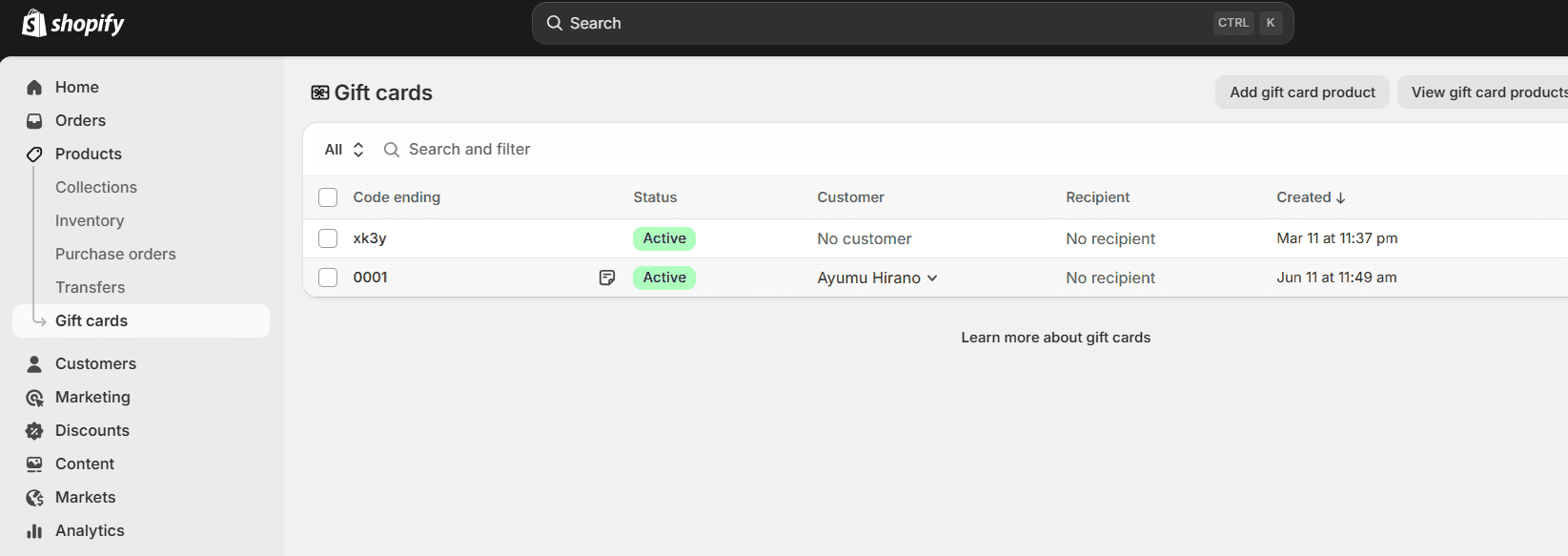
2. Check the balance in Shopify POS (In-store purchases)
If your store has a physical location, staff can also check gift card balances using Shopify POS. This is useful when a customer wants to confirm the remaining amount before making an in-store purchase.
Store staff can verify a digital card balance by scanning the QR code on the customer’s phone or gift card. The POS system will instantly display the remaining Shopify wallet balance, allowing staff to confirm whether the card has enough funds for the purchase.
Option A: Scan the gift card
This is the fastest method and does not require searching through order history.
Open the Shopify POS app.
Tap the barcode icon in the search bar at the top of the screen.
Use the device camera to scan the QR code on the customer’s gift card.
The POS system will display the current remaining balance immediately.
Option B: Look up the original order
Use this method if the card is damaged or the QR code cannot be scanned.
Open the Shopify POS app.
Go to the Orders tab.
Search for the original order using the customer’s name, email, or order number.
Open the order and select the gift card item.
The POS system will then display the remaining balance for that gift card.
How Customers Can Check Their Shopify Gift Card Balance
1. Check your balance using the gift card email
When you receive a Shopify gift card, the store usually sends it by email. This email contains the gift card code and the original value of the card. It also includes a link to a hosted page where you can view your Shopify card balance.
Click the “View Gift Card” button in the email to open this page. The page shows the current balance, original value, and the full 16-digit code. It updates automatically after every purchase, making it the most reliable place to check your gift card balance and view your remaining digital card balance.
Note: If you deleted or lost the email, contact the store’s Shopify gift support team. The merchant can resend the gift card email from their Shopify system.
2. Check through the store’s gift card balance page
Some stores offer a dedicated page where you can look up your Shopify balance and verify your gift balance online. Shopify does not include this feature by default, but many merchants add it using apps such as Rise.ai.
To find this page, check the website footer or the main navigation menu for a link labeled “Gift Card Balance” or “Check Gift Card Balance.” If the page exists:
Open the Gift Card Balance page.
Enter your 16-character gift card code. Some stores may also ask for a PIN.
Submit the form.
The store’s system verifies the code and displays your remaining Shopify card balance. If the store does not provide a balance page, you can use the checkout method to confirm your Shopify card status.
3. Check the balance at checkout
If you have the 16-digit code but cannot access the original email, you can check Shopify credit by testing the code at checkout. This is a quick way to confirm your Shopify card status and see whether the funds are still available.
Follow these steps:
Add any product to your cart. (It can be any item; you do not need to buy it.)
Go to checkout.
Find the field labeled “Gift card” or “discount code.”
Enter your gift card code.
Click Apply.
Check the updated order summary.
Learn How to Create a Shopify Gift Card.
Common Use Cases of Shopify Gift Cards
Situation 1: The gift card covers the full order
Example
Gift card balance: $50
Order total: $30
Result
Shopify deducts $30
Order total becomes $0
The remaining balance becomes $20
Situation 2: The gift card covers part of the order
Example
Gift card balance: $20
Order total: $60
Result
Shopify deducts $20
Remaining payment required: $40
You can pay the rest using another payment method
Situation 3: The gift card has no usable balance
Shopify may display a message such as:
The card has no remaining balance
The card is disabled
The code is invalid
Note: Entering the gift card during checkout does not reduce the balance unless you complete the order. You can apply the code simply to check the remaining Shopify card balance.
Best Practices for Gift Card Balance Checking
Gift cards are easy to use, but both customers and merchants often face a few recurring issues. Following these practices helps avoid unnecessary support requests when using Shopify gift cards.
Save the gift card code securely
Digital gift cards are usually sent by email. If the email is deleted or the code is not saved, the customer may lose access to the card. Most stores cannot retrieve the code without order details.
Save the gift card email when you receive it.
Store the code in a notes app, screenshot, or password manager.
If the code is lost, contact the store and provide the order number or purchase email so staff can locate the card.
Check the balance before using the card
Customers often spend part of a gift card and later forget the remaining balance.
Check the balance before placing a new order.
Keep a quick note of the remaining amount after each purchase.
If unsure, enter the code at checkout to see how much Shopify applies to the order.
Use the gift card only in the issuing store
Shopify gift cards only work in the store that issued them. They cannot be used on other websites.
Return to the same store website where the card was purchased.
If the system shows “invalid code,” confirm you are on the correct store.
Understand partial payments
A gift card does not need to cover the full order value.
Shopify automatically applies the gift card balance first.
You can pay the remaining amount with another payment method.
Check spam or promotions folders
Sometimes the gift card email is delivered to spam, junk, or promotions folders, which makes customers think the card was never sent.
Check spam or promotions folders after the purchase.
Search the inbox for the store name or “gift card.”
If the email cannot be found, ask the store to resend the gift card email.
Conclusion
Checking a Shopify gift card balance is simple once you know where to look. You can view it through the original gift card email, enter the code at checkout, use the store’s balance-check page (if available), or contact the store’s support team.
Shopify gift cards work only in the issuing store and remain valid until the balance is used. Therefore, it is important to save the gift card email and keep the code secure. Checking the balance before purchasing helps ensure a smooth checkout experience.
FAQs
Where can I find my Shopify gift card code?
The code is usually included in the gift card email sent by the store after purchase or delivery. Look for a section labeled “Gift card code” or a button like “View gift card.” If you cannot find it, search your inbox for the store name or “gift card.”
Can I check my balance without logging in?
Yes. In most cases, you do not need an account. You can check the balance by entering the gift card code at checkout or on the store’s gift card balance page if the store provides one.
Do Shopify gift cards expire?
Shopify itself does not require gift cards to expire, but the expiration rules depend on the store and local laws. Some stores may set an expiration date, which is usually mentioned in the gift card email or terms.
Why is my Shopify gift card not working?
The entered code may be wrong or the card may not have any remaining balance. Also, check if the card belongs to another store or if the gift card was disabled by the merchant.
Can I check the remaining balance in-store?
Yes, if the store has a physical location using Shopify POS. Staff can enter or scan the gift card code and view the remaining balance.
How can I resend a lost gift card email?
Contact the store’s support team and provide details such as the order number or purchase email. The merchant can resend the gift card email from the Shopify admin system.
Is the balance updated instantly after purchase?
Yes. Once an order using the gift card is completed, Shopify immediately deducts the amount used and updates the remaining balance.
Can merchants disable balance checking?
Yes. Shopify does not provide a balance-check page by default. Some merchants add one using apps, while others allow balance checking only at checkout or through customer support.
Check Shopify Gift Card Balance Easily
Summary
Shopify gift cards are prepaid store credits with a unique code that can be used only in the issuing store. The balance shows how much credit remains and is automatically updated after each purchase. Checking the balance helps avoid checkout issues and track remaining funds.
Customers can check balance via the gift card email, a store’s balance page if available, or by entering the code at checkout. Merchants can verify balances in Shopify Admin under Gift Cards or through Shopify POS by scanning the code or checking the original order. Gift cards may cover full or partial orders, and unused balances remain available until fully spent or expired based on store policy. If issues occur, common fixes include verifying the code, checking the correct store, and contacting support.
Shopify stores use various promotional strategies to increase customer loyalty, average order value, and the conversion rate of the Shopify stores, such as free gifts with purchase offers, buy one get one offers, upsells/cross-sells, and discounts. Shopify gift cards are one such tactic that significantly helps improve customer loyalty and lifetime value.
A Shopify gift card is a prepaid store credit issued by Shopify stores. It comes with a unique code that represents a certain amount of money stored in the store’s system. When the code is entered at checkout, Shopify retrieves the stored value and deducts the purchase amount from the available credit.
The gift card balance is the amount of store credit remaining on that card. Checking the balance helps you know how much credit is still available before placing an order, avoid checkout issues if the balance is insufficient, and decide whether you need an additional payment method.
Important facts about Shopify gift cards:
A gift card only works in the store that issued it.
The same code can be used multiple times until the balance reaches zero (or until it expires, if an expiration date applies).
Shopify automatically updates the remaining balance after every purchase.
Learn How Shopify Gift Cards Work.
How To Check Shopify Gift Card Balance
Both customers and merchants can check the available gift card balance. The sections below explain how to do this as a Shopify merchant and as a customer.
How Shopify merchants check gift card balances
Through Shopify Admin Dashboard (for online customers)
Customers may contact your store when they cannot complete a gift card check on their own. This can happen in several situations, such as:
The code returns an error
The email was lost
The balance page is unavailable
When a request comes in, ask the customer to provide the gift card code. Once you receive the code, you can use the Shopify balance lookup in your Shopify admin to confirm the remaining balance and verify the card status.
Go to Products → Gift cards in Shopify admin.
Click the gift card code you want to review.
Open the Timeline section.
The timeline shows when the gift card was created, the original value, orders where the card was used, the remaining balance, any manual balance adjustments, and the expiration date (if applicable).
This information helps you confirm the customer’s digital card balance and resolve basic gift card troubleshooting requests.
2. Check the balance in Shopify POS (In-store purchases)
If your store has a physical location, staff can also check gift card balances using Shopify POS. This is useful when a customer wants to confirm the remaining amount before making an in-store purchase.
Store staff can verify a digital card balance by scanning the QR code on the customer’s phone or gift card. The POS system will instantly display the remaining Shopify wallet balance, allowing staff to confirm whether the card has enough funds for the purchase.
Option A: Scan the gift card
This is the fastest method and does not require searching through order history.
Open the Shopify POS app.
Tap the barcode icon in the search bar at the top of the screen.
Use the device camera to scan the QR code on the customer’s gift card.
The POS system will display the current remaining balance immediately.
Option B: Look up the original order
Use this method if the card is damaged or the QR code cannot be scanned.
Open the Shopify POS app.
Go to the Orders tab.
Search for the original order using the customer’s name, email, or order number.
Open the order and select the gift card item.
The POS system will then display the remaining balance for that gift card.
How Customers Can Check Their Shopify Gift Card Balance
1. Check your balance using the gift card email
When you receive a Shopify gift card, the store usually sends it by email. This email contains the gift card code and the original value of the card. It also includes a link to a hosted page where you can view your Shopify card balance.
Click the “View Gift Card” button in the email to open this page. The page shows the current balance, original value, and the full 16-digit code. It updates automatically after every purchase, making it the most reliable place to check your gift card balance and view your remaining digital card balance.
Note: If you deleted or lost the email, contact the store’s Shopify gift support team. The merchant can resend the gift card email from their Shopify system.
2. Check through the store’s gift card balance page
Some stores offer a dedicated page where you can look up your Shopify balance and verify your gift balance online. Shopify does not include this feature by default, but many merchants add it using apps such as Rise.ai.
To find this page, check the website footer or the main navigation menu for a link labeled “Gift Card Balance” or “Check Gift Card Balance.” If the page exists:
Open the Gift Card Balance page.
Enter your 16-character gift card code. Some stores may also ask for a PIN.
Submit the form.
The store’s system verifies the code and displays your remaining Shopify card balance. If the store does not provide a balance page, you can use the checkout method to confirm your Shopify card status.
3. Check the balance at checkout
If you have the 16-digit code but cannot access the original email, you can check Shopify credit by testing the code at checkout. This is a quick way to confirm your Shopify card status and see whether the funds are still available.
Follow these steps:
Add any product to your cart. (It can be any item; you do not need to buy it.)
Go to checkout.
Find the field labeled “Gift card” or “discount code.”
Enter your gift card code.
Click Apply.
Check the updated order summary.
Learn How to Create a Shopify Gift Card.
Common Use Cases of Shopify Gift Cards
Situation 1: The gift card covers the full order
Example
Gift card balance: $50
Order total: $30
Result
Shopify deducts $30
Order total becomes $0
The remaining balance becomes $20
Situation 2: The gift card covers part of the order
Example
Gift card balance: $20
Order total: $60
Result
Shopify deducts $20
Remaining payment required: $40
You can pay the rest using another payment method
Situation 3: The gift card has no usable balance
Shopify may display a message such as:
The card has no remaining balance
The card is disabled
The code is invalid
Note: Entering the gift card during checkout does not reduce the balance unless you complete the order. You can apply the code simply to check the remaining Shopify card balance.
Best Practices for Gift Card Balance Checking
Gift cards are easy to use, but both customers and merchants often face a few recurring issues. Following these practices helps avoid unnecessary support requests when using Shopify gift cards.
Save the gift card code securely
Digital gift cards are usually sent by email. If the email is deleted or the code is not saved, the customer may lose access to the card. Most stores cannot retrieve the code without order details.
Save the gift card email when you receive it.
Store the code in a notes app, screenshot, or password manager.
If the code is lost, contact the store and provide the order number or purchase email so staff can locate the card.
Check the balance before using the card
Customers often spend part of a gift card and later forget the remaining balance.
Check the balance before placing a new order.
Keep a quick note of the remaining amount after each purchase.
If unsure, enter the code at checkout to see how much Shopify applies to the order.
Use the gift card only in the issuing store
Shopify gift cards only work in the store that issued them. They cannot be used on other websites.
Return to the same store website where the card was purchased.
If the system shows “invalid code,” confirm you are on the correct store.
Understand partial payments
A gift card does not need to cover the full order value.
Shopify automatically applies the gift card balance first.
You can pay the remaining amount with another payment method.
Check spam or promotions folders
Sometimes the gift card email is delivered to spam, junk, or promotions folders, which makes customers think the card was never sent.
Check spam or promotions folders after the purchase.
Search the inbox for the store name or “gift card.”
If the email cannot be found, ask the store to resend the gift card email.
Conclusion
Checking a Shopify gift card balance is simple once you know where to look. You can view it through the original gift card email, enter the code at checkout, use the store’s balance-check page (if available), or contact the store’s support team.
Shopify gift cards work only in the issuing store and remain valid until the balance is used. Therefore, it is important to save the gift card email and keep the code secure. Checking the balance before purchasing helps ensure a smooth checkout experience.
FAQs
Where can I find my Shopify gift card code?
The code is usually included in the gift card email sent by the store after purchase or delivery. Look for a section labeled “Gift card code” or a button like “View gift card.” If you cannot find it, search your inbox for the store name or “gift card.”
Can I check my balance without logging in?
Yes. In most cases, you do not need an account. You can check the balance by entering the gift card code at checkout or on the store’s gift card balance page if the store provides one.
Do Shopify gift cards expire?
Shopify itself does not require gift cards to expire, but the expiration rules depend on the store and local laws. Some stores may set an expiration date, which is usually mentioned in the gift card email or terms.
Why is my Shopify gift card not working?
The entered code may be wrong or the card may not have any remaining balance. Also, check if the card belongs to another store or if the gift card was disabled by the merchant.
Can I check the remaining balance in-store?
Yes, if the store has a physical location using Shopify POS. Staff can enter or scan the gift card code and view the remaining balance.
How can I resend a lost gift card email?
Contact the store’s support team and provide details such as the order number or purchase email. The merchant can resend the gift card email from the Shopify admin system.
Is the balance updated instantly after purchase?
Yes. Once an order using the gift card is completed, Shopify immediately deducts the amount used and updates the remaining balance.
Can merchants disable balance checking?
Yes. Shopify does not provide a balance-check page by default. Some merchants add one using apps, while others allow balance checking only at checkout or through customer support.
Contents
Related Articles
Monk vs EG: A Complete Comparison of Features, Performance, Pricing and Performance Breakdown
Complete Guide to Gift Cards for Shopify Stores
How to Run a BOGO Sale on Shopify
Get Monk Free Gift app for just $1/month this Black Friday
First month: $1 after your 7-day free trial. All features included. Offer live!
Claim offer now

Get Monk Free Gift app for just $1/month this Black Friday
First month: $1 after your 7-day free trial. All features included. Offer live!
Claim offer now
Get Monk Free Gift app for just $1/month this Black Friday
First month: $1 after your 7-day free trial. All features included. Offer live!
Claim offer now