3 Methods to Create a Shopify Discount on One Item Only
Summary
Learn how to create a Shopify discount on one item using three methods: discount codes, automatic discounts, and third-party apps. This guide explains the setup process, key settings, limitations, common mistakes, and when to use each approach. It also covers how apps like Monk provide advanced targeting, percentage-based discounts, free gift offers, and flexible eligibility rules for product-specific promotions.

Key Takeaways
Learn how to create a Shopify discount on one item using three methods: discount codes, automatic discounts, and third-party apps. This guide explains the setup process, key settings, limitations, common mistakes, and when to use each approach. It also covers how apps like Monk provide advanced targeting, percentage-based discounts, free gift offers, and flexible eligibility rules for product-specific promotions.
You know that one product sitting in your warehouse that just won't move? Everything else is selling fine, but this particular item has been collecting dust for weeks. So what's the next logical move? You discount it or create a buy one get one offer on Shopify. Slash the price, give customers a reason to buy it, and finally get it off the shelf.
A Shopify discount on one item only is a targeted price reduction for a specific product. Not a sitewide sale, not a cart-level promo, not a collection discount. Just one product, one offer, one clear incentive for the customer to act.
The next step is to create this discount in Shopify. We'll walk you through three proven methods to create a Shopify discount on a single item: native discount codes, automatic discounts, and third-party apps for more advanced control.
Why You May Need a Discount for One Item Only
Before jumping into the how, it's worth understanding the why because the reason behind the discount often determines which method makes the most sense. Here are some reasons why you might have to slash the prices on one item:
Clearing slow-moving inventory: If one product isn't selling at the pace you need, a targeted discount on that item alone can help move it without affecting the perceived value of everything else in your store.
Running product launches or promotions: Introducing a new product with an introductory offer is a common strategy. You want the discount to apply specifically to that item and nothing else.
Rewarding customers without over-discounting: Sometimes you want to give a loyal customer a deal on a specific item they've shown interest in, instead of a blanket discount they can use on anything.
Controlling promotional abuse: If a discount applies to an entire cart or category, customers can add multiple units of the same item to stack savings. Limiting it to one item keeps the promotion fair and cost-effective.
Testing pricing and conversion: A single-product discount is a clean way to test how price-sensitive your customers are for a specific item without running a sitewide sale.
Method 1: Using Shopify Discount Codes (Product-Specific)
This is the most straightforward approach and works well for most standard use cases. Shopify's native discount code system lets you create a code that applies only to a specific product, but you need to set a few important options correctly.
Here is the step-by-step guide:
Step 1: Go to your Discounts section: From your Shopify admin dashboard, click on Discounts in the left-hand sidebar, then click Create discount in the top right corner.
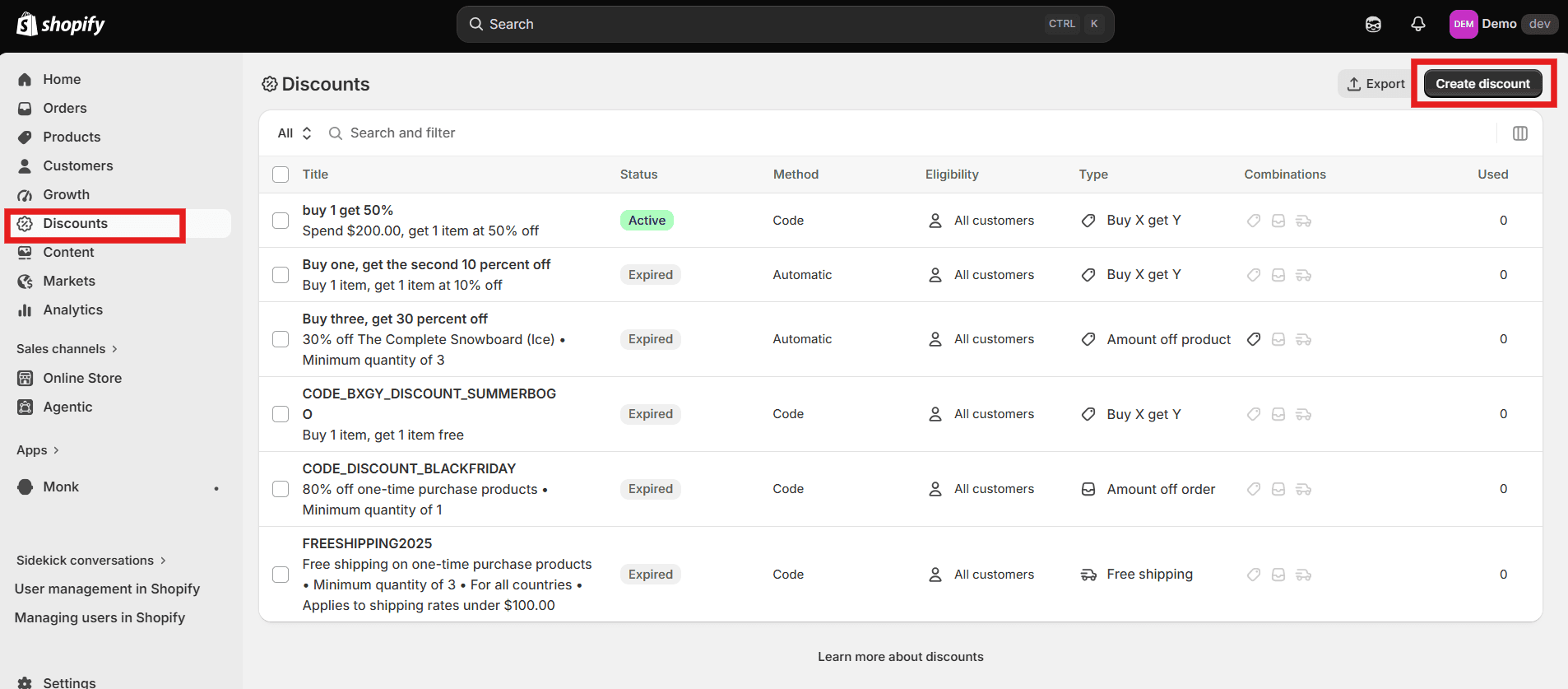
Step 2: Select your discount type: In the pop-up, choose Amount off products under the Product Discount category.

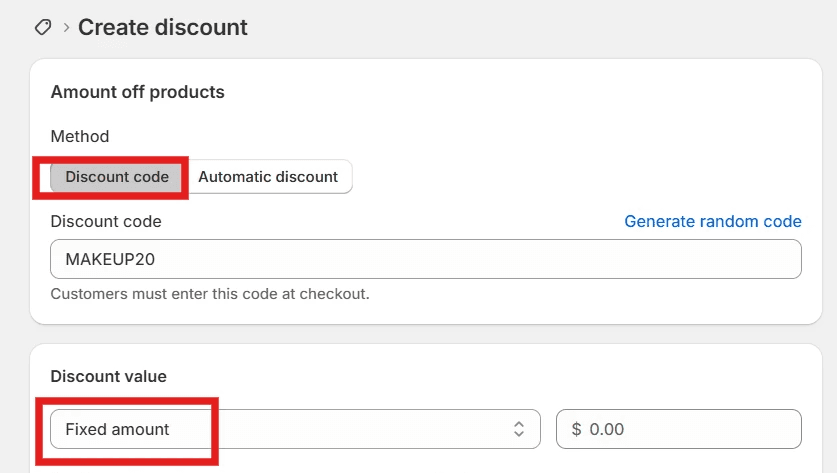
Step 3: Set up the discount details: Choose Discount code as the method and either enter a custom code name or click Generate code. Set your discount value as a fixed amount (for example, $15 off). If you want to target a single item, use a fixed-amount discount, not a percentage. Percentage-based discounts cannot be reliably limited to a single item.
Step 4: Select the specific product: Under the Applies to section, choose Specific products and use the browse button to find and select the exact product you want to discount. This ensures the code will only work on that item.
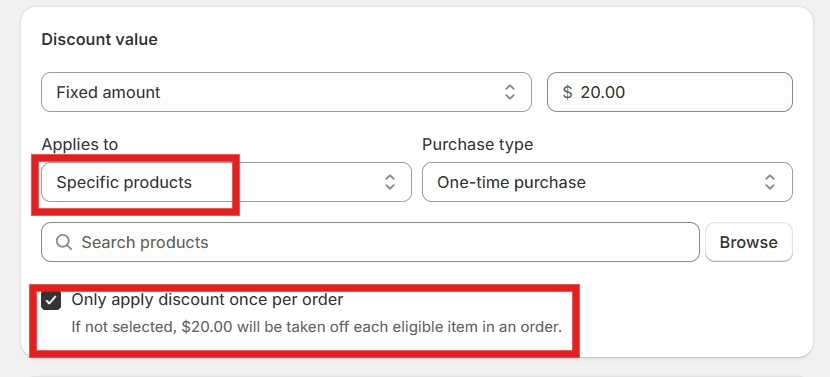
Step 5: Enable the one-time-per-order limit: Check the box that says Only apply discount once per order. This is the critical setting that prevents the discount from applying to multiple units of the same item if the customer adds more than one to their cart.
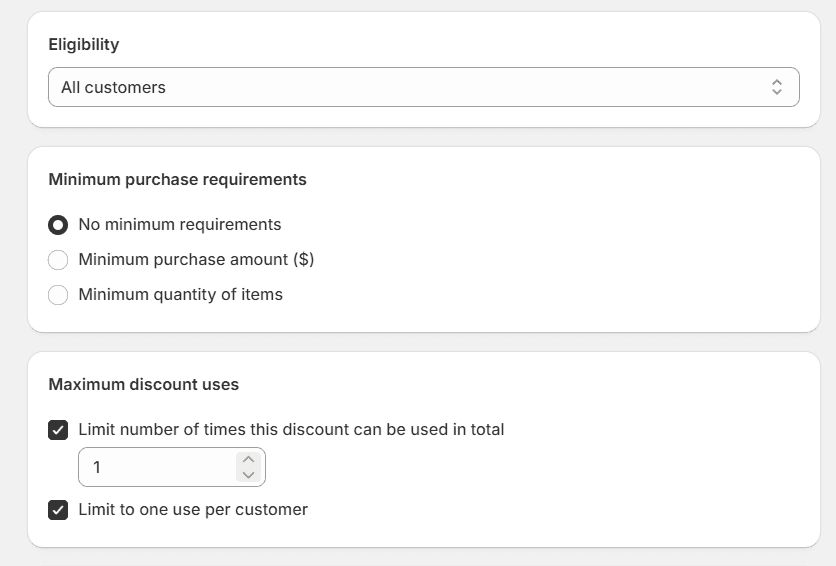
Step 6: Set usage limits and save: Configure how many times the code can be used overall and whether it's limited to one use per customer. Then click Save to activate the discount.
Key Settings to Configure
The "Applies to" field: Always set this to Specific products and manually select the product. Leaving it on all products defeats the purpose entirely.
Fixed amount vs. percentage: Use a fixed amount discount for single-item targeting. Percentage discounts apply to all eligible items in the cart and cannot be applied to a single item.
"Only apply discount once per order" checkbox: This is the setting most people miss. Without it, the discount will apply to every eligible item in the cart, not just one.
Usage limits: Set both an overall limit and a per-customer limit to prevent the code from being shared or reused beyond your intended use.
Pros
Simple and native: No third-party apps required; everything is handled inside your Shopify admin with no extra cost.
Full control over the code: You decide the code name, the value, the expiry date, and who can use it, all from one screen.
Works across all Shopify plans: This method is available on every plan, not just Shopify Plus.
Limitations
Percentage discounts don't work here: If you want to offer 20% off one specific item, this method won't do it cleanly. Fixed amounts are the only reliable option for single-item targeting natively.
Customers still need to enter the code; it's not automatic. Customers have to type it at checkout, which adds friction and can reduce redemption rates.
Limited targeting conditions: You can't add advanced rules like "only apply if the cart total is above X" or "only for first-time customers" without additional setup or apps.
Method 2: Using Automatic Discounts for One Product
Automatic discounts eliminate the need for a customer to enter a code; the discount applies automatically when the conditions are met. This makes for a smoother experience, but it comes with limitations for single-item targeting.
Shopify's automatic discounts trigger at the cart or checkout stage when a customer meets the eligibility criteria you set up. You can target specific products, collections, or order values, and the discount applies without the customer doing anything. The catch is that by default, if the discount is eligible, it applies to all qualifying items in the cart and not just one.
Here is a step-by-step guide:
Step 1: Create a new discount: Go to Discounts in your Shopify admin and click Create discount. Choose "Amount off products."
Step 2: Select Automatic discount: Under the Method section, toggle to Automatic discount and give it a name. This name will be visible to customers in their cart, so keep it clear and relevant.
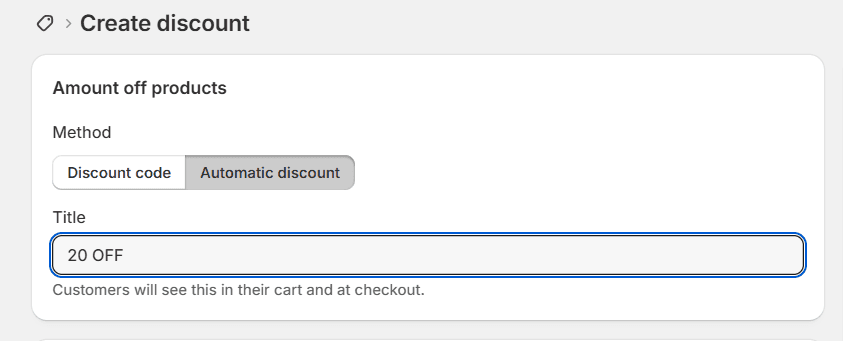
Step 3: Set the product and value: Choose a fixed discount amount and select Specific products under Applies to. Browse and select the exact item you want to discount.
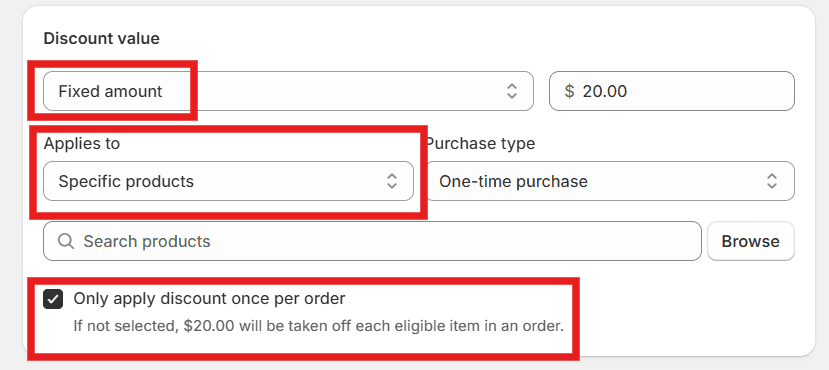
Step 4: Enable the once-per-order limit: Just like with discount codes, check the Only apply discount once per order option. This is only available for fixed amount discounts and is what limits the offer to a single unit.
Step 5: Save and test: Save the discount, then run a test by adding the product to your cart multiple times to confirm the discount applies only once.
Best Use Cases
Flash sales on a specific product: Great for time-limited promotions where you want the discount to apply automatically without requiring customers to find or enter a code.
New product introduction offers: If you're launching something new and want to incentivize the first purchase, an automatic discount on that item removes friction from the buying process.
Cart-based promotions: Pair an automatic product discount with a minimum cart value requirement to encourage customers to spend more overall before the single-item discount kicks in.
Limitations
Fixed amount only: The "Only apply once per order" checkbox is available only for fixed amount discounts. Percentage-based automatic discounts will apply to every eligible unit in the cart.
No post-purchase application: Automatic discounts created in the Shopify admin do not apply to post-purchase upsell pages, which limits their use in certain upsell strategies.
Discount stacking rules apply: Customers can use up to 5 product or order discount codes and 1 shipping discount code on the same order. If you're running multiple promotions simultaneously, the automatic discount may be overridden by whichever offer offers the customer the highest savings.
Cap on active automatic discounts: You can have a maximum of 25 active automatic discounts, including app-based discounts. For stores running multiple concurrent campaigns, this ceiling can become a real constraint.
Method 3: Using Shopify Apps for Advanced Control
Native Shopify tools cover the basics, but there's a ceiling to what they can do. If you need more precise targeting, complex discount rules, or a better customer experience around your single-item promotion, a dedicated app is the smarter move.
Here are some of the top features of using an app to create a one-item discount:
Granular eligibility rules: Set precise conditions around which products trigger an offer, what the cart value needs to be, and which customer segments qualify, all without touching any code.
Free gift triggers tied to specific products: Instead of a straight discount, offer a free gift when a customer adds a particular item to their cart. This protects your margins better than a price reduction while still incentivizing the purchase.
Progress bar mechanics: Show customers how close they are to unlocking a reward tied to a specific product, creating a nudge toward completing the purchase without feeling like a hard sell.
Cart and post-purchase offer placement: Place product-specific offers inside the cart drawer or on the post-purchase page, giving you more touchpoints to promote a single item beyond just the checkout discount field.
Full design customization: Every offer widget matches your store's look and feel, so the promotion feels native rather than bolted on.
How to Create a Single-Item Discount Using Monk
Let's look at the step-by-step procedure of how you can create a Shopify discount on one item only using Monk Free Gift+BOGO:

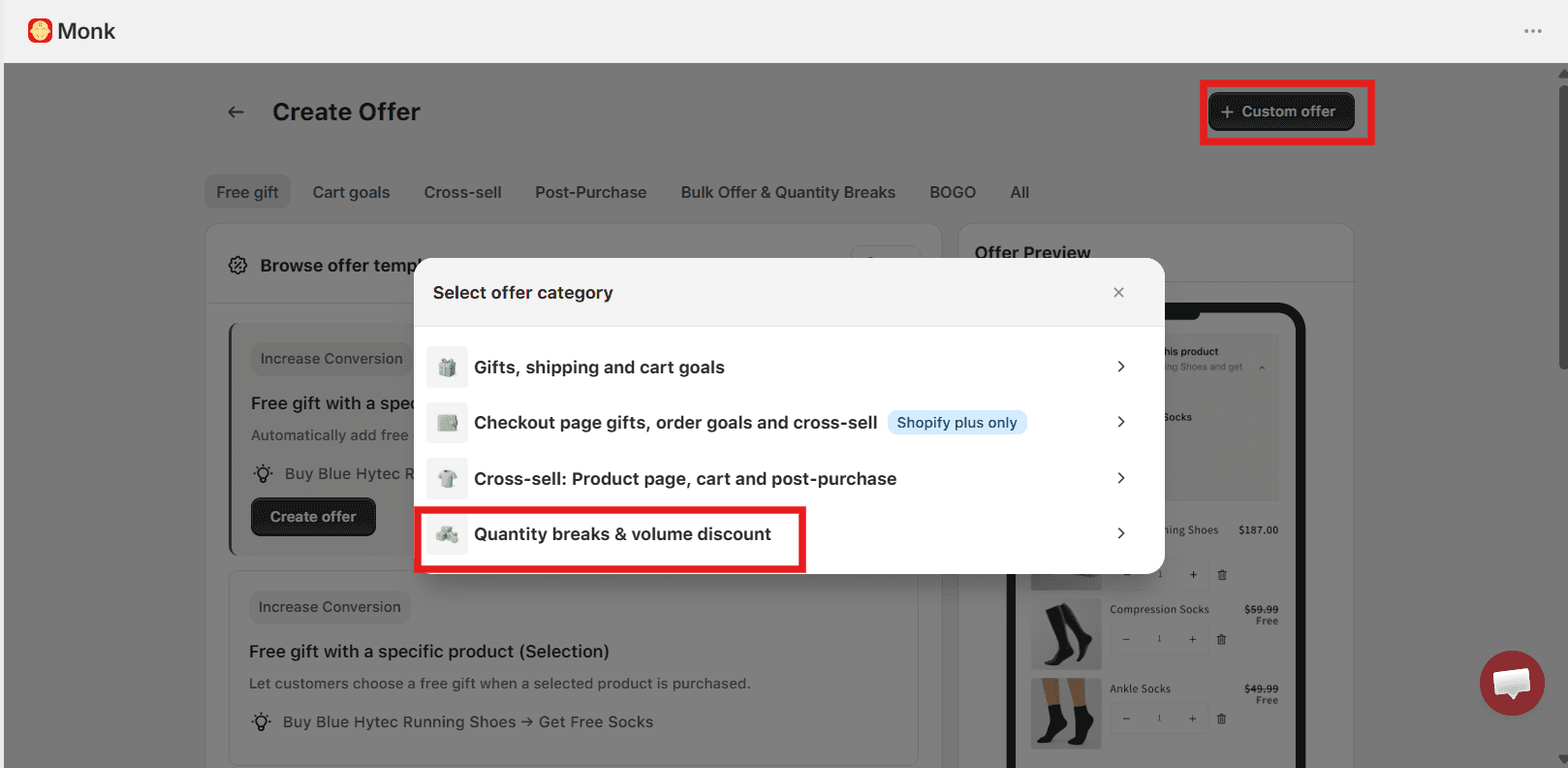
Step 1: Install Monk Free Gift + BOGO and open Manage Offers: Add Monk Free Gift BOGO and CartUpsell app from the Shopify App Store, then from your Shopify admin, go to Apps and open Monk. In the app, click Create New Offer in the top right corner of the Manage Offers section.
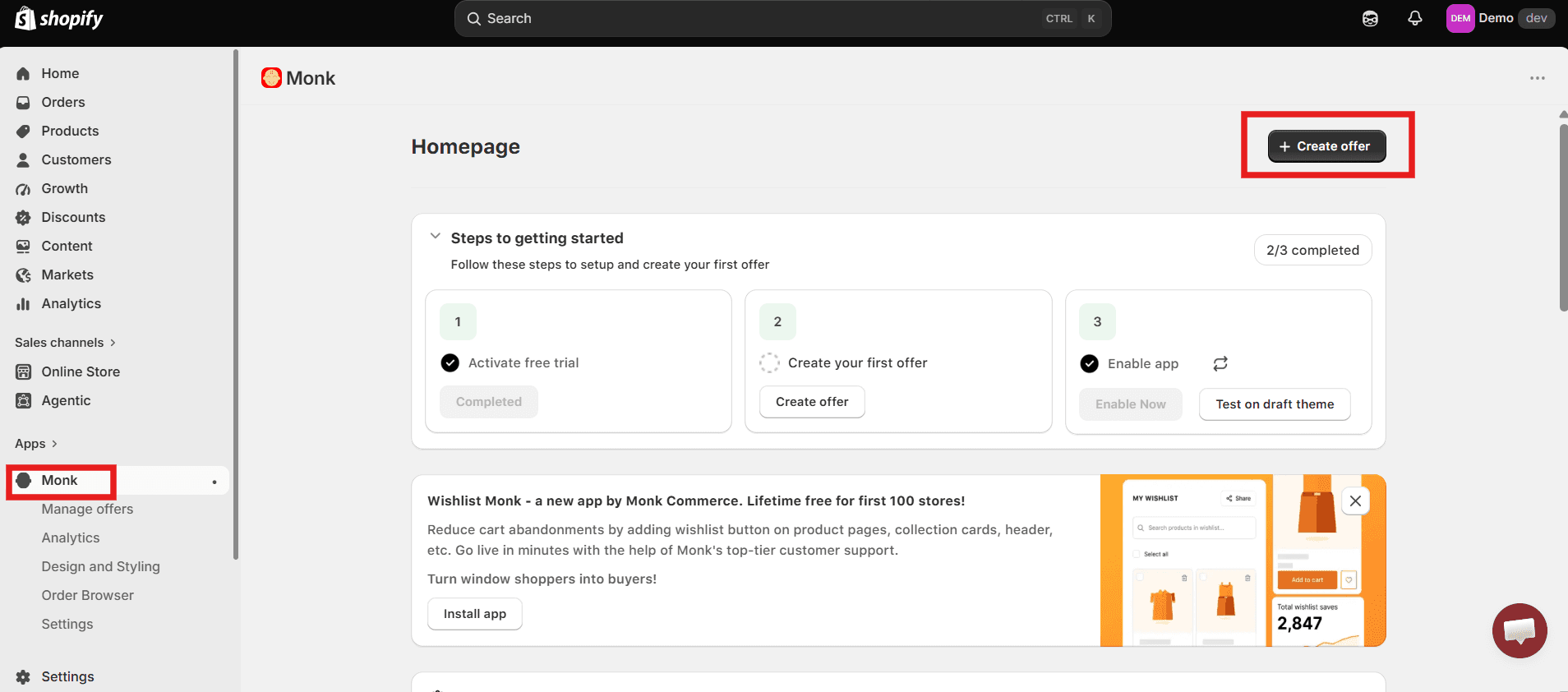
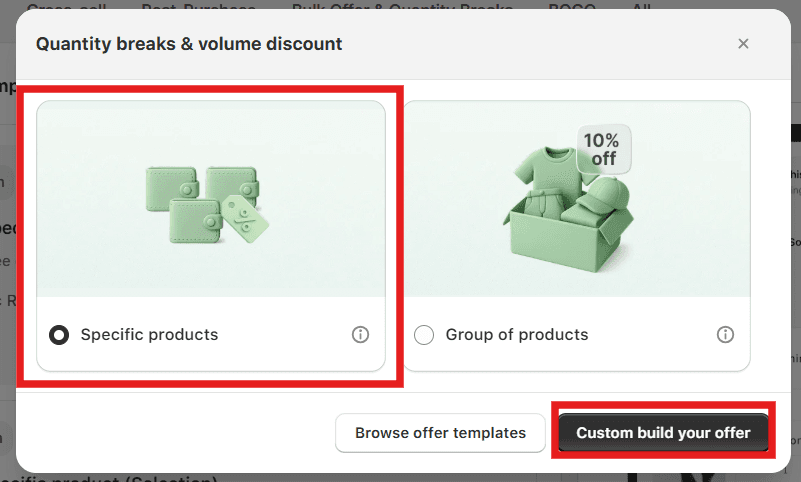
Step 2: Select your offer type: Navigate to Custom Offer, then choose Quantity Breaks & Volume Discount. From the templates shown, select Specific Products, and click on Custom Build your Offer. This ensures the discount is locked to the one item you want to target.
Step 3: Name your offer and set eligibility rules: Give the offer a clear internal name, and be sure to avoid generic names, as they are prone to misuse. Part 1 of the setup: configure your eligibility rules. This is where Monk Free Gift goes further than native Shopify tools; you can combine multiple conditions using AND/OR logic, such as triggering the discount only when the cart contains the specific product, for a particular customer segment, or within a set date range.

Step 4: Set the discount value and display: On Step 2, select the product and set your discount. You can display the discounted price directly on the product page inside Monk's widget so customers see the savings before they even add the item to their cart.
Step 5: Configure cart and checkout behavior: Under the Advanced Configuration settings, decide whether customers should be redirected to the cart after adding the product or stay on the product page. You can also control whether the discount applies only when the same variant is selected, giving you an extra layer of precision.
Step 6: Activate and test: Click Save & Activate. Before going live, Monk recommends testing your offer using a draft checkout to confirm the discount applies correctly to the intended product and that no unintended stacking occurs with other active promotions.
Common Mistakes to Avoid
Here are some of the common mistakes you must avoid while creating a one-item-only discount:
Using a percentage discount when you need single-item control: Percentage discounts in Shopify apply to all eligible items in the cart. If you want to limit the discount to one item or one unit, always use a fixed amount and enable the once-per-order setting.
Forgetting the "Only apply once per order" checkbox: This is the most commonly missed step. Without it, a customer adding five units of the same discounted product will get the discount applied to all five, which could cost you far more than intended.
Not testing before going live: Always add the discounted product to a test cart and add it multiple times to confirm the discount behaves exactly as expected before your customers see it.
Setting no usage limits on discount codes: An unlimited discount code that gets shared on a deal-sharing forum can drain your margins fast. Always set a per-customer usage limit and consider an overall cap too.
Running conflicting automatic discounts: If you have multiple automatic discounts active at the same time targeting the same product, Shopify will automatically apply whichever one gives the customer the best deal, which may not be the one you intended.
Ignoring the customer-facing experience: A discount that works technically but is confusing to redeem, or that shows up unexpectedly at checkout, can erode trust. Always think about how the promotion looks and feels from the customer's side.
When to Use Each Method
You might feel stuck between the three methods. Here is when to use each of them for the best results:
Use a discount code when: You want to run a targeted promotion that requires customers to actively redeem an offer, like a loyalty reward, a newsletter signup incentive, or a campaign with a specific code tied to a marketing channel.
Use an automatic discount when: You want a frictionless experience where the discount applies without any customer action, ideal for flash sales, new product launches, or promotions you want to highlight directly in the cart.
Use an app when: Your requirements go beyond what Shopify's native tools can handle, such as percentage-based single-item discounts, free gift mechanics, post-purchase offers, or more advanced eligibility conditions tied to specific products.
Conclusion
While creating a Shopify discount for a single item, the right approach depends on what you're trying to achieve. For simple, code-based promotions, Shopify's native discount tools get the job done as long as you configure the right settings. For hands-off, automatic offers, automatic discounts work well within their limitations. And for anything more advanced, such as better targeting, free gift mechanics, or a smoother customer experience, an app gives you the control that Shopify's native features can't.
Whichever method you choose, test thoroughly before going live, keep an eye on your margins, and always think about how the offer lands for the customer. A discount that feels relevant and well-timed is worth far more than one that just cuts the price.
Frequently Asked Questions
How do I create a Shopify discount for only one product?
Go to Discounts in your Shopify admin, create an "Amount off products discount," and under the Applies to section, select Specific products and choose the item you want to discount. Make sure to check "only apply the discount once per order" to prevent the discount from applying to multiple units of the same item.
Can Shopify apply a discount automatically to a specific item?
Yes, when creating a discount, select "Automatic discount" as the method instead of a discount code. Set it to apply to a specific product and enable the once-per-order limit. The discount will then apply automatically at the cart stage, without the customer needing to enter a code as long as they meet the eligibility criteria.
Why is my Shopify discount applying to multiple products?
Shopify discount applying to multiple products usually happens for one of two reasons: Either the "Applies to field" is set to "All products" instead of a specific product, or the "Only apply discount once per order" checkbox hasn't been enabled. Check both settings and make sure you're using a fixed amount discount rather than a percentage, as percentage discounts cannot be limited to a single unit natively.
Can I combine product-specific discounts in Shopify?
Yes, you can combine product-specific discounts with some conditions. Shopify allows discounts to be combined when each discount is configured to allow combinations with the relevant discount class. However, customers can apply up to 5 product or order discount codes per order, and automatic discounts have their own stacking rules. Not all discount types support all combinations, so always test your setup before going live.
What is the best way to offer a discount on a single item?
For straightforward needs, a fixed-amount discount code or an automatic discount applied to a specific product works well. For more advanced requirements, such as offering a free gift with a specific product or targeting by customer segment or cart conditions, a dedicated Shopify app gives you significantly more control and flexibility than native tools do.
Are Shopify's automatic discounts limited to one at a time?
Shopify allows up to 25 active automatic discounts simultaneously, including those created by third-party apps. However, when multiple automatic discounts apply to the same product, Shopify automatically applies whichever one offers the greatest saving to the customer; you don't get to control which one takes priority beyond that logic.
Can I restrict a discount code to one product only?
Yes, when setting up a discount code in Shopify, set the Applies to field to Specific products and select the product you want. You should also check "Only apply discount once per order" to make sure the discount doesn't apply to multiple units of that product in the same cart. Note that this once-per-order limit is only available for fixed amount discounts.
Do I need an app to create advanced Shopify discounts?
Shopify's native tools handle many common discount scenarios well. But if you need percentage-based single-item discounts, free gift offers tied to specific products, post-purchase discount placement, or more complex eligibility conditions, native Shopify will fall short. In those cases, a dedicated app is the practical solution.
3 Methods to Create a Shopify Discount on One Item Only
Summary
Learn how to create a Shopify discount on one item using three methods: discount codes, automatic discounts, and third-party apps. This guide explains the setup process, key settings, limitations, common mistakes, and when to use each approach. It also covers how apps like Monk provide advanced targeting, percentage-based discounts, free gift offers, and flexible eligibility rules for product-specific promotions.
You know that one product sitting in your warehouse that just won't move? Everything else is selling fine, but this particular item has been collecting dust for weeks. So what's the next logical move? You discount it or create a buy one get one offer on Shopify. Slash the price, give customers a reason to buy it, and finally get it off the shelf.
A Shopify discount on one item only is a targeted price reduction for a specific product. Not a sitewide sale, not a cart-level promo, not a collection discount. Just one product, one offer, one clear incentive for the customer to act.
The next step is to create this discount in Shopify. We'll walk you through three proven methods to create a Shopify discount on a single item: native discount codes, automatic discounts, and third-party apps for more advanced control.
Why You May Need a Discount for One Item Only
Before jumping into the how, it's worth understanding the why because the reason behind the discount often determines which method makes the most sense. Here are some reasons why you might have to slash the prices on one item:
Clearing slow-moving inventory: If one product isn't selling at the pace you need, a targeted discount on that item alone can help move it without affecting the perceived value of everything else in your store.
Running product launches or promotions: Introducing a new product with an introductory offer is a common strategy. You want the discount to apply specifically to that item and nothing else.
Rewarding customers without over-discounting: Sometimes you want to give a loyal customer a deal on a specific item they've shown interest in, instead of a blanket discount they can use on anything.
Controlling promotional abuse: If a discount applies to an entire cart or category, customers can add multiple units of the same item to stack savings. Limiting it to one item keeps the promotion fair and cost-effective.
Testing pricing and conversion: A single-product discount is a clean way to test how price-sensitive your customers are for a specific item without running a sitewide sale.
Method 1: Using Shopify Discount Codes (Product-Specific)
This is the most straightforward approach and works well for most standard use cases. Shopify's native discount code system lets you create a code that applies only to a specific product, but you need to set a few important options correctly.
Here is the step-by-step guide:
Step 1: Go to your Discounts section: From your Shopify admin dashboard, click on Discounts in the left-hand sidebar, then click Create discount in the top right corner.
Step 2: Select your discount type: In the pop-up, choose Amount off products under the Product Discount category.
Step 3: Set up the discount details: Choose Discount code as the method and either enter a custom code name or click Generate code. Set your discount value as a fixed amount (for example, $15 off). If you want to target a single item, use a fixed-amount discount, not a percentage. Percentage-based discounts cannot be reliably limited to a single item.
Step 4: Select the specific product: Under the Applies to section, choose Specific products and use the browse button to find and select the exact product you want to discount. This ensures the code will only work on that item.
Step 5: Enable the one-time-per-order limit: Check the box that says Only apply discount once per order. This is the critical setting that prevents the discount from applying to multiple units of the same item if the customer adds more than one to their cart.
Step 6: Set usage limits and save: Configure how many times the code can be used overall and whether it's limited to one use per customer. Then click Save to activate the discount.
Key Settings to Configure
The "Applies to" field: Always set this to Specific products and manually select the product. Leaving it on all products defeats the purpose entirely.
Fixed amount vs. percentage: Use a fixed amount discount for single-item targeting. Percentage discounts apply to all eligible items in the cart and cannot be applied to a single item.
"Only apply discount once per order" checkbox: This is the setting most people miss. Without it, the discount will apply to every eligible item in the cart, not just one.
Usage limits: Set both an overall limit and a per-customer limit to prevent the code from being shared or reused beyond your intended use.
Pros
Simple and native: No third-party apps required; everything is handled inside your Shopify admin with no extra cost.
Full control over the code: You decide the code name, the value, the expiry date, and who can use it, all from one screen.
Works across all Shopify plans: This method is available on every plan, not just Shopify Plus.
Limitations
Percentage discounts don't work here: If you want to offer 20% off one specific item, this method won't do it cleanly. Fixed amounts are the only reliable option for single-item targeting natively.
Customers still need to enter the code; it's not automatic. Customers have to type it at checkout, which adds friction and can reduce redemption rates.
Limited targeting conditions: You can't add advanced rules like "only apply if the cart total is above X" or "only for first-time customers" without additional setup or apps.
Method 2: Using Automatic Discounts for One Product
Automatic discounts eliminate the need for a customer to enter a code; the discount applies automatically when the conditions are met. This makes for a smoother experience, but it comes with limitations for single-item targeting.
Shopify's automatic discounts trigger at the cart or checkout stage when a customer meets the eligibility criteria you set up. You can target specific products, collections, or order values, and the discount applies without the customer doing anything. The catch is that by default, if the discount is eligible, it applies to all qualifying items in the cart and not just one.
Here is a step-by-step guide:
Step 1: Create a new discount: Go to Discounts in your Shopify admin and click Create discount. Choose "Amount off products."
Step 2: Select Automatic discount: Under the Method section, toggle to Automatic discount and give it a name. This name will be visible to customers in their cart, so keep it clear and relevant.
Step 3: Set the product and value: Choose a fixed discount amount and select Specific products under Applies to. Browse and select the exact item you want to discount.
Step 4: Enable the once-per-order limit: Just like with discount codes, check the Only apply discount once per order option. This is only available for fixed amount discounts and is what limits the offer to a single unit.
Step 5: Save and test: Save the discount, then run a test by adding the product to your cart multiple times to confirm the discount applies only once.
Best Use Cases
Flash sales on a specific product: Great for time-limited promotions where you want the discount to apply automatically without requiring customers to find or enter a code.
New product introduction offers: If you're launching something new and want to incentivize the first purchase, an automatic discount on that item removes friction from the buying process.
Cart-based promotions: Pair an automatic product discount with a minimum cart value requirement to encourage customers to spend more overall before the single-item discount kicks in.
Limitations
Fixed amount only: The "Only apply once per order" checkbox is available only for fixed amount discounts. Percentage-based automatic discounts will apply to every eligible unit in the cart.
No post-purchase application: Automatic discounts created in the Shopify admin do not apply to post-purchase upsell pages, which limits their use in certain upsell strategies.
Discount stacking rules apply: Customers can use up to 5 product or order discount codes and 1 shipping discount code on the same order. If you're running multiple promotions simultaneously, the automatic discount may be overridden by whichever offer offers the customer the highest savings.
Cap on active automatic discounts: You can have a maximum of 25 active automatic discounts, including app-based discounts. For stores running multiple concurrent campaigns, this ceiling can become a real constraint.
Method 3: Using Shopify Apps for Advanced Control
Native Shopify tools cover the basics, but there's a ceiling to what they can do. If you need more precise targeting, complex discount rules, or a better customer experience around your single-item promotion, a dedicated app is the smarter move.
Here are some of the top features of using an app to create a one-item discount:
Granular eligibility rules: Set precise conditions around which products trigger an offer, what the cart value needs to be, and which customer segments qualify, all without touching any code.
Free gift triggers tied to specific products: Instead of a straight discount, offer a free gift when a customer adds a particular item to their cart. This protects your margins better than a price reduction while still incentivizing the purchase.
Progress bar mechanics: Show customers how close they are to unlocking a reward tied to a specific product, creating a nudge toward completing the purchase without feeling like a hard sell.
Cart and post-purchase offer placement: Place product-specific offers inside the cart drawer or on the post-purchase page, giving you more touchpoints to promote a single item beyond just the checkout discount field.
Full design customization: Every offer widget matches your store's look and feel, so the promotion feels native rather than bolted on.
How to Create a Single-Item Discount Using Monk
Let's look at the step-by-step procedure of how you can create a Shopify discount on one item only using Monk Free Gift+BOGO:
Step 1: Install Monk Free Gift + BOGO and open Manage Offers: Add Monk Free Gift BOGO and CartUpsell app from the Shopify App Store, then from your Shopify admin, go to Apps and open Monk. In the app, click Create New Offer in the top right corner of the Manage Offers section.
Step 2: Select your offer type: Navigate to Custom Offer, then choose Quantity Breaks & Volume Discount. From the templates shown, select Specific Products, and click on Custom Build your Offer. This ensures the discount is locked to the one item you want to target.
Step 3: Name your offer and set eligibility rules: Give the offer a clear internal name, and be sure to avoid generic names, as they are prone to misuse. Part 1 of the setup: configure your eligibility rules. This is where Monk Free Gift goes further than native Shopify tools; you can combine multiple conditions using AND/OR logic, such as triggering the discount only when the cart contains the specific product, for a particular customer segment, or within a set date range.
Step 4: Set the discount value and display: On Step 2, select the product and set your discount. You can display the discounted price directly on the product page inside Monk's widget so customers see the savings before they even add the item to their cart.
Step 5: Configure cart and checkout behavior: Under the Advanced Configuration settings, decide whether customers should be redirected to the cart after adding the product or stay on the product page. You can also control whether the discount applies only when the same variant is selected, giving you an extra layer of precision.
Step 6: Activate and test: Click Save & Activate. Before going live, Monk recommends testing your offer using a draft checkout to confirm the discount applies correctly to the intended product and that no unintended stacking occurs with other active promotions.
Common Mistakes to Avoid
Here are some of the common mistakes you must avoid while creating a one-item-only discount:
Using a percentage discount when you need single-item control: Percentage discounts in Shopify apply to all eligible items in the cart. If you want to limit the discount to one item or one unit, always use a fixed amount and enable the once-per-order setting.
Forgetting the "Only apply once per order" checkbox: This is the most commonly missed step. Without it, a customer adding five units of the same discounted product will get the discount applied to all five, which could cost you far more than intended.
Not testing before going live: Always add the discounted product to a test cart and add it multiple times to confirm the discount behaves exactly as expected before your customers see it.
Setting no usage limits on discount codes: An unlimited discount code that gets shared on a deal-sharing forum can drain your margins fast. Always set a per-customer usage limit and consider an overall cap too.
Running conflicting automatic discounts: If you have multiple automatic discounts active at the same time targeting the same product, Shopify will automatically apply whichever one gives the customer the best deal, which may not be the one you intended.
Ignoring the customer-facing experience: A discount that works technically but is confusing to redeem, or that shows up unexpectedly at checkout, can erode trust. Always think about how the promotion looks and feels from the customer's side.
When to Use Each Method
You might feel stuck between the three methods. Here is when to use each of them for the best results:
Use a discount code when: You want to run a targeted promotion that requires customers to actively redeem an offer, like a loyalty reward, a newsletter signup incentive, or a campaign with a specific code tied to a marketing channel.
Use an automatic discount when: You want a frictionless experience where the discount applies without any customer action, ideal for flash sales, new product launches, or promotions you want to highlight directly in the cart.
Use an app when: Your requirements go beyond what Shopify's native tools can handle, such as percentage-based single-item discounts, free gift mechanics, post-purchase offers, or more advanced eligibility conditions tied to specific products.
Conclusion
While creating a Shopify discount for a single item, the right approach depends on what you're trying to achieve. For simple, code-based promotions, Shopify's native discount tools get the job done as long as you configure the right settings. For hands-off, automatic offers, automatic discounts work well within their limitations. And for anything more advanced, such as better targeting, free gift mechanics, or a smoother customer experience, an app gives you the control that Shopify's native features can't.
Whichever method you choose, test thoroughly before going live, keep an eye on your margins, and always think about how the offer lands for the customer. A discount that feels relevant and well-timed is worth far more than one that just cuts the price.
Frequently Asked Questions
How do I create a Shopify discount for only one product?
Go to Discounts in your Shopify admin, create an "Amount off products discount," and under the Applies to section, select Specific products and choose the item you want to discount. Make sure to check "only apply the discount once per order" to prevent the discount from applying to multiple units of the same item.
Can Shopify apply a discount automatically to a specific item?
Yes, when creating a discount, select "Automatic discount" as the method instead of a discount code. Set it to apply to a specific product and enable the once-per-order limit. The discount will then apply automatically at the cart stage, without the customer needing to enter a code as long as they meet the eligibility criteria.
Why is my Shopify discount applying to multiple products?
Shopify discount applying to multiple products usually happens for one of two reasons: Either the "Applies to field" is set to "All products" instead of a specific product, or the "Only apply discount once per order" checkbox hasn't been enabled. Check both settings and make sure you're using a fixed amount discount rather than a percentage, as percentage discounts cannot be limited to a single unit natively.
Can I combine product-specific discounts in Shopify?
Yes, you can combine product-specific discounts with some conditions. Shopify allows discounts to be combined when each discount is configured to allow combinations with the relevant discount class. However, customers can apply up to 5 product or order discount codes per order, and automatic discounts have their own stacking rules. Not all discount types support all combinations, so always test your setup before going live.
What is the best way to offer a discount on a single item?
For straightforward needs, a fixed-amount discount code or an automatic discount applied to a specific product works well. For more advanced requirements, such as offering a free gift with a specific product or targeting by customer segment or cart conditions, a dedicated Shopify app gives you significantly more control and flexibility than native tools do.
Are Shopify's automatic discounts limited to one at a time?
Shopify allows up to 25 active automatic discounts simultaneously, including those created by third-party apps. However, when multiple automatic discounts apply to the same product, Shopify automatically applies whichever one offers the greatest saving to the customer; you don't get to control which one takes priority beyond that logic.
Can I restrict a discount code to one product only?
Yes, when setting up a discount code in Shopify, set the Applies to field to Specific products and select the product you want. You should also check "Only apply discount once per order" to make sure the discount doesn't apply to multiple units of that product in the same cart. Note that this once-per-order limit is only available for fixed amount discounts.
Do I need an app to create advanced Shopify discounts?
Shopify's native tools handle many common discount scenarios well. But if you need percentage-based single-item discounts, free gift offers tied to specific products, post-purchase discount placement, or more complex eligibility conditions, native Shopify will fall short. In those cases, a dedicated app is the practical solution.
Contents
Related Articles
7 Best Shopify Discount Apps to Boost Sales in 2026
How to Run BOGO on Shopify Without Discount Codes
How to Create a Discount Code in Shopify in 2026: A Step-by-Step Guide
Get Monk Free Gift app for just $1/month this Black Friday
First month: $1 after your 7-day free trial. All features included. Offer live!
Claim offer now

Get Monk Free Gift app for just $1/month this Black Friday
First month: $1 after your 7-day free trial. All features included. Offer live!
Claim offer now
Get Monk Free Gift app for just $1/month this Black Friday
First month: $1 after your 7-day free trial. All features included. Offer live!
Claim offer now